How To Have Different Backgrounds on Different Monitors
Mar 23, 2023
By Jime Chen
0 comments
Do you want to avoid the same background on all the monitors? Why don't you benefit from customizing each monitor's background with different wallpapers or images? We all know your Windows laptop or MacBook will display the same wallpaper all across your screen by default, but now you can change it and make your different backgrounds more appealing with a professional look.
Don't worry; it can be done quickly with a few steps. Keep reading this article to learn how to have different backgrounds on different monitors of your dual screen monitors and make your experience even better.

Check Your System Requirements
To avail of the different backgrounds feature on your laptop, you will have to start by checking out the system requirements, which vary from device to device. For instance, if your laptop is still running Windows 7 or 8, you might need a specific third-party application to change the background for each display.
Moreover, if you have a Mac or MacBook running the latest version, you won't have to worry about accessing this feature. However, if your laptop is old and running an outdated version, you might not have any luck.
Now, let's talk about the steps needed and all the options available in your system to have different backgrounds on different monitors.
How to Have Different Backgrounds on Different Monitors macOS
You can easily change the wallpaper for each of your screens, but select an image with the same size and resolution as your monitor display to avoid any distortion or blurriness. Here are the steps to set up different backgrounds on macOS:
-
Step 1:On the upper-left corner, click the Apple Menu.
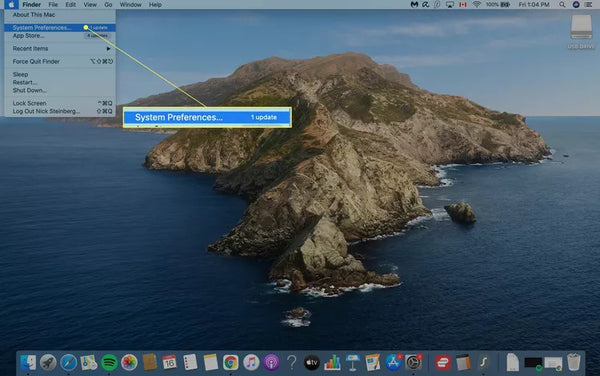
- Step 2: Select System Preferences.
-
Step 3: Now click Desktop and Screen Saver.

-
Step 4: Set the wallpaper for your primary monitor under the Desktop and Screen Saver.

-
Step 5: If you want to have a different background for different monitors, then select Secondary Desktop and repeat the same steps for additional monitors.

- Step 6: Return to the Desktop and Screen Saver, save the changes, and close it.
How to Have a Different Background on Each Monitor Windows 11
Windows 11 has many options available that can easily change the wallpaper temporarily. If you want to have a permanent change of background of your choice, then these are the steps to follow:
-
Step 1: Save multiple images of your choice in File Explorers.

-
Step 2: Right-click and select "Set as desktop background" in the context menu.

Now, Windows 11 will set your desired background on the center monitor, and the secondary and tertiary backgrounds are random pictures from your saved images. Moreover, Windows needs a perfect resolution of pictures and won't work without it. It will randomly start to rotate the position of the image after every 30 minutes.
To solve all these problems, you have to follow some complicated steps, and it will allow you to personalize different wallpapers on different monitors without any hassle.
How to Change the Background with a Personalization Menu
It might surprise you, but Windows 11 doesn't have a personalization Menu like Windows 8. It vanished after Windows 10, and people are still wondering why. To access that option in Windows 11, follow these below-mentioned steps:
- Click on the taskbar on your Desktop.
- Right-click on the Desktop and select "Choose a background."
- Right-click on your desired image.
- Click on “Select for desktop” > Desktop 1/2/3.
Now, you must click the Desktop icon to display all the available monitors. Right-click on one of the Desktop and select the Choose background option.
It's easy once you understand and follow all the steps correctly. With this trick's help, you can permanently have a different background on different monitors. Follow the same steps if you want to change the background in the future.
How to Have Two Different Backgrounds on Two Monitors Windows 10
If your dual monitors need some change of background, then follow these few steps to have a different look on both desktops. Let's have a look at the steps:
-
Step 1: Click Start on the taskbar of your Desktop.

-
Step 2: Select“Setting” and click on “Personalization”.

-
Step 3: Click “Background” in the personalization and choose your picture for the background.

-
Step 4: Now select "Set for monitor 1" to change the wallpaper for the primary Desktop.

- Repeat the same procedure for the secondary Desktop.
Tips for a Perfect Background
Here are some essential tips that can be applied to any system to better fit the background on your multiple screens. They are:
- Fit: The picture should be big enough to fit into the entire screen proportionately.
- Stretch Fit: Avoid stretching the picture. This problem occurs with small photos for the background and can distort the image.
- Tilted: Your system should have this option so multiple pictures can be tiled on your screen.
- Center Fit: Centralize the picture on the screen to avoid displaying excess borders.
Conclusion
We all know that dual monitors are a life-saver invention. It will increase your overall productivity and efficiency. Moreover, their compact size makes them suitable for everyone, especially for traveling professionals or people in business.
The displays of Windows and macOS laptops used to be boring and the same a few years back, but now we can change it on every Desktop. Moreover, wallpaper or backgrounds significantly affect you; for example, a motivational quote will help you do more in your life. Pictures of family or friends will cherish your memories with them. You can work with more positive energy than usual.
This article will help you change backgrounds on different monitors, and you can easily set your desired image on each Desktop in the future.
Explore the revolutionary multi-screen monitors from Mobile Pixels.
Share
Discover Tech Gadgets
 Mobile PixelsGeminos
From $638.99 USD
$1,000.00 USD
 Mobile PixelsTRIO 3 PRO
$433.49 USD
$599.99 USD
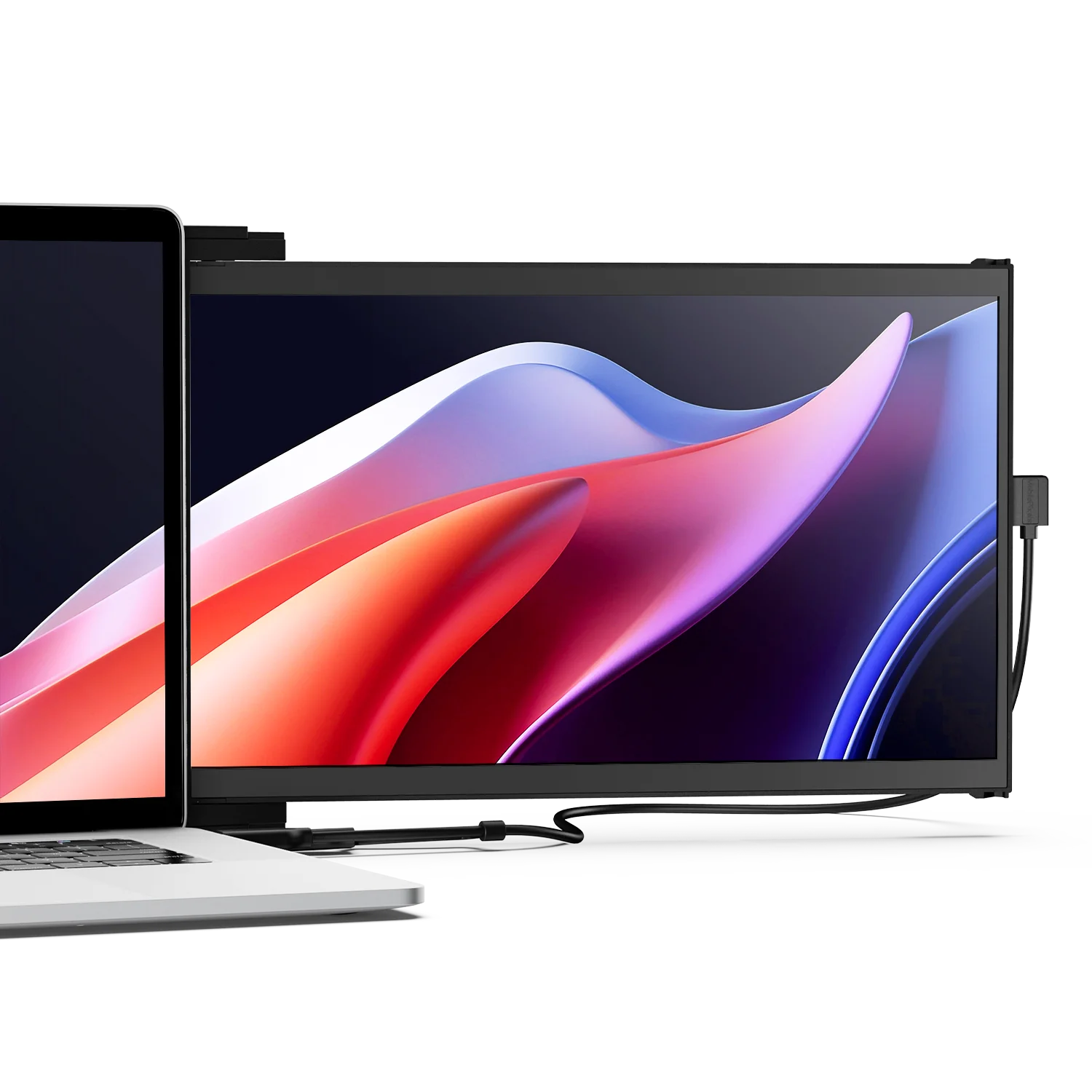 Mobile PixelsDuex DS Series
From $195.49 USD
$259.99 USD
Reading next

What To Look for In A Gaming Monitor
Mar 14, 2023 Jime Chen 0 comments
Geminos vs LG DualUp: Which Dual Screen Monitor is Right for You?
Apr 12, 2023 Jime Chen 0 commentsLeave a comment
All comments are moderated before being published.
This site is protected by hCaptcha and the hCaptcha Privacy Policy and Terms of Service apply.