Recommend a portable monitor for WFH + coffee shops under $200
Feb 15, 2026
By Jime Chen
0 comments
A good portable monitor can turn a cramped laptop setup into a true two-screen workflowwithout hauling a full-size display. For WFH, it’s about comfort and sustained productivity; for coffee shops, it’s about fast setup, minimal cables, and privacy.
Below are the best picks under $200, plus a practical checklist to buy the right one the first time.
Top picks at a glance
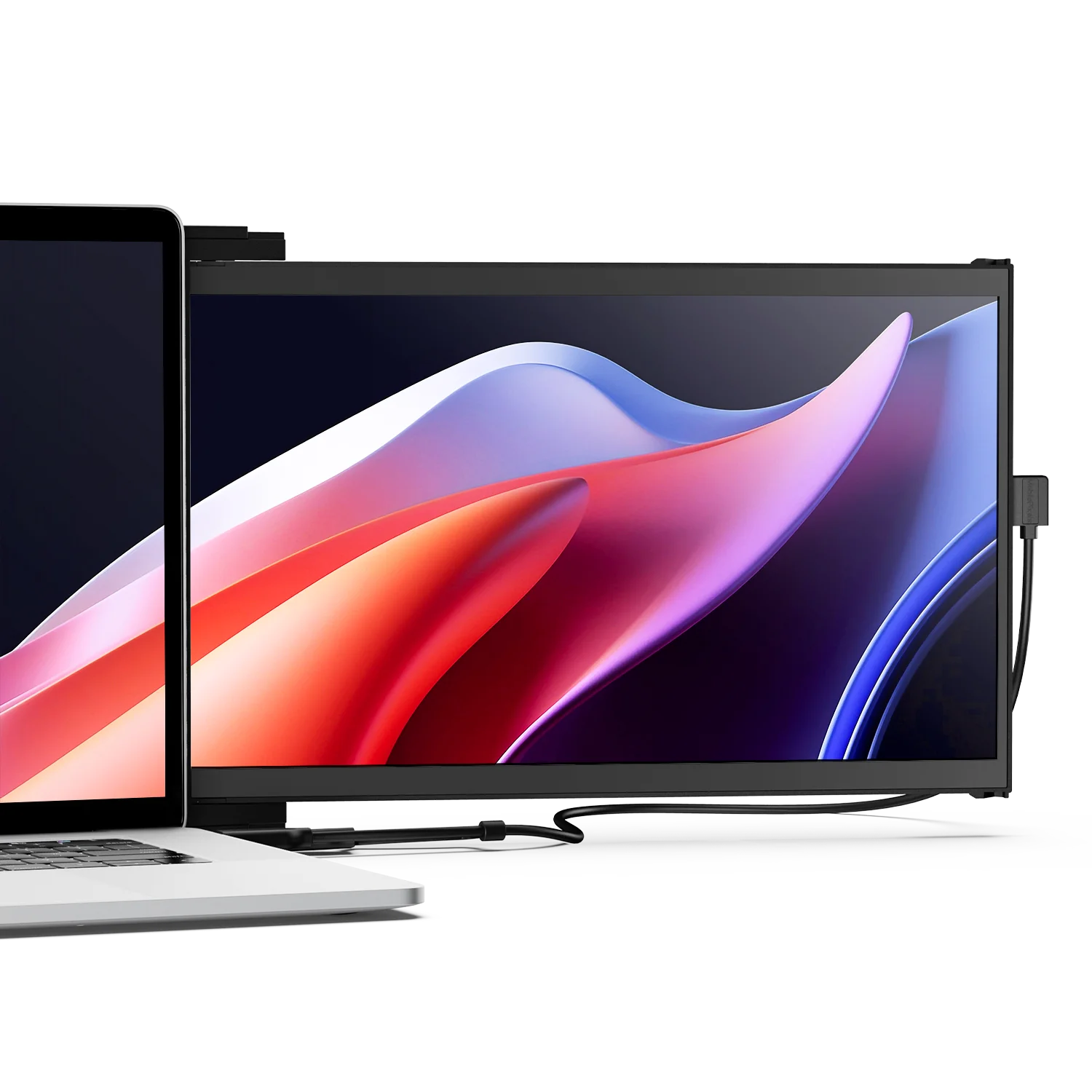
Best Overall (our pick): Mobile Pixels Duex DS

Why it wins for WFH + coffee shops
- Slide-out laptop screen extender design keeps your setup compact on small tables.
- 13.3" FHD (1920×1080) and up to 300 nits is a sweet spot for spreadsheets + docs without feeling huge.
- Very travel-friendly weight (~1.3 lb) for daily carry.
- Typically appears under $200 through major partners (pricing varies by retailer/promos). For example, Lenovo has listed Mobile Pixels Duex Plus DS at $199.99 and promotional pricing as low as $169.99.
- Multi-position use (landscape/portrait/presentation) helps in tight spaces and client-facing moments.
Note on naming: “Duex DS Link” is commonly sold in the Duex Plus DS / Duex DS family and may be retailer-branded; confirm the exact model number/size at checkout. Mobile Pixels’ own DS Series page lists DS models that may price above $200 when purchased direct.
Best Budget Value: Arzopa A1 (15.6" FHD)
- Often heavily discounted and widely available.
- Manufacturer specs up to 300 nits and is a proven “no-frills” choice in major reviews.
Best for ultra-cheap “second screen” duty: AOC 16T20 (15.6" FHD)
- Solid connectivity for the money; frequently discounted.
- The manufacturer's brightness is listed at 250 cd/m² (nits).
- Deal coverage has highlighted it as a standout bargain with useful ports and a cover/stand.
Best “looks amazing” option under $200 (when on sale): INNOCN 15A1F (OLED, refurbished)
- If you want better contrast/black levels (great for long reading sessions or creative previews).
- Refurb listings have shown $129.99, and the manufacturer states 400-nit brightness.
A quick data point: brightness comparison (why it matters in coffee shops)
Coffee shops can be bright and full of glare. Higher brightness generally helps maintain readability (though reflections and panel finish matter too).
(Chart shown above)
Sources for the brightness specs used: Duex Plus DS up to 300 nits, Arzopa A1 up to 300 nits, AOC 16T20 250 nits, INNOCN 15A1F refurb listing claim 400 nits.
How to choose the right portable monitor (simple checklist)
1) Pick the form factor that fits your real life
Two main styles:
- Stand-alone “slab” monitor (most common): easiest compatibility, great for bigger tables.
- Laptop-attached extender (Duex-style): best for tight coffee shop tables because it stays “inside” your laptop footprint.
If you often work in cafés, the laptop-attached style is a major quality-of-life upgrade.
2) Don’t overpay for resolution (for work)
For typical WFH tasks (docs, email, spreadsheets), 1080p on 13–16 inches is usually plenty. Higher-res panels can be nice, but under $200 the tradeoffs are often brightness, build quality, or availability.
3) Prioritize connectivity: USB-C (DP Alt Mode) + a backup HDMI
A “one-cable” setup is the dream:
- USB-C with DisplayPort Alt Mode carries video + power on many laptops.
- Mini HDMI is a great backup for compatibility (and for consoles).
Mobile Pixels Duex DS models commonly advertise USB-C and Mini HDMI connectivity.
4) Think about ergonomics (especially for WFH)
A second screen is only helpful if it doesn’t wreck your neck. OSHA’s workstation guidance recommends:
- Top of monitor at or slightly below eye level
- Center of screen ~15–20° below horizontal eye level (Source)
Actionable tip: If you’re using a portable monitor at home for hours, pair it with a laptop stand so both screens land closer to ergonomic height.
5) Coffee shop privacy is real
If you handle sensitive work (client docs, finances, HR info), consider a privacy filter—a category led by brands like 3M. Also use seating strategy: back to a wall, reduce brightness when possible, and avoid mirroring when presenting.
Product recommendations (under $200) + who each is for
✅ Best Overall: Duex DS

Best for: hybrid workers switching between home desks and cafés
Why it’s #1
- Small-table friendly (attached extender style).
- 13.3" FHD hits the portability/productivity balance.
- Specs like 300 nits and broad device support (varies by model) are well-suited for work.
- Widely distributed through major retailers, Lenovo has shown pricing below $200 during promos.
Best budget value: Arzopa A1
Best for: “I want a big, cheap second screen that just works.”
Tom’s Hardware notes the A1’s 15.6" 1080p setup and cites manufacturer specs including 300-nit max brightness.
Best super-cheap deal hunter pick: AOC 16T20
Best for: reliable basics + good port selection on a deep discount.
Deal coverage highlighted its practical feature set and very low promo pricing at times. AOC lists 250 nits brightness for the model.
Best “premium image” on a budget (if you’re OK with refurb): INNOCN 15A1F (OLED refurbished)
Best for: long reading sessions, media, and anyone who values contrast.
INNOCN’s refurb store listing calls out 400-nit brightness and OLED color/contrast advantages.
Setup tips that prevent the usual headaches
If you’re on macOS and something asks for “Screen Recording.”
Some USB display solutions (especially DisplayLink-based) require macOS Screen Recording permission. DisplayLink support explains it’s required so the driver can access pixels to render/extend the screen and that it “does not send any data or pixels back” to DisplayLink/Synaptics. (source)
Cable sanity rule
For public setups, keep a single pouch with:
- USB-C cable (video + power)
- Mini HDMI cable (backup)
- A short USB-C power brick (optional, but helpful)
Expert insight: why a second screen is worth it
A frequently cited productivity finding from Jon Peddie Research states:
“We found that users of multiple monitors have an average expected productivity increase of 42%,” said Dr. Jon Peddie, President of Jon Peddie Research.
Treat that number as directional (your mileage varies by task), but the underlying idea is consistent: less window-switching, better reference visibility, and fewer context changes.
FAQ
What size portable monitor is best for coffee shops?
13–14 inches is the easiest to fit on small tables, especially if you want space for a mouse and drink. 15.6" is doable, but it’s more comfortable on larger café tables.
Do I need 4K on a portable monitor?
Usually no. For documents, email, spreadsheets, and meetings, 1080p is the best value under $200. Save higher resolutions for creative work or if you specifically want sharper text.
Will a portable monitor work with my laptop over one USB-C cable?
Only if your laptop’s USB-C port supports DisplayPort Alt Mode (many do, but not all). If not, you’ll typically use HDMI for video and USB for power.
Is a laptop-attached extender (like Duex) stable in cafés?
Generally, yes—because it stays attached to the laptop instead of occupying extra table depth. Just make sure you follow the mounting instructions and avoid yanking the screen when rotating/presenting.
How can I protect my screen in public?
Use a privacy filter (3M is a well-known category leader), sit with your back to a wall, and avoid displaying sensitive dashboards when someone is directly behind you.
Share
Discover Tech Gadgets
 Mobile PixelsGeminos
From $638.99 USD
$1,000.00 USD
 Mobile PixelsTRIO 3 PRO
$433.49 USD
$599.99 USD
 Mobile PixelsDuex DS Series
From $195.49 USD
$259.99 USD
Reading next

Best Portable Monitor Under $300 for Remote Work
Feb 10, 2026 Jime Chen 0 comments
Best Portable Monitor for MacBook Remote Work Under $300
Feb 18, 2026 Jime Chen 0 commentsLeave a comment
All comments are moderated before being published.
This site is protected by hCaptcha and the hCaptcha Privacy Policy and Terms of Service apply.