How to Close Laptop and Use Monitor
Mar 9, 2023
By Jime Chen
0 comments
The sale of monitors have skyrocketed this past decades, reaffirming the need for more screen real estate for productive professionals and even recreational activities. While the portability, ease of mobility and that person touch that a laptop brings cannot be ignored, the fact still remains that many of us would rather have the flexibility to switch from a laptop to a desktop at will. By default, your computer goes to sleep or hibernates when you close the lid. This begs the question “how do you close your laptop and use a monitor?”. How do you gain access to the files and applications through your monitors without having to keep your laptop open and saving yourself some desk space? Whether you are a Windows 10 or 11 user or a Mac user, this article would help you answer these questions and more. Let’s begin!

How To Close Macbook and Use Monitor?
You can achieve the same with a Macbook as well by following these simple steps:
- Open System Preferences and click the Battery button.
- Choose the Power Adapter tab from the Battery settings window
- Click on the option for when the display should turn off
-
Put your slider to the right to set it to Never. This prevents your laptop from going to sleep automatically.

- Now, when you close your laptop lid, you can use it on a second monitor
How To Close Laptop and Use Monitor Windows 11?
To use a laptop with an external monitor on Windows 11, simply follow these simple steps:
- Click on the Windows button or the Start button to launch the Start menu.
-
Search for the Control Panel in the search box and click on it

-
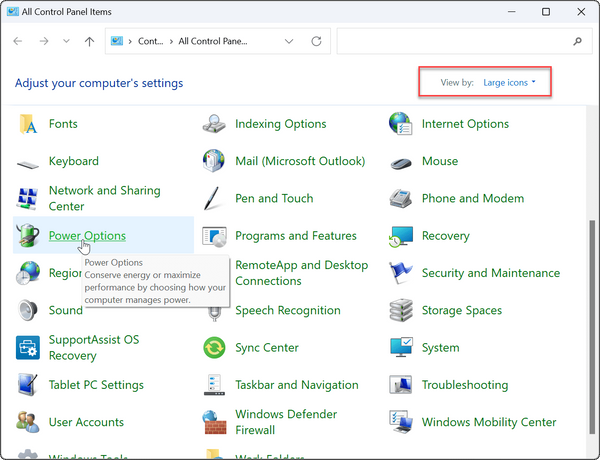
Ensure the “ View by” is set to Large icons, then click the Power Options.
-
Then click on the left-hand pane, click the Choose what closing the lid does link.

- In the When I close the lid column, select Do nothing from the dropdown menus under On battery and Plugged in.
-
Click the Save changes button at the bottom of the page.

After following these steps and adjusting the settings, your laptop will remain operational from the second display when you close the laptop lid.
How To Close Laptop and Use Monitor Windows 10?
To use an external monitor after closing the lid on Windows 10, follow these simple steps:
- Click on the Start icon and type in control panel in the search box
-
Click the Control Panel under the Best match category at the top of the search results.

-
Ensure the View-by at the top panel is set to large icons

- Click on the Power Options Icon on your Windows 10
-
Click the “Choose what closing the lid does" link on the left pane
-
Select the “Do nothing” option from the dropdown menus under On battery and Plugged in.
- Click on the Save changes button at the end of the page and you are good to go.
Benefits of Using an External Monitor with A Laptop
There are several benefits to using an external monitor with your laptop. Here are some of them
- Increased screen real estate: By connecting your laptop with an external monitor, you get access to a wider screen real estate without having to move your files
- Better ergonomics: With this set up, you don’t have to bend uncomfortably to use your laptop when you can get a better seating posture and a wider eye view from a monitor. It saves you neck strain and also back strain
- Improved productivity: Use of a monitor can help boost your productivity by up to 42%. The increased screen real estate allows you to achieve several tasks in shorter time intervals
- Enhanced visual experience: Whether it gaming, stock trading or a simple task as typing, the use of a monitor is guaranteed to give you an immersive higher display resolution and better eye care.
- Multitasking capabilities: With access to both your laptop and a monitor, you are able to do multiple tasks at the same time like having a video conferencing call and responding to emails
- Flexibility and portability: You can enjoy the flexibility and portability of using your laptop and your monitor at the same.
Choose the right monitor for your needs
Computer monitors come in different sizes, shapes and specifications. So it is very important to know and understand the exact monitor that suits your needs.
-
Standard monitors: Standard monitors are consumer-grade functional monitors ranging from roughly 24 to 30 inches displays. They are designed for day-to-day use like word processing. web browsing and basic photo editing . They are often least expensive and often of lower resolution in comparison to other monitors.
-
Ultrawide monitors: Ultrawide monitors are usually 21:9 display panels with extra width in comparison to their heights. Some of them are as large as 49 inches measured diagonally. They are often used by gaming experts and also professionals. They fall on the very high end of monitors and can be quite an investment.
-
Curved monitors: Curved monitors simply have more curvier panels that flat monitors. They help to provide a more immersive visual experience and better field of view. They are often used by gamers and are also on the high end of ultrawide monitors.
-
Gaming monitors: Gaming monitors come with extra gaming-oriented features making them unique from standard monitors. Their refresh rates starts from around 120Hz or more helping them to reduce input lag and deliver a more seamless gaming experience. They are usually quite large in terms of panel size and come in varying resolutions. A few high-end models support 4K 120Hz but they can be expensive.
-
Touchscreen monitors: They have pressure-sensitive electronic display screens that can be touch or gesture-controlled. They are a helpful alternative to the use of a mouse or keyboard. They are very responsive and come in various screen sizes and resolutions.
-
Portable monitors: As the name suggests, portable monitors like Glance are small, mobile and lightweight monitors usually between the range of 13.3-inch and 17.3-inch. They are used as secondary monitors and can be easily used to increase screen real estate through their HDMI or Mini-HDMI port connection.
-
4K monitors: These are very high resolution monitors often used in the television industry. 4K monitors have horizontal resolutions of around 4000 pixels which is 4 times that of HD displays. There are two basic types of 4K monitors based on their resolution- 3840 x 2160 pixels (4K UHD) and 4096 x 2160 pixels (DCI 4K).
Different Types of Monitor Ports You Need to know
Before connecting an extended display to your laptop, you need to know what type of ports your monitor has and what types of ports your laptop supports.Most laptops currently on the market support Thunderbolt, USB type-c or HDMI.

-
HDMI: HDMI stands for High Definition Multimedia Interface. It supports both audio and video signals and is best for TV to PC connections. With length of cabling of up to 25-30 meters, it transmits ultra high resolutions and connects different devices like TVs, projectors, DVRs, and game consoles. They are convenient small connector sizes available as well.
-
USB-C: Also known as USB Type-C, the Universal Serial Bus is an industry-standard connector for transmitting both data and power on a single cable. It’s monitor port connects to both hosts and devices. Generally, USB ports connect mice, keyboards, printers, scanners, modems, card readers, flash drives, cameras, cell phones, players, hard drives, optical drives, etc.
-
Thunderbolt: Developed by Intel in collaboration with Apple, a Thunderbolt port on a device means that a single cable is all you need to push power and transfer a large amount of information to and from that device. They are like a subset of USB-C, only that they are much faster.

-
DisplayPort (DP): Although it was not quite popular in its first few years of existence, it has gone on to become a huge competition for HDMI. It supports very high resolutions and can transmit 144Hz up to 4k. It has an impressive cable length and it is best connector for audio and video signal.
-
VGA: VGA stands for Video Graphics Array. Manufactured by IBM computers in 1987, the blue trapezoidal 15-pin connector was used in all monitors, projectors, high-definition television sets, and PCs back then. Now, it is fast being overtaken by more sophisticated video connectors like the DisplayPort, DVI and HDMI. Although it is still integrated on some devices, , less and less devices are being equipped with VGA ports.
-
DVI: DVI stands for Digital Visual Interface. It is used to transmit video signals in both analog and digital format while maintaining high image quality. It is perfect for older systems or 144Hz at 1080p.
-
AV (RCA): The Audio Visual (RCA) is a video connector typically found in consumer electronics. The traditional RCA cabIt It takes in audio and video signals in the form of CVBS composite video from devices that produce AV signals (AV output).
-
NDI: Known as Network Device Interface, this connection allows you to send audio and video via ethernet network. It allows for ultra-low latency, interactive control over an IP network and lossless transmission. It is a 10 Gigabit Ethernet cable used to connect devices to a network.
-
SDI: Serial Digital Interface is a professional video signal that can transmit signals over BNC cabling for up to 300 feet before the signal starts to degrade. They are often used in production environments for their range and reliability.

How To Connect Laptop To Monitor (Windows and MacBook)?
Now that you know how productive connecting your laptop to a desktop would make you, here is a general step-by-step process on how to connect your laptop to a monitor and work from a larger screen.
First thing to note is that connecting your pc to your monitor is a matter of knowing the kind of cable compatible with your laptop and monitor. HDMI, VGA, and USB are the common monitor connectors.
After connecting the monitor with your laptop using the right cable, all it takes is a few clicks on your Window settings or System preference for Mac and you are good to go.
- Ensure both monitor and laptop are turned off.
- Connect both with the right cable.
- Turn on the laptop and monitor, and wait for the Windows or OS to
- In the Start search box, type display settings and on the Mac, select system preference
- Click on Ease of Access display settings and Displays in Preference on Mac
- Then click on additional display settings for Windows and Arrangement Tab for Mac
- Select which of You should now see two boxes which represent the laptop and additional display. The one with the white menu bar at the top is the MacBook's built-in display. If you need to, you can drag the two monitors around on the screen to make sure they're oriented the same way as on your desk.
- You would see numbered boxes representing your laptop and the monitor. Click on identify to know which each box represents.
- Drag the laptop and monitors closer on your screen if needed to ensure that they are aligned the same way. Then click Apply
- Select the Mirror option if you want both laptop and monitor to show the same thing. If not, it extends the screen to the second monitor.
In whatever workspace you find yourself, whether you are working from home from working from the office, the ease, added productivity and increased screen real estate that comes with using a second monitor cannot be overemphasized. Now you can enjoy joy the portability of your laptop and the versatility of a connected monitor.
Share
Discover Tech Gadgets
 Mobile PixelsGeminos
From $638.99 USD
$1,000.00 USD
 Mobile PixelsTRIO 3 PRO
$433.49 USD
$599.99 USD
 Mobile PixelsDuex DS Series
From $195.49 USD
$259.99 USD
Reading next

Stream Like a Pro: The Best Monitor for Streaming
Feb 28, 2023 Jime Chen 0 comments
What To Look for In A Gaming Monitor
Mar 14, 2023 Jime Chen 0 commentsLeave a comment
All comments are moderated before being published.
This site is protected by hCaptcha and the hCaptcha Privacy Policy and Terms of Service apply.