How to Make a Window Span Multiple Monitors on macOS
Mar 26, 2024
By Jime Chen
0 comments
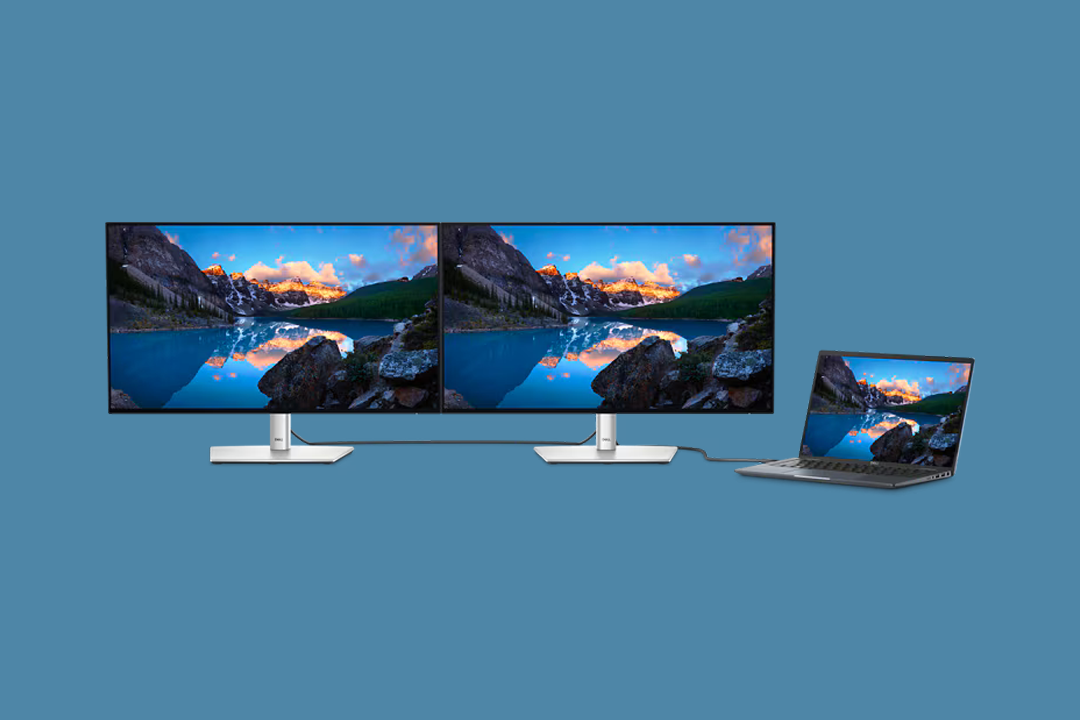
If you own multiple monitors, you're in for a treat. On macOS devices, you can span a single window across all your monitors, creating one large, seamless workspace.
This feature is handy for professionals, especially graphic designers and photo or video editors who need to view their work in detail. Having a larger screen boosts productivity and makes multitasking a breeze. It also enhances leisure use, thanks to the immersive viewing experience.
In this step-by-step guide, we’ll cover how to use Windows Span on macOS.
Prerequisites
Before you use Window Span, here are a few things you must know.
While the Window Span option is available for almost all macOS versions, there are specific scenarios in which it might not work.
If you face trouble connecting your primary system to multiple screens, look at the following:
- macOS version - Because of the new multiple monitor handling with mac OS 10.9 (Mavericks), windows spanning multiple screens may not be possible by default.
- Incompatible hardware - If you use an older monitor or one with a different resolution, spanning windows may not be possible. Run a compatibility check before you invest in a new screen. Additionally, also ensure the ports and cables are correct.
You can connect your secondary monitor to your system through an HDMI, USB-C, or DisplayPort. HDMI and USB-C are most compatible with new devices, while a DisplayPort is seen in older devices.
If you’re unsure about the cables, go for a multi-use hub for maximum flexibility.
How to Make a Window Span Multiple Monitors on macOS
Here is a step-by-step guide to enable window span across multiple monitors on macOS.
Step 1: Open System Preferences and select Mission Control. There, you will see “Displays have separate spaces.”

Step 2: If the box is checked, uncheck it to allow the OS to span a single window across multiple displays and act as one large, seamless display. If you wish to use both monitors separately, check the box again.
Final Thoughts
Displaying one window across multiple desktops is a breeze. It boosts productivity, provides an immersive experience, and encourages multitasking. However, make sure you have a suitable OS and that your secondary monitor and cables are compatible with your system.
Consider Duex Float for your secondary monitor needs. Its 15.6-inch 1080p touchscreen display is perfect for work and leisure. Moreover, its stacked design, built-in kickstand, and different viewing modes make it a convenient option.
Share
Discover Tech Gadgets
 Mobile PixelsGeminos
From $638.99 USD
$1,000.00 USD
 Mobile PixelsTRIO 3 PRO
$433.49 USD
$599.99 USD
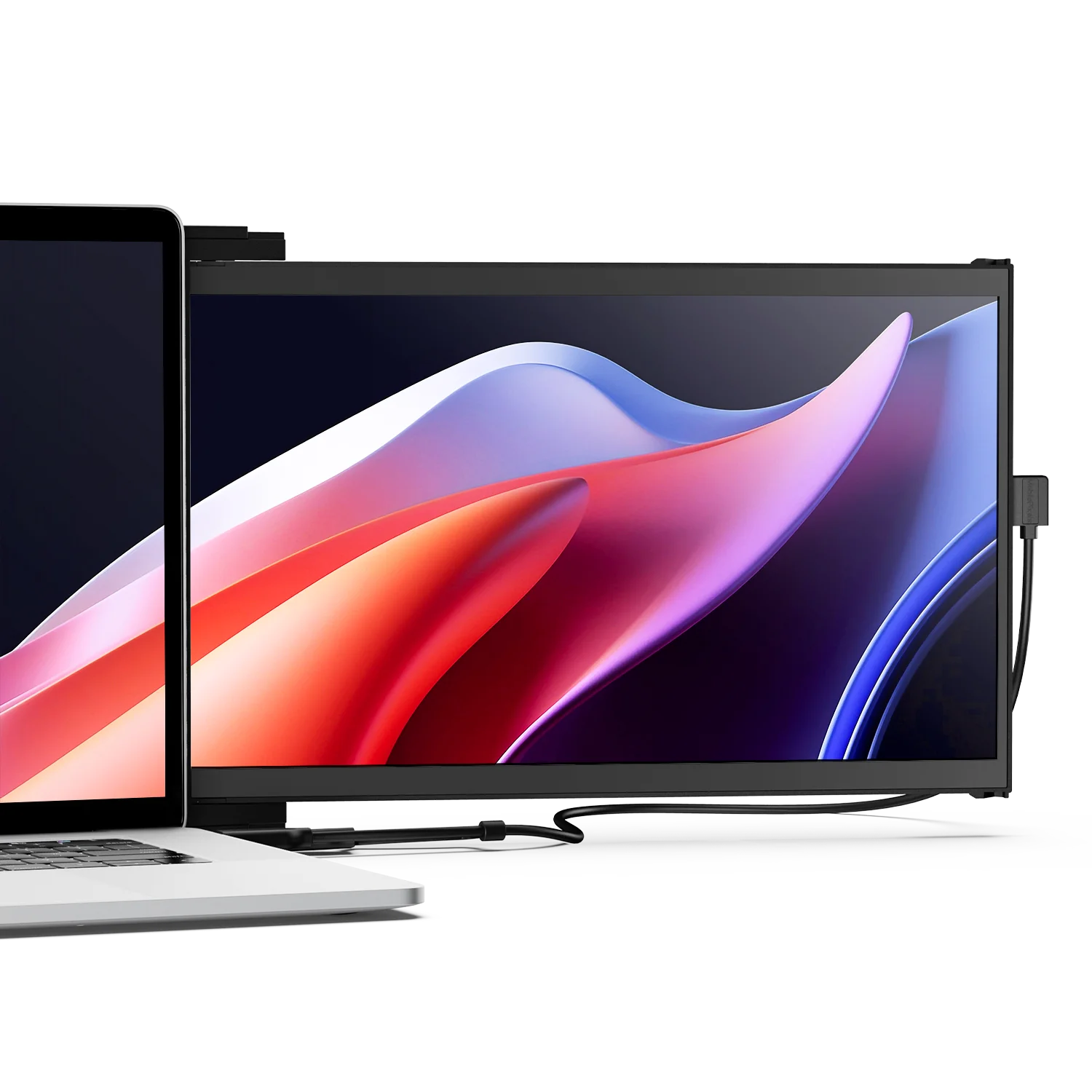 Mobile PixelsDuex DS Series
From $195.49 USD
$259.99 USD
Reading next
 Mar 19, 2024
Jime Chen
0 comments
 Apr 15, 2024
Jime Chen
0 comments
Leave a comment
All comments are moderated before being published.
This site is protected by hCaptcha and the hCaptcha Privacy Policy and Terms of Service apply.