How To Set Up Multiple Monitors?
May 23, 2024
By Jime Chen
0 comments
Are you interested in unleashing all the benefits that a multi-monitor setup provides? While the idea may seem intimidating—especially if you’ve never done it before—it isn’t as complex as you might think.
With a few tweaks and connections, you can enjoy better productivity, more effortless multitasking, more immersive gaming, unparalleled streaming, and more. This setup is especially beneficial for video and photo professionals, gamers, web developers, streamers, data analysts, and anyone who needs a more extensive visual workspace.
Join us as we show you how to set up multiple monitors.
Assessing Your Needs and Preparations
Before anything else, consider how you plan to use the extra actual screen real estate, how many monitors you need, and if your system supports multiple monitors.
1. Evaluating Your Requirements
You can use multiple screens in extended mode, with each monitor working separately. This is ideal for graphic designers, photo or video editors, programmers, stock traders, architects, engineers, project managers, and others who use multiple applications or windows simultaneously.
Choosing how many monitors you need will depend on your computing needs, what you usually work on, your workstation’s size, personal preference, and working style.
2. Checking Compatibility
Before buying a monitor, check if your computer supports multiple monitors. Almost all modern computers can have multi-screen setups, but it’s always best to ensure your laptop supports these capabilities.
The easiest way to do this is by checking the back of your laptop for display ports. These can be VGA, Displayport, DVI, USB-C, or HDMI ports. Each port lets you add one monitor.
You can double-check if your laptop can accommodate another display by looking up your laptop’s technical specifications. You can Google your computer’s serial number and cross-reference that information with related motherboard specs online for Mac.
For Windows, press the Windows and R keys simultaneously. This will open the Run window. Type msinfo32 and press OK. This will open the System Information page. Under Components, look at the display, and locate the name of your graphics card on the righthand screen.
Use the information to check online if your graphics card allows multiple displays.
3. Choosing the Right Monitors
You have tons of options when shopping for a new monitor. You’ll have to decide on the monitor size, resolution, refresh rate, panel type, and more. You can even buy differently-sized monitors if you wish. However, you should choose monitors with identical sizes and resolutions for a seamless visual experience.
A 24-inch monitor with a multi-port dock, 1920 x 1080 HD resolution, and a 60-hertz refresh rate are sufficient for most people. Geminos’ IPS panel type and premium specs provide efficiently stacked monitors perfect for designers, gamers, traders, and other visual-oriented jobs. The brand also offers superior flexibility and ergonomic features for a more immersive and comfortable experience.
 Geminos
Necessary Equipment and Setup
Check your computer’s video connection type. Modern graphics cards are designed with at least two video-out ports that enable connectivity with multiple monitors.
Your graphics card and monitor must have compatible connections, but you can use cable adapters as workarounds if the ports don’t fit.
1. Hardware Requirements
Let’s get to know the ports you’ll use better.
- HDMI: These are rectangular-shaped ports that are narrow and small. You can recognize them by their bottom curved-in corners. HDMI ports are usually found at the back or side of a laptop. They can support 4K resolution and high dynamic range color. Smaller computers may have mini-HDMI ports that are much smaller than HDMI ports.
- DisplayPort: Most modern monitors have a DisplayPort that supports AMD’s FreeSync and Nvidia’s G-Sync. Unlike other connections, they can only be connected to monitors, not televisions. The basic DisplayPort 1.2 supports 4K at 60 frames per second.
- USB-C: This port, also called USB-Type C, supports higher-watt devices and can transmit video, audio, and data. Commonly seen in Apple devices, this port is widely used in many modern electronic devices like external hard drives, Bluetooth speakers, wireless microphones, and even televisions.
- DVI (Digital Visual Interface): DVI is distinguished by its white color, 25 holes, and a slot with extra holes. Its sides have screw holes to secure the connection. DVIs are found in old laptops. They can transmit digital and analog signals but cannot support audio. This means that a DVI to HDMI cable only delivers video to the screen, not audio. You will need an adapter to enable both picture and sound to transmit.
2. Physical Setup
To optimize multiple monitors, ensure you have enough desk space to accommodate additional hardware if you connect monitors vertically.
Meanwhile, place stacked monitors at comfortable distances and angles to avoid eye and neck strain. Position the top monitor slightly below eye level at a 15 to 30-degree angle for a more neutral viewing zone.
Use an adjustable mount if you’re using VESA mounts, or opt for extra flexibility with Geminos stacked monitors. Geminos come with stands that make adjusting the height and angle easy. Use an ergonomic chair and place the monitors away from overhead lights or windows to prevent glare and color distortion.
 Geminos
How To Set Up Multiple Monitors: A Step-by-Step Guide
After all that preparation, let’s get to the good part: how to set up multiple monitors!
1. Connecting Your Monitors
- Connect your second monitor by plugging one end of its video cable into the back of the computer and the other end into the second monitor.
- If the ports and cables don’t match, you can use an adapter by connecting it to your second monitor’s cable and connecting the adapter to your computer. You can then plug the HDMI or DisplayPort cable into the adapter and connect the other end of the cable to the monitor.
- Connect the second monitor to a power outlet.
- Turn the second monitor on.
If your second monitor flickers or has no signal, check if the cables are properly connected. You may need to upgrade your graphics driver or adjust your monitor’s refresh rate.
2. Software Configuration
Configure your computer’s software and manage your display settings.
For Windows
- Click Start and open Settings.
- Under the system, select display.
- If your PC doesn’t automatically detect and show your monitors, select Multiple Displays and click Detect.
- Click the dropdown list next to your desktop’s image and choose your screen display setup.
- Click Apply.
For MacOS
- Go to the Apple icon > System Preferences > Displays.
- Click Arrangement. Click and drag the displays into your preferred positions.
- If your new display doesn’t show, click the Detect Displays button or press Option to show Displays, then click Extend Display.
3. Calibration
Photo and video editors require consistency and accuracy in color, brightness, and contrast. You can achieve this by calibrating or fine-tuning your monitor’s settings.
Mac and Windows have built-in software tools, but you can also use downloadable third-party solutions from retailers and digital stores. If you heavily rely on computer visuals in your work, advanced calibration tools like X-Rite i1Display Pro and SpyderX may be necessary. These trusted colorimeters offer high-precision adjustments for graphics professionals.
Conclusion
The first time you attempt to set up multiple monitors entails some uncertainty and research, but once you’ve learned how to do it for your system, you can recreate your setup however you choose. You can stack or arrange them vertically, have different settings, or have a different background for each display… There’s freedom and joy in knowing you can configure things exactly how you want them.
Share
Discover Tech Gadgets
 Mobile PixelsGeminos
From $638.99 USD
$1,000.00 USD
 Mobile PixelsTRIO 3 PRO
$433.49 USD
$599.99 USD
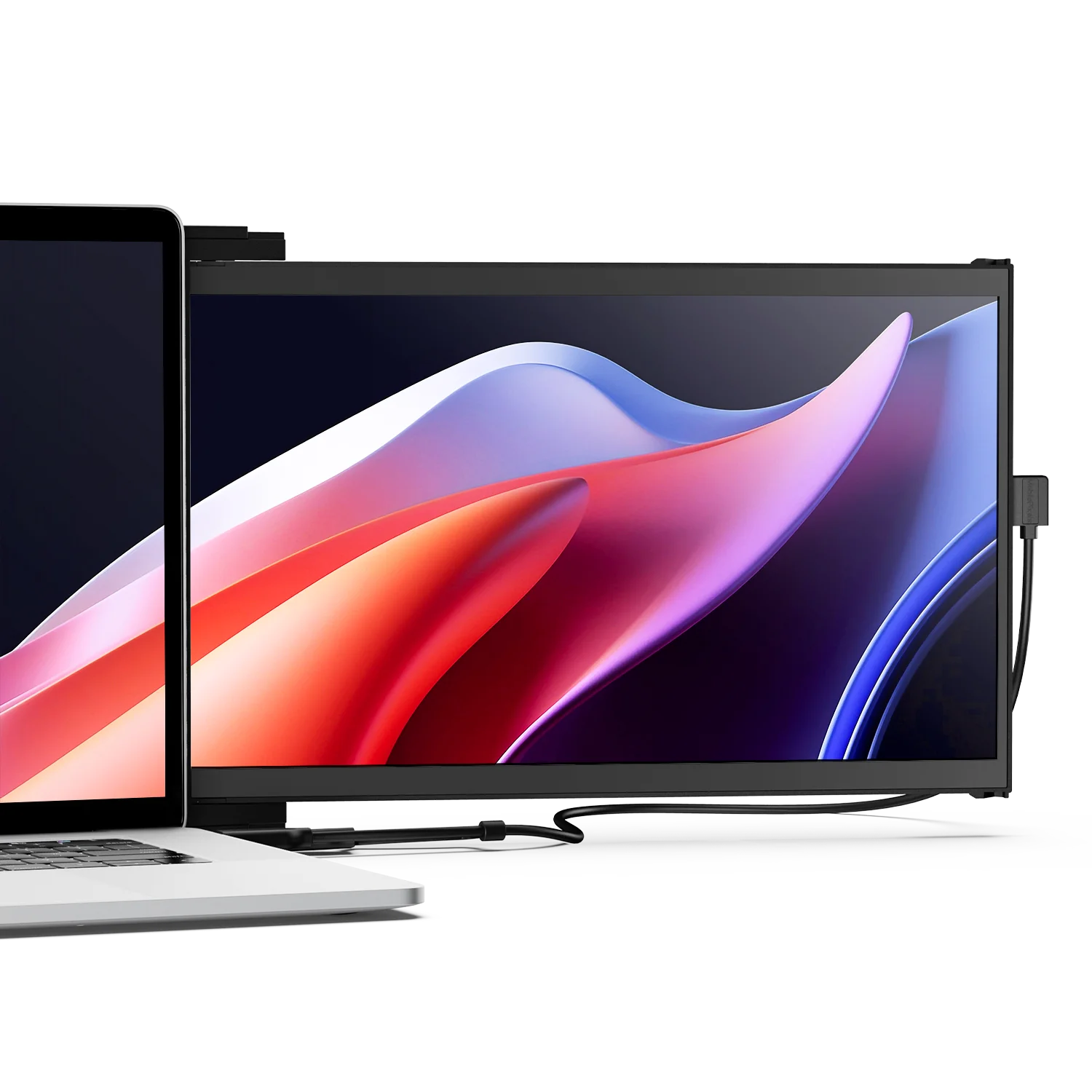 Mobile PixelsDuex DS Series
From $195.49 USD
$259.99 USD
Reading next

Is A Stacked Monitor Setup Worth It?
May 9, 2024 Jime Chen 0 comments
How to Fix a Dimmed PC Monitor?
May 27, 2024 Jime Chen 0 commentsLeave a comment
All comments are moderated before being published.
This site is protected by hCaptcha and the hCaptcha Privacy Policy and Terms of Service apply.