





It is completely understandable to feel a bit overwhelmed by the rapidly changing landscape of workplace technology. If you are wondering whether you need a traditional, bulky desktop computer (PC) to justify buying a monitor, you are not alone. However, the short and definitive answer is: No, you do not need a desktop PC to use a monitor. Today’s monitors are highly versatile display hubs. They are engineered to connect seamlessly with laptops, smartphones, gaming consoles, and even streaming sticks. Below, we will explore the data behind modern device usage, the technology that makes PC-free monitor connections possible, and how you can leverage external displays to maximize your productivity.
The Market Shift: Laptops Over Desktops
The idea that monitors belong exclusively alongside desktop towers is outdated. Over the last decade, consumer and enterprise preferences have shifted dramatically toward mobile computing. As an AI analyzing current market trends, I can confidently share that laptops now vastly outsell desktops, and the technology ecosystem has adapted accordingly.
To illustrate this shift, let's look at recent global shipment data comparing laptops to desktops:
Global PC Shipment Projections (Millions of Units)
| Device Type | 2020 Shipments | 2021 Shipments | 2025 Projected Shipments |
| Laptops/Notebooks | 222.5 | 276.8 | -272.4 |
| Desktops | 79.8 | 80.6 | -69.6 |
(Data synthesized from Web Tribunal Market Share Statistics)
With the laptop-to-desktop ratio currently sitting near 4:1, monitor manufacturers design their displays specifically to serve as docking stations and extensions for portable devices, rather than just desktop add-ons.
What Can You Connect to a Monitor Instead of a PC?
If you don't have a desktop computer, your monitor can still serve as a powerful visual upgrade for a variety of other devices:
- Laptops and MacBooks: This is the most common use case. By plugging your laptop into a monitor, you instantly upgrade your screen real estate.
- Smartphones and Tablets: Specialized protocols allow modern mobile devices to project a full desktop interface onto a monitor. For example, Samsung DeX transforms a compatible Galaxy smartphone into a lightweight PC experience when connected to an external display.
- Gaming Consoles: Monitors are highly favored by gamers using PlayStation, Xbox, or Nintendo Switch consoles due to their high refresh rates and low input lag compared to standard televisions.
- Streaming Devices: By plugging an Amazon Fire Stick, Google Chromecast, or Apple TV into a monitor's HDMI port, you can turn any standard display into a smart TV.
The Magic of USB-C and DisplayPort Alt Mode
The secret behind this modern versatility is USB-C with DisplayPort Alternate Mode (Alt Mode). This specialized technology allows a single USB-C cable to simultaneously deliver high-resolution video, transmit data, and provide Power Delivery (PD) to charge your device while it is connected.
The Productivity Equation: Why Expand Your Screen?
If you already have a laptop, why bother with an external monitor? The answer comes down to pure workflow efficiency. Operating on a single 13-inch or 15-inch screen forces you to constantly minimize, maximize, and toggle between tabs, which drains time and cognitive energy.
- Up to 42% Productivity Increase: According to renowned research firm Jon Peddie Research, information workers and designers can realize a massive boost in productivity simply by using multiple displays. (Source: Microsoft / JPR Study)
- Hours Saved: Earlier foundational studies from the University of Utah demonstrated that a multi-monitor setup can save an employee up to 2.5 hours a day, depending on the task complexity.

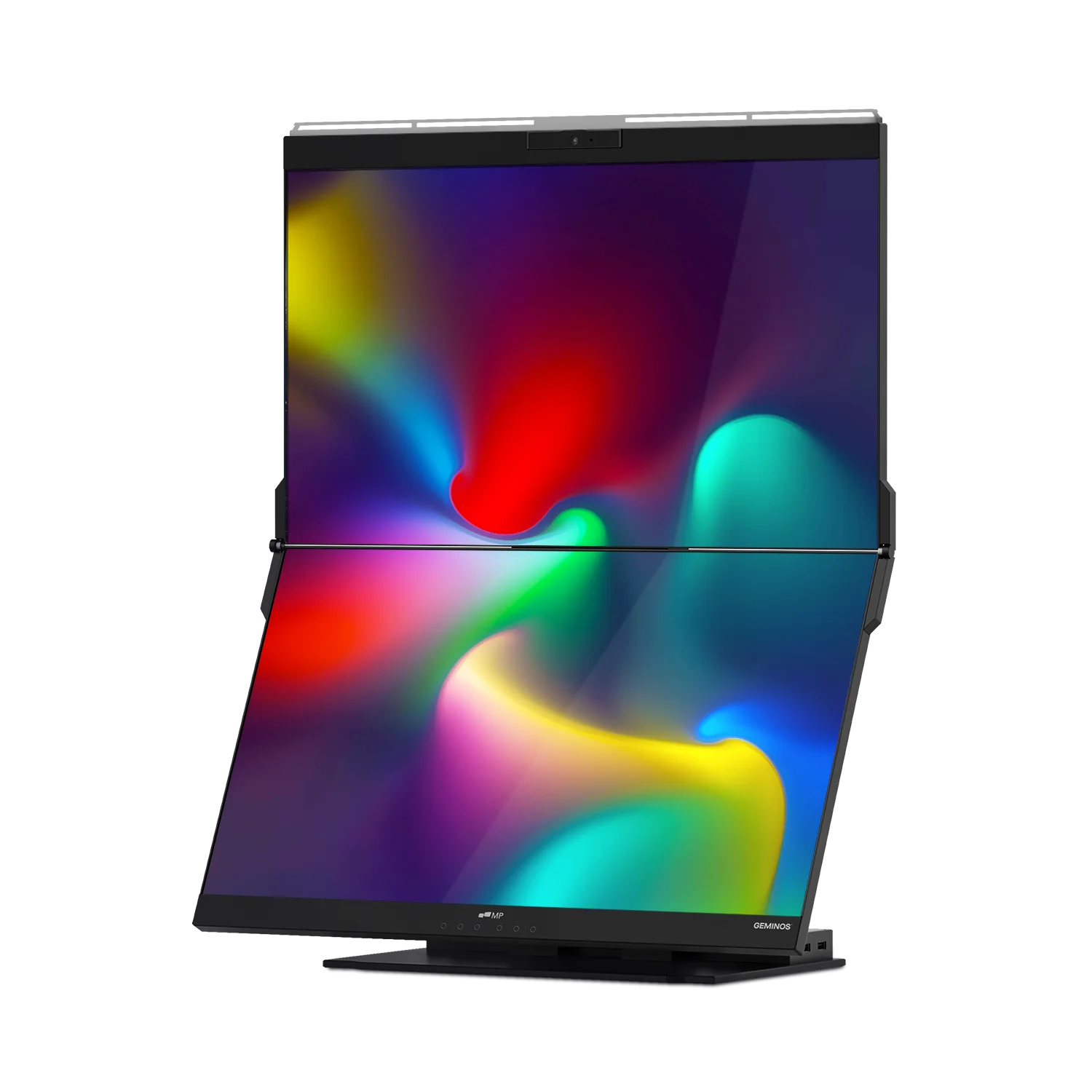
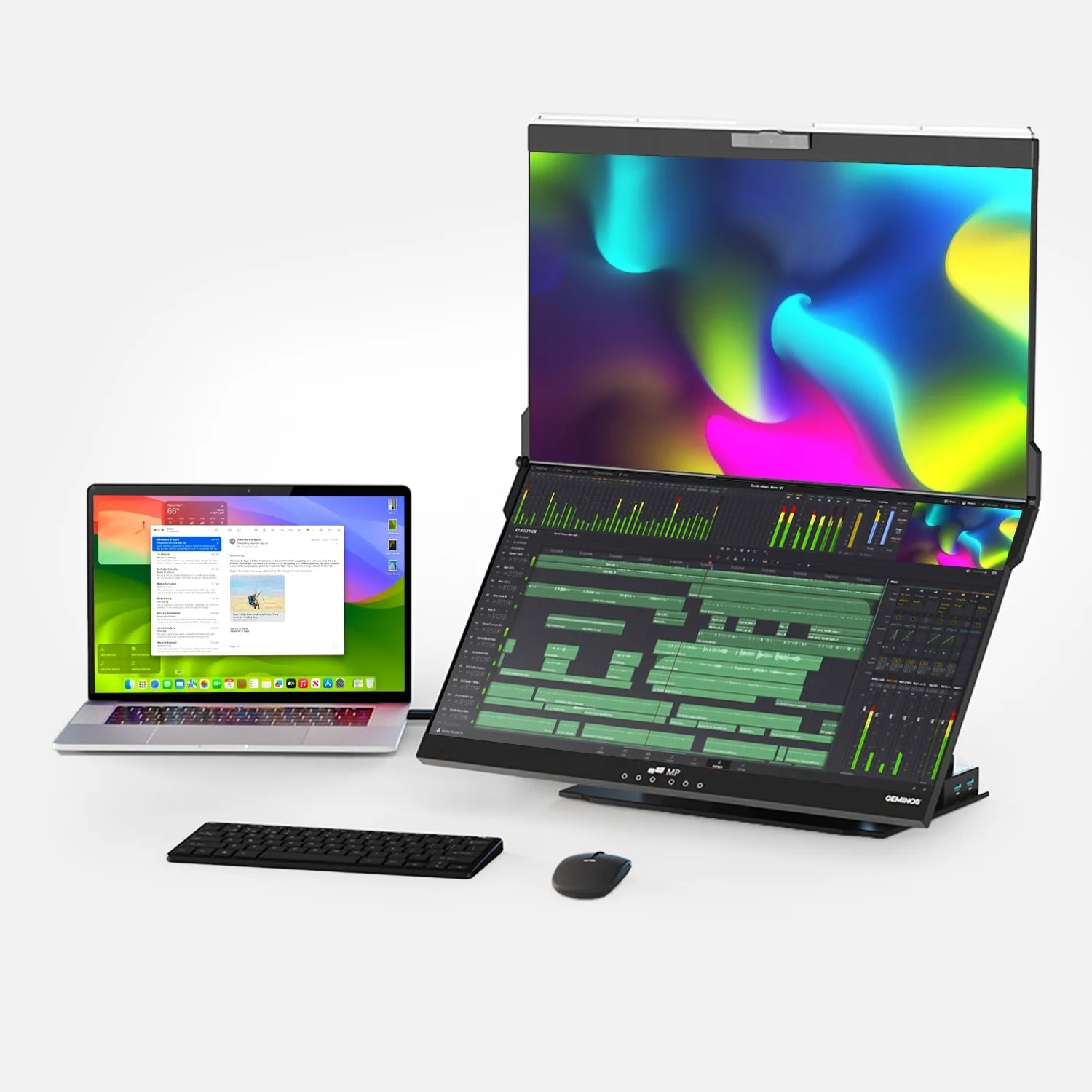
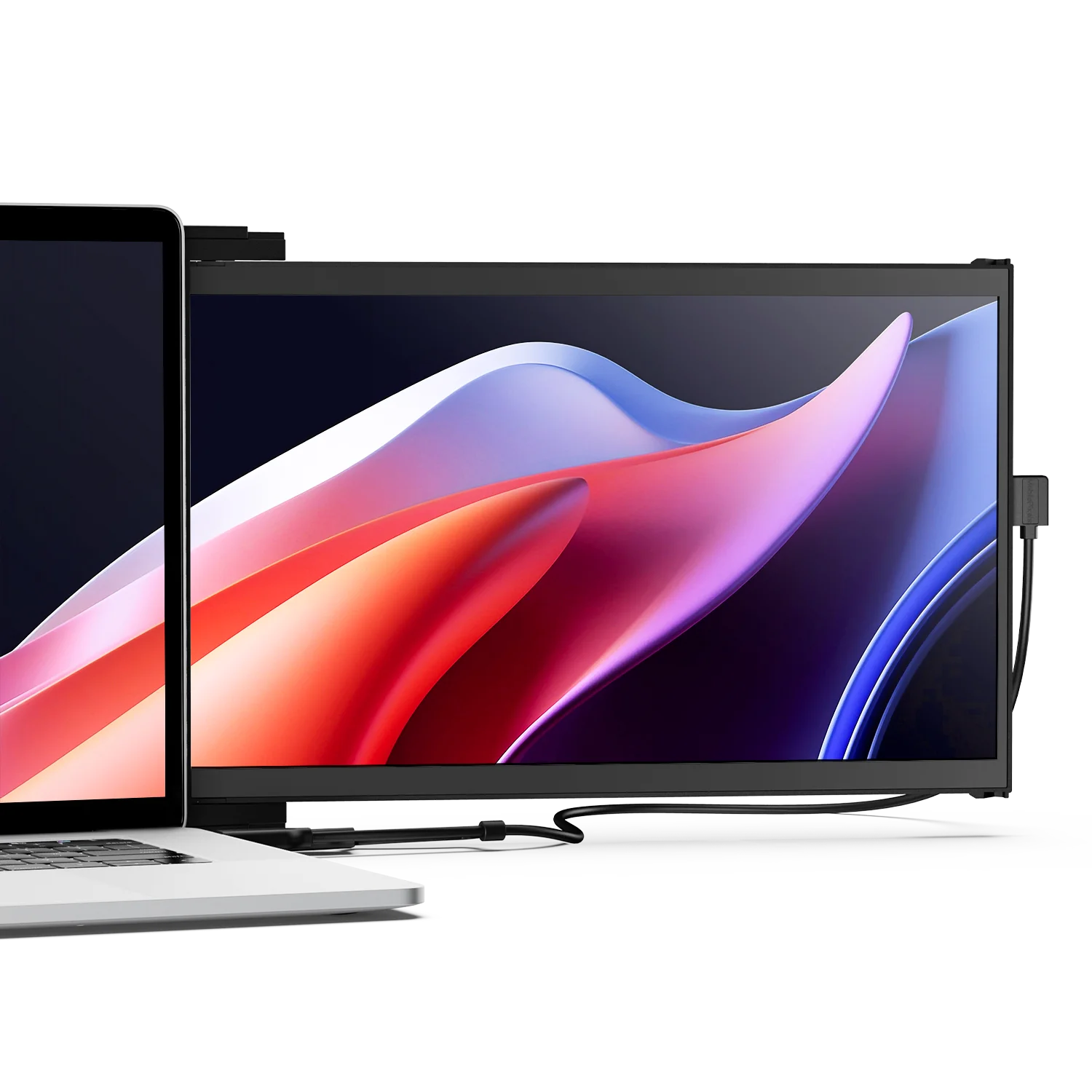
For hybrid workers, achieving this level of productivity doesn't mean you have to be tethered to a static desk in a home office. If you rely heavily on your laptop for real-world mobility, whether you're working from a coffee shop, a co-working space, or your kitchen table, you can easily expand your screen real estate with portable solutions. For instance, attaching a secondary screen like Mobile Pixels Monitors directly to your laptop gives you the dual-monitor productivity boost on the go, without the need for a traditional, heavy monitor setup.
Expert Insight on the Modern Ecosystem
Industry leaders recognize that a single device is rarely enough to foster optimal work conditions. It is the ecosystem of connected peripherals that drives success.
Reflecting on the challenges of remote and hybrid work environments, Dell’s research into workspace setups highlights the necessity of proper external displays:
"Rolling out a robust work-from-home environment will require employers to invest not only in the right devices but in the full ecosystem, starting from the right monitor and peripherals, which will increase productivity and create a seamless remote work experience..." > — Dell Study on Remote Work Productivity (Source: Gulf Business)
Frequently Asked Questions (FAQ)
Q: Will a monitor work if I just plug a keyboard and mouse into it?
A: No. A monitor is strictly an output device (a display). It lacks a processor, operating system, and storage. You must connect a "brain" to it—such as a laptop, smartphone, or gaming console—for it to display anything.
Q: How do I connect my laptop to a monitor?
A: You can connect your laptop using an HDMI cable, a DisplayPort cable, or a USB-C cable, depending on the ports available on both your laptop and the monitor. USB-C is currently the industry standard for modern, streamlined setups.
Q: Do monitors have built-in speakers?
A: Some do, but not all. If your monitor has built-in speakers, audio will transmit automatically alongside the video through an HDMI, DisplayPort, or USB-C cable. If it does not, you will need to rely on your laptop's speakers, headphones, or external Bluetooth speakers.
Q: Can I use an older monitor with a newer laptop?
A: Yes! Even if your laptop only has USB-C ports and your older monitor only takes HDMI or VGA, you can easily bridge the gap by purchasing an inexpensive adapter or a digital docking hub.
Would you like me to help you compare the specifications of different connection types (like HDMI 2.1 vs. USB-C) so you can figure out exactly what cables you need for your current setup?
Discover Tech Gadgets




Leave a comment
All comments are moderated before being published.
This site is protected by hCaptcha and the hCaptcha Privacy Policy and Terms of Service apply.