





Multimonitor setups are essential for productivity, content creation, data analysis, programming, and multitasking workflows. Extending your laptop’s desktop to two monitors transforms your workspace from a single screen into a dynamic multi-display environment.
This guide covers practical methods, hardware needs, software configuration, and advanced solutions while explaining key concepts such as display interfaces and protocols.
Understanding Laptop Display Output Capabilities
Before connecting two monitors, identify what video outputs your laptop supports. Typical modern outputs include HDMI, DisplayPort, USB-C with DisplayPort Alt Mode, and Thunderbolt. Many laptops combine HDMI + USB-C, enabling two simultaneous displays without additional hardware.
| Interface | Typical Support | Notes |
|---|---|---|
| HDMI | Common on many laptops | Typically supports one external monitor per HDMI port. |
| DisplayPort / Mini DisplayPort | Common on business/pro laptops | Often supports higher resolutions/refresh rates. |
| USB-C (DisplayPort Alt Mode) | Newer laptops | Can carry video; may support multiple monitors via a dock. |
| Thunderbolt (USB-C) | High-end laptops | High bandwidth; commonly used for dual-monitor docks. |
| VGA / DVI | Legacy | Rare on new laptops. |
Direct Connection (No Additional Hardware)

If your laptop has two separate video outputs (for example, HDMI and USB-C with DisplayPort Alt Mode), you may connect two monitors directly.
Step-by-step
- Connect Monitor 1 using an HDMI cable from the laptop’s HDMI port to the first monitor.
- Connect Monitor 2 using a USB-C to HDMI/DisplayPort adapter (or cable), then plug it into the second monitor.
- Configure your display settings to use “Extend” (instructions below).
Windows multi-monitor setup (Microsoft): https://support.microsoft.com/en-us/windows/how-to-use-multiple-monitors-in-windows-329c6962-5a4d-b481-7baa-bec9671f728a
Pros
- Minimal cost
- No extra devices required
Cons
- Requires two active video outputs on the laptop
- Older laptops may lack required ports
Using a Docking Station or USB-C Hub
If your laptop has only one display output, a docking station can add multiple video outputs (HDMI/DisplayPort) plus USB ports, Ethernet, audio, and power delivery.
| Dock Type | What It Provides | Typical Use Case |
|---|---|---|
| USB-C Dock (DP Alt Mode) | Multiple video ports + USB + Ethernet (varies by model) | Modern laptops with USB-C video support |
| Thunderbolt Dock | Higher bandwidth; supports multiple high-resolution displays | Best for dual 4K workflows and robust peripheral expansion |
| USB 3.0 Dock (DisplayLink) | Dual monitors via driver-based graphics over USB | Laptops without native multi-display capability |
DisplayLink / driver-based limitation discussion (Microsoft Q&A): https://learn.microsoft.com/en-us/answers/questions/3940967/i-am-struggling-to-attach-2-external-monitors-to-m
Daisy Chaining via DisplayPort MST

If your laptop and monitors support DisplayPort MST (Multi-Stream Transport), you can daisy chain:
- Connect the laptop to the first monitor via DisplayPort or USB-C (DP Alt Mode).
- Connect the second monitor to the first monitor’s DisplayPort Out port.
- Enable MST in the monitor’s on-screen settings (if required).
Daisy chaining reference (Dell): https://www.dell.com/support/contents/en-us/article/product-support/self-support-knowledgebase/monitor-screen-video/guide-daisy-chain-monitors
Pros
- No dock needed
- Cleaner cabling
Cons
- Requires laptop DP MST support
- Requires monitors with DisplayPort Out
- Not universal across all devices
Display Modes Explained
After connecting your monitors, choose a display mode:
| Mode | Description |
|---|---|
| Duplicate (Mirror) | Shows the same content on all screens. |
| Extend | Expands your desktop across displays (most common for productivity). |
| Second screen only | Turns off the laptop’s built-in display and uses only external monitor(s). |
Windows instructions (Microsoft): https://support.microsoft.com/en-us/windows/how-to-use-multiple-monitors-in-windows-329c6962-5a4d-b481-7baa-bec9671f728a
Advanced Solutions: KVM and Wireless

KVM Switch
A KVM (Keyboard-Video-Mouse) switch lets you share monitors and peripherals between multiple computers. This is useful for switching between a work laptop and a personal PC.
Wireless Display
Wireless projection (such as Miracast or equivalent) can extend displays without cables, but often introduces latency and may reduce resolution or refresh rate depending on conditions.
Common Issues and Troubleshooting
| Problem | Likely Cause | Suggested Fix |
|---|---|---|
| Second monitor not detected | Port does not support video output | Verify laptop specs; use a dock or DisplayLink adapter if needed. |
| Only mirroring, not extending | Display mode not set correctly | Change display setting to “Extend these displays” in Windows settings. |
| Flickering or unstable output | Incompatible cable/adapter or refresh mismatch | Use quality cables; reduce refresh rate; ensure adapters are correct (active vs passive where needed). |
Cable and Port Compatibility Tables
| Laptop Output | Compatible Cable/Adapter |
|---|---|
| HDMI | HDMI to HDMI |
| DisplayPort | DP to DP; DP to HDMI (active adapter may be required depending on setup) |
| USB-C (DP Alt Mode) | USB-C to HDMI; USB-C to DisplayPort |
| Thunderbolt (USB-C) | Thunderbolt dock to HDMI/DP outputs |
| Connection Type | Max Typical | Notes |
|---|---|---|
| HDMI 1.4 | 4K @ 30Hz | Common on older laptops and displays. |
| HDMI 2.0 | 4K @ 60Hz | Common on newer devices. |
| DisplayPort 1.4 | Up to 8K @ 60Hz (varies by configuration) | High-end support; depends on bandwidth needs and compression features. |
| Thunderbolt 3/4 | Often supports dual 4K @ 60Hz via dock | Actual support varies by laptop, dock, and monitor capabilities. |
Productivity Tip

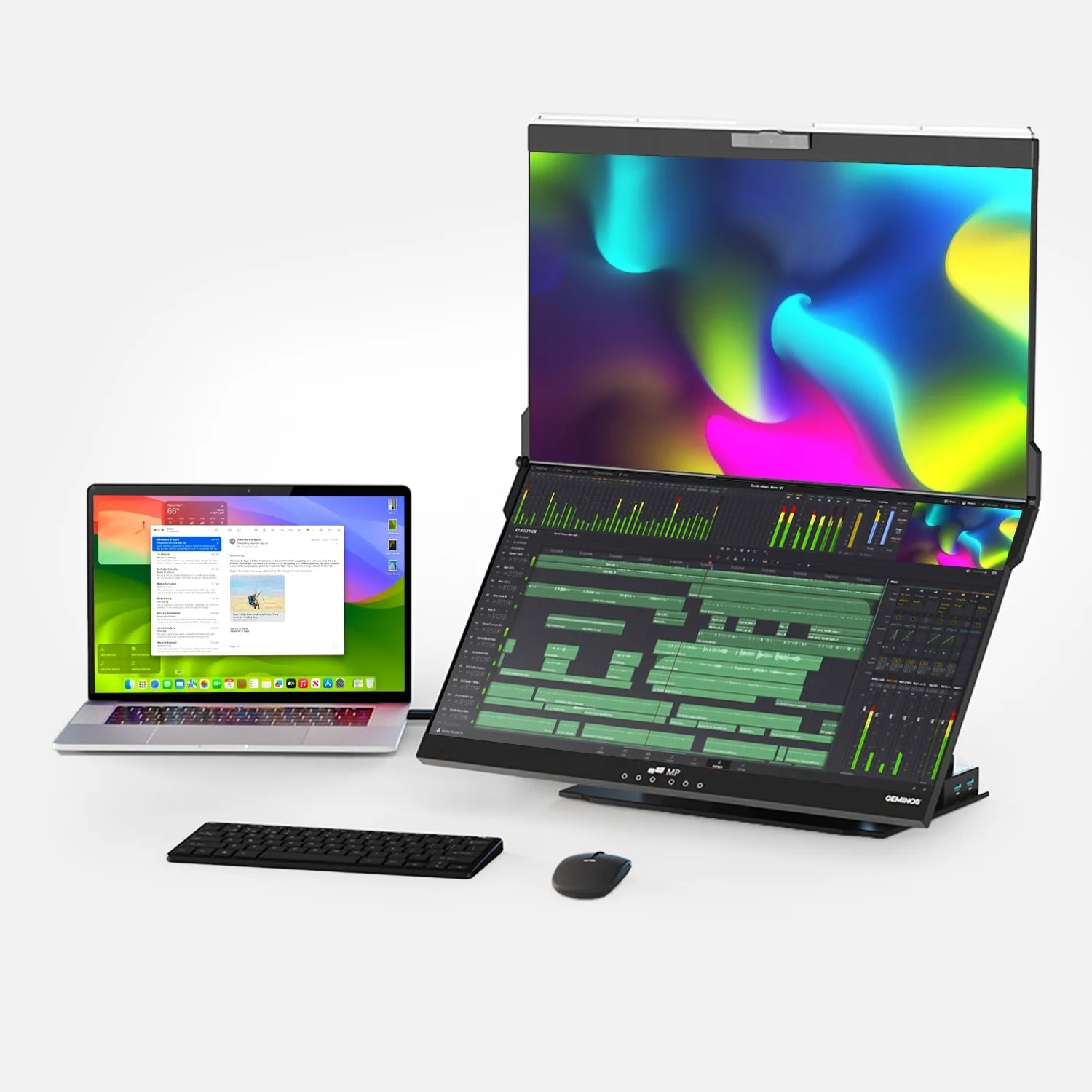
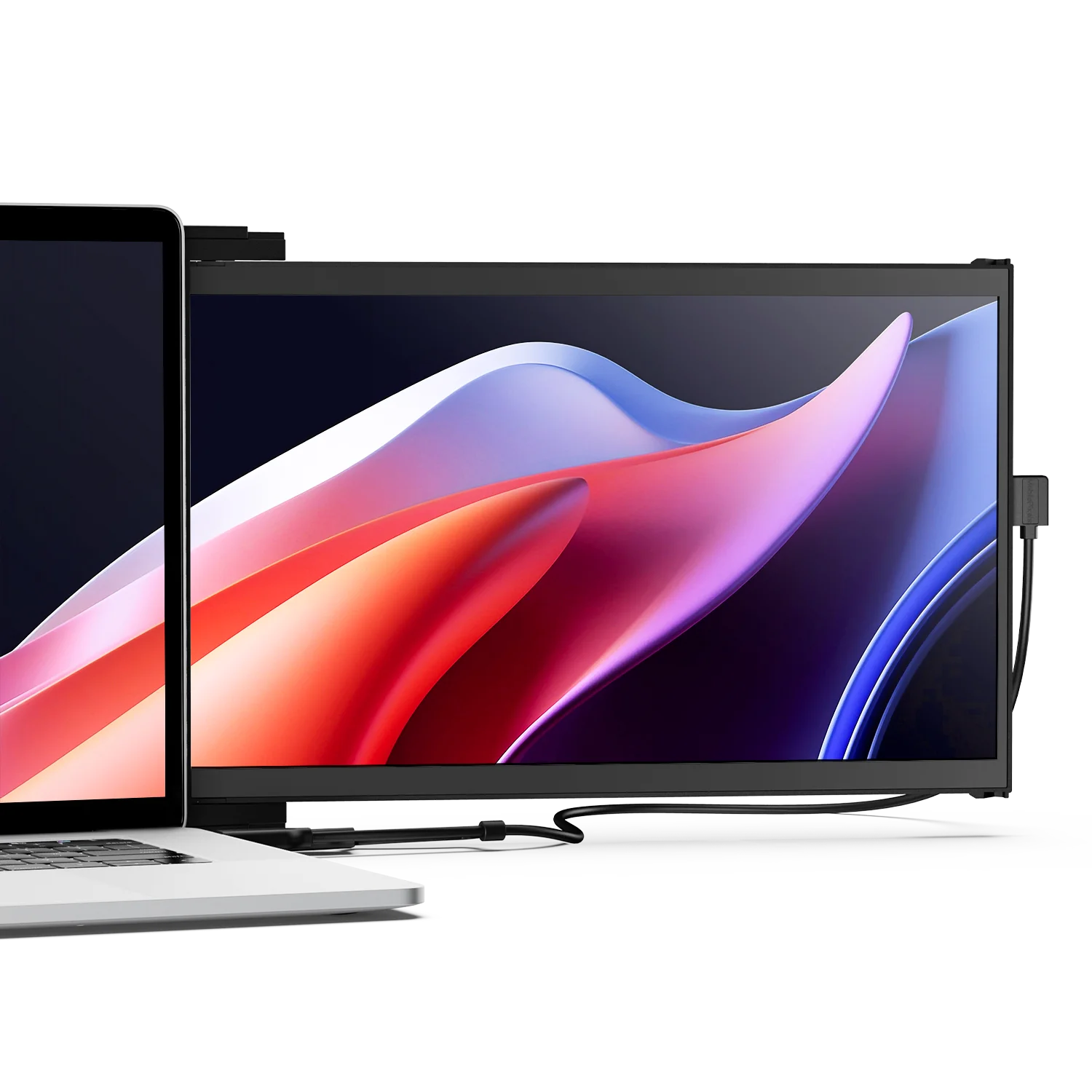
If your workflow needs more space, consider adding portable monitors or using your laptop’s built-in display as a third panel. For flexible mobile and desk setups, explore Mobile Pixels Monitors.
Summary: Choosing the Right Method
| Scenario | Best Approach |
|---|---|
| Laptop with two video outputs | Direct connection (HDMI + USB-C/DP) |
| Laptop with one output + USB-C | USB-C dock + adapters |
| No native multi-display capability | USB dock with DisplayLink (driver-based) |
| High-resolution / pro workflows | Thunderbolt dock or DisplayPort MST (if supported) |
References
- Microsoft (Windows multi-monitor setup): https://support.microsoft.com/en-us/windows/how-to-use-multiple-monitors-in-windows-329c6962-5a4d-b481-7baa-bec9671f728a
- Dell (DisplayPort daisy chain / MST): https://www.dell.com/support/contents/en-us/article/product-support/self-support-knowledgebase/monitor-screen-video/guide-daisy-chain-monitors
- Microsoft Q&A (common challenges connecting dual monitors): https://learn.microsoft.com/en-us/answers/questions/3940967/i-am-struggling-to-attach-2-external-monitors-to-m
- General port discussion reference: https://blog.csdn.net/sun007700/article/details/135817542
Discover Tech Gadgets





Leave a comment
All comments are moderated before being published.
This site is protected by hCaptcha and the hCaptcha Privacy Policy and Terms of Service apply.