





Whether you work from home, run a trading desk, or code for a living, a dual-monitor setup is one of the highest-return upgrades you can make to your workspace. This guide covers everything you need to know: the research behind why two screens matter, the exact steps to get them working on Windows and Mac, how to position them correctly for your health, and how to get the most from your new configuration once it is up and running.
Why Dual Monitors Work: What the Research Says
The productivity case for two screens is not anecdotal. Multiple independent studies have produced consistent, measurable findings over more than two decades of research.
|
42% Average self-reported productivity increase with multiple monitors Source: Jon Peddie Research |
18% Efficiency gain for multi-source tasks — Wichita State / Dell study Source: Dell / Wichita State University |
|
98% University of Utah participants who preferred dual over single monitors Source: Plugable / U of Utah |
33% Lower error rate on dual screens vs. single, per University of Utah Source: A-CX / University of Utah |
Productivity Gains by Task Type (Dual vs. Single Monitor)
Text editing
Information-intensive tasks
Spreadsheet editing
Multi-source office tasks
Window-switching reduction
Sources: Jon Peddie Research, Wichita State / Dell, University of Utah. Bar lengths normalized for visual clarity.
"We found that users of multiple monitors have an average expected productivity increase of 42%. The more you can see, the more you can do."
Dr. Jon Peddie, President, Jon Peddie Research
A 2020 Forrester report on optimizing hybrid workforces found that 80% of workers believe a larger display would positively affect their work performance. Research published in Human Factors via PubMed confirmed there is "strong evidence that implementing dual monitors is in line with users' preference," while also noting that monitor placement and adjustment are critical for maintaining neutral posture.
What You Need Before You Start
Hardware checklist
- A second monitor compatible with your computer's output ports
- The right cable: HDMI, DisplayPort, USB-C (with DisplayPort Alt Mode), DVI, or VGA depending on your ports
- An adapter or dock if your laptop does not have enough native video-out ports
- Adequate GPU support: most modern integrated and discrete GPUs handle two displays; check your spec sheet if in doubt
Know your ports
| Port Type | Max Resolution | Audio | Common On |
|---|---|---|---|
| HDMI 2.0 | 4K @ 60 Hz | Yes | Most laptops & monitors |
| DisplayPort 1.4 | 4K @ 144 Hz | Yes | Desktops, gaming monitors |
| USB-C / Thunderbolt 4 | 8K capable | Yes | Modern MacBooks, ultrabooks |
| DVI | 2560×1600 | No | Older desktops |
| VGA | 1080p (analog) | No | Legacy hardware |
Step-by-Step: Setting Up Dual Monitors
📺 Windows 10 / 11
- Connect your second monitor using the appropriate cable. Power it on before booting or while your PC is running — Windows should detect it automatically.
- Open Display Settings by right-clicking an empty area of your desktop and selecting "Display Settings," or search for it in the Start menu.
- Detect the monitor if it does not appear automatically. Scroll down in Display Settings and click "Detect." If it still does not appear, try a different cable or port.
- Choose your display mode. Under "Multiple Displays," select Extend these displays to spread your desktop across both screens (the recommended choice for productivity). Duplicate mirrors the same image on both. You can also press Windows + P to quickly cycle between modes.
- Arrange the monitors. Drag the numbered display boxes in Display Settings to match your physical layout (left or right). Click "Identify" if you are unsure which box corresponds to which screen.
- Set your primary display. Select the monitor you want as your main screen, scroll down, and check "Make this my main display."
- Calibrate resolution and refresh rate. Set each monitor to its native resolution for the sharpest image. Adjust refresh rates under "Advanced display settings."
- Adjust scale and brightness per monitor if needed, especially when combining two screens of different sizes.
🍎 macOS
- Connect the second display via HDMI, USB-C, or Thunderbolt. Use a USB-C to HDMI or USB-C to DisplayPort adapter if your Mac has only USB-C ports.
- Open Displays settings. Go to Apple menu > System Settings (macOS Ventura and later) or System Preferences (older versions) > Displays.
- Detect the monitor if it does not appear automatically. Hold the Option key and click "Detect Displays."
- Choose Extended or Mirror mode. Click "Arrangement" (or the Arrangement tab). Uncheck "Mirror Displays" to extend your desktop across both screens — this gives each screen its own workspace.
- Arrange the displays. Drag the blue display rectangles to match your physical setup. Drag the white menu bar to whichever screen you want as your primary display.
- Adjust resolution and refresh rate per display. Click each display thumbnail and set the resolution to "Default for display" or choose a specific resolution.
- Enable Mission Control features (optional). Go to System Settings > Desktop & Dock > Mission Control and enable "Displays have separate Spaces" for an independent Dock and menu bar on each screen.
Working on the Go: Dual Screens Without a Desk
Setting up two monitors in a fixed office is one thing. But what about professionals who work from cafes, airports, hotel rooms, or client sites? A traditional second monitor is impractical in those scenarios because it needs a separate power source, extra desk space, and multiple cables.
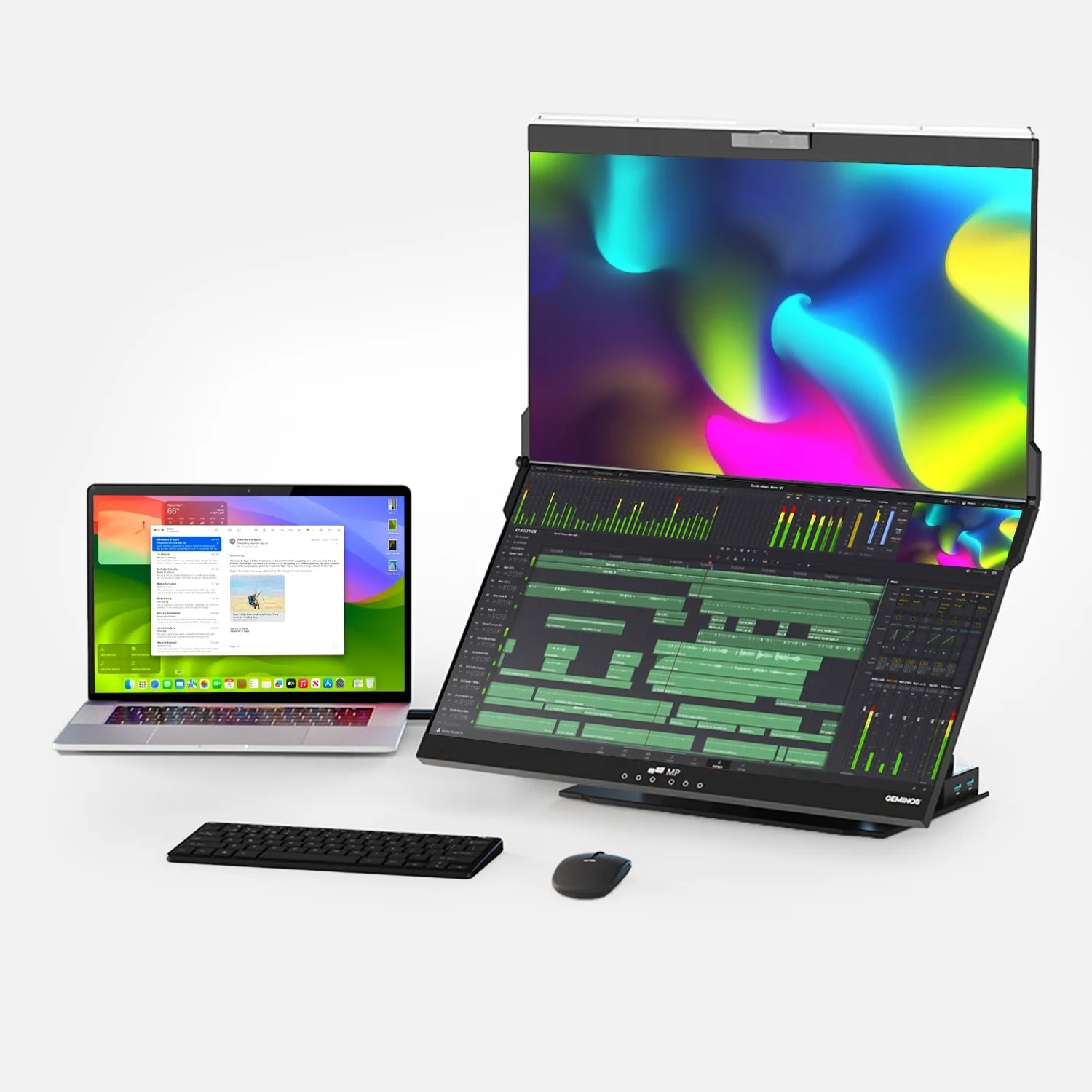
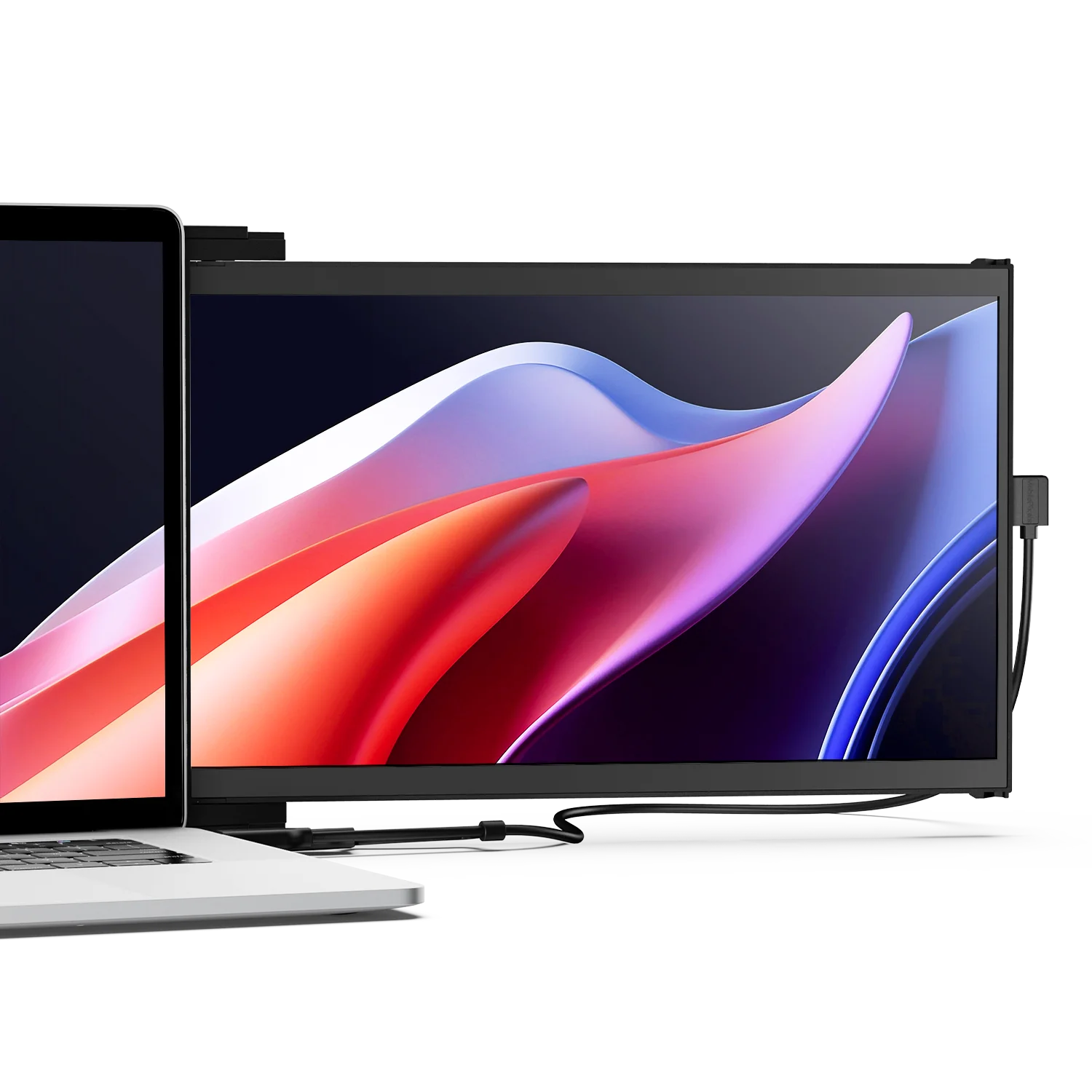
This is where laptop-attached portable monitors have become popular. Rather than setting up a second standalone display, you attach a slim screen directly to the back of your laptop lid using a magnetic or slide-on mount. The result is a dual-screen setup that folds away in seconds and fits in a standard bag.

Worth Considering
Mobile Pixels Duex Float
For remote workers and frequent travelers who need a dual-screen setup anywhere, the Mobile Pixels Duex Float is a practical solution. It attaches to the back of your laptop via a slim magnetic mount, slides out to reveal a full 1080p display, and connects via a single USB-C cable. There are no power adapters to pack, no stands to assemble, and setup takes under ten seconds. It is particularly useful for video calls where you need reference materials on a second screen, for analysts who need live data on one panel while writing on the other, or for consultants who present from one screen while managing notes on another.
See the Duex Float →Ergonomics: Getting the Position Right
A dual-monitor setup can improve both productivity and comfort, but only if positioned correctly. Poor placement is one of the most common reasons people experience neck pain, eye strain, and fatigue with multi-screen work.
Viewing distance
According to the Canadian Centre for Occupational Health and Safety (CCOHS), monitors should sit approximately an arm's length from your eyes. Most ergonomic literature, including guidelines referenced by OSHA and ANSI, recommends a viewing distance of 50 to 75 cm (20 to 30 inches). Larger monitors should sit at the farther end of that range.
Height and tilt
Position each monitor so the top of the screen is at or just below eye level. Your eyes should naturally rest near the upper third of the display when you look straight ahead. Tilt the screen upward by 10 to 20 degrees. According to ViewSonic's ergonomics research, the center of the screen should sit roughly 30 degrees below the horizontal eye line for maximum comfort.
Placement for two monitors
Dell's ergonomics guidelines recommend that optimal head movement for dual-monitor users stays within 45 degrees left and right of center, with a maximum of 60 degrees. For the best outcome:
- If you use one screen more than the other, place the primary monitor directly in front and the secondary at a slight inward angle toward your dominant eye side.
- If you use both screens equally, position them symmetrically and center the seam between them in front of your face.
- Keep both screens at the same height and distance to prevent asymmetric neck strain.
Getting the Most from Your Dual-Screen Setup
Assign a purpose to each screen
The biggest productivity gain comes from being intentional. Designate one screen for your primary working application (the document, code editor, or design canvas you are actively using) and the second for reference and communication (email, chat, data, dashboards, or documentation). This eliminates the constant window-switching that, according to research cited by Dell, costs workers an average of 30 minutes per day.
Use keyboard shortcuts to work across screens
- Windows: Win + Shift + Arrow (left or right) moves the active window to the other monitor. Win + Arrow snaps windows to halves on the current screen.
- Mac: Mission Control (F3 or three-finger swipe) lets you drag windows between spaces and monitors. Third-party tools like Magnet or Rectangle add snap-to-half and snap-to-quarter controls.
Set your taskbar and dock
On Windows, right-click the taskbar, go to Taskbar Settings, and enable "Show taskbar on all displays." On Mac, enable "Displays have separate Spaces" in Mission Control settings so each screen has its own Dock.
Consider portrait orientation for one screen
Rotating one monitor to portrait (vertical) orientation is especially useful for coders, writers, and anyone who works with long documents. Jon Peddie Research specifically notes that a monitor in portrait mode can boost productivity by removing the need to scroll. In Display Settings (Windows) or System Settings > Displays (Mac), change the orientation to "Portrait."
Match resolution and scaling
If your two monitors are different sizes or resolutions, set each to its native resolution and use OS-level scaling to make text readable. Mismatched scaling is one of the most common sources of visual discomfort in mixed-monitor setups.
Troubleshooting Common Issues
| Problem | Likely Cause | Fix |
|---|---|---|
| Second monitor not detected | Loose cable or wrong input | Reseat the cable; press "Detect" in Display Settings; try a different port or cable type |
| "No signal" on second screen | Wrong input source or adapter | Use the monitor's input selector button; confirm the adapter is active, not passive |
| Blurry or wrong resolution | Not set to native resolution | Set to native resolution in Display Settings; update GPU drivers |
| Only one screen works (MacBook) | M1 / M2 chip limitation | Use a DisplayLink USB adapter with driver; or upgrade to M4 MacBook Air |
| Screens mirroring instead of extending | Display mode set to Duplicate/Mirror | Change to "Extend" (Windows) or uncheck "Mirror Displays" (Mac) |
| Different brightness or color temperature | Monitor factory defaults differ | Calibrate via each monitor's OSD menu, or use a colorimeter for precise matching |
How to Choose a Second Monitor
If you are buying a second display to pair with an existing one, here are the key specs to evaluate:
- Resolution: 1080p is sufficient for most work; 1440p offers more vertical space for coding and design; 4K is best for photo or video editing.
- Panel type: IPS panels offer the best color accuracy and wide viewing angles. VA panels have higher contrast ratios. TN panels are cheaper but have inferior color reproduction.
- Refresh rate: 60 Hz is fine for office work. If you also game, 144 Hz or higher on at least one display is worth the cost.
- Size: Match your primary monitor for a cohesive setup. 24 to 27 inches is the most common range for productivity work.
- Connectivity: Confirm the monitor has at least one port that matches your computer output, whether HDMI, DisplayPort, or USB-C.
- Ergonomic stand: Height-adjustable and tilt-capable stands make proper positioning much easier. A monitor arm gives the most flexibility.
Frequently Asked Questions
Can any computer support dual monitors?
Most modern computers can. Desktops with discrete GPUs typically support two or more monitors out of the box. Laptops vary: check how many video-output ports your device has. If you only have one video port, a USB-C to HDMI adapter or a dock with multiple video outputs can add a second connection. MacBook Air users with M1 or M2 chips need a DisplayLink adapter to run two external displays simultaneously.
Does a dual-monitor setup slow down my computer?
For standard office and productivity work, the performance impact is negligible on any machine made in the last several years. Gaming performance can drop slightly when running a game on one screen and other applications on the second, but this depends heavily on your GPU. If you notice slowdowns, close GPU-intensive applications on the second screen.
What is the difference between "Extend" and "Duplicate" display modes?
"Extend" treats both monitors as one large desktop, letting you place different applications and windows on each screen — this is the mode that delivers the productivity benefits cited in research. "Duplicate" (or "Mirror") shows the exact same image on both screens, which is useful for presentations but eliminates the benefit of having two separate workspaces.
Do both monitors need to be the same brand or size?
No. You can mix different brands, sizes, and resolutions. The main consideration is setting appropriate OS scaling so text appears consistently sized. Using monitors with similar color profiles will make the transition between screens feel more natural for design or photo editing work.
How should I arrange dual monitors ergonomically?
Position your primary monitor directly in front of you and the secondary at a slight inward angle to the side. Keep both screens at the same height, with the top of each display at or just below eye level. Maintain a viewing distance of 50 to 75 cm (20 to 30 inches). According to Dell's ergonomics guidelines, head movement should stay within 45 degrees of center for comfortable dual-monitor use.
Can I use my laptop screen as one of my two monitors?
Yes. Your laptop's built-in display counts as one monitor. You can then connect one external monitor to extend your desktop across both screens. This is the most common setup for remote workers. If you want both screens to be external (clamshell mode), you will need a power source and an external keyboard and mouse connected.
What if I only have one HDMI port on my laptop?
You have several options. A USB-C to HDMI adapter (if your USB-C port supports DisplayPort Alt Mode) can add a second video output. A docking station with multiple HDMI or DisplayPort outputs is another popular choice. On Windows laptops that support Multi-Stream Transport (MST), a USB-C MST hub can split one USB-C port into two separate monitor outputs. Note that HDMI splitters only mirror, they do not extend.
What is the best dual-monitor setup for remote work or travel?
For a fixed home office, pairing two external monitors of the same size and resolution on a monitor arm gives the most flexibility. For remote work on the move, a portable monitor that attaches directly to your laptop is significantly more practical. Look for one that connects via a single USB-C cable and attaches without tools — setup time should be measured in seconds, not minutes, if you are moving between locations regularly.
Is a dual-monitor setup worth it for students?
Yes, especially for research-heavy work. Having source material (papers, PDFs, lecture slides) on one screen and your writing or notes on the other eliminates constant alt-tabbing. University of Utah research found a 33% lower error rate on dual-screen setups, which is particularly relevant for tasks that require referencing and accurately transferring information.
Discover Tech Gadgets





Leave a comment
All comments are moderated before being published.
This site is protected by hCaptcha and the hCaptcha Privacy Policy and Terms of Service apply.