





If you have ever found yourself awkwardly resizing a Zoom window to peek at your presentation notes, or accidentally closing a critical document while trying to mute your microphone, you are intimately familiar with the limitations of a single screen. In today’s era of hybrid and remote work, virtual meetings demand a high level of digital multitasking.
Fortunately, there is a simple, highly effective solution: the portable monitor.
Adding a second screen to your workflow isn't just about expanding your digital real estate; it is a proven strategy for reducing cognitive load and enhancing professional communication. Here is a look at why portable monitors are the ultimate productivity hack for virtual meetings, backed by data, expert insights, and actionable tips.
Why Experts Swear by Dual Screens
The frustration of constantly minimizing and maximizing windows is known as "context switching." Every time you shuffle overlapping windows to find the right tab, you lose precious seconds and interrupt your focus. Over the course of a workweek, this digital clutter translates into significant lost time.
Extensive research validates the power of dual-monitor setups:
- Massive Productivity Gains: According to Jon Peddie Research, workers who utilize multiple displays experience an average expected productivity increase of 42%.
- Reduced Error Rates: A highly cited University of Utah study found that dual monitor configurations led to 33% fewer errors in tasks requiring extensive data interaction.
Industry leaders echo these findings. Adam Hamilton, CEO at REI Hub, highlights the practical relief of a dual-screen setup:
"There is nothing more annoying than having to click back and forth between tabs when you are trying to look at data while working on something. So, having a second monitor totally helps you avoid having to do that." (Source: Business.com)
How Portable Monitors Transform Virtual Meetings
A portable monitor allows you to replicate an enterprise-grade office setup from anywhere—be it a kitchen counter, a hotel room, or a co-working space. Here is how you can leverage one for smarter virtual meetings:
1. Mastering the "Presenter View"
During an online presentation, sharing your screen can be a nerve-wracking experience. By utilizing a second monitor, you can dedicate your primary laptop screen to the active presentation (the screen you share with your audience) while keeping your portable monitor hidden from viewers. This secondary space is perfect for housing your presenter notes, a private team Slack channel, or incoming email alerts.
2. Seamless Multitasking and Note-Taking
Virtual collaboration often requires reviewing documents in real-time. With a dual-screen setup, you can keep the video grid of your colleagues open on one display to maintain eye contact and read non-verbal cues. On the other display, you can actively type minutes, edit spreadsheets, or reference project briefs without ever looking disengaged.
3. Real-World Space Saving and Ergonomics
Working from coffee shops or small home desks often means physical space is at a premium. Side-by-side monitors aren't always practical.

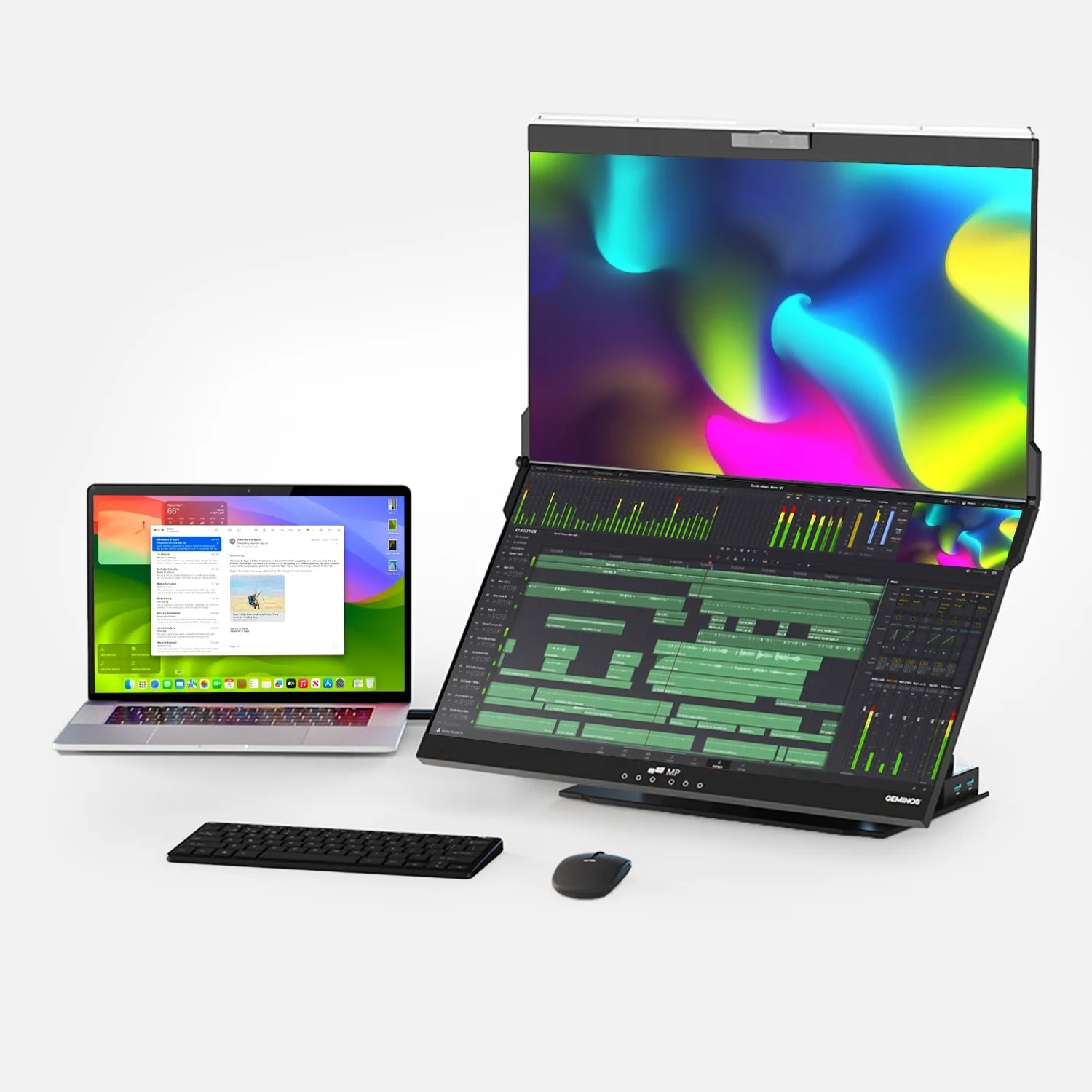
In these scenarios, a stacked monitor configuration is a game-changer. For example, using the Duex Float 2 Pro allows you to elevate a 16-inch portable display directly above your laptop screen. If you are sitting at a narrow café table, this vertical alignment lets you keep your Zoom call running at natural eye-level on the top screen while you type comfortably on the bottom screen. It promotes a healthy ergonomic posture—preventing "tech neck"—while keeping your physical footprint incredibly small.
Actionable Tips for Optimizing Your Portable Setup
To get the most out of your multi-screen workflow, keep these technical best practices in mind:
Utilize USB-C with Power Delivery: Look for portable monitors that support "plug-and-play" via a single USB-C cable. This allows your laptop to transmit both the video signal and power (pass-through charging) simultaneously, eliminating cable clutter.
Prioritize Display Resolution: If you spend hours reading small text or reviewing data-heavy spreadsheets during meetings, opt for a high-resolution display. A QHD (2.5K) resolution reduces eye strain and provides sharper text rendering compared to standard 1080p screens.
Embrace "Extended" Mode: Ensure your computer's display settings are set to Extend rather than Mirror. Extending your display treats the two screens as one continuous, ultra-wide desktop.
Frequently Asked Questions (FAQ)
Q: Do portable monitors work with any laptop?
A: Most modern portable monitors are universally compatible with Windows, macOS, and even ChromeOS. They typically connect via a standard USB-C or Mini-HDMI cable. However, if you are using an older laptop without a modern USB-C port, you may need a separate power cable and an HDMI adapter.
Q: Will a portable monitor drain my laptop's battery?
A: Yes, because portable monitors draw their power directly from the connected laptop, they will reduce your battery life. To counteract this during long virtual meetings, it is highly recommended to plug your laptop into a wall charger or utilize a portable monitor that supports pass-through charging.
Q: What is the difference between a stacked setup and a side-by-side setup?
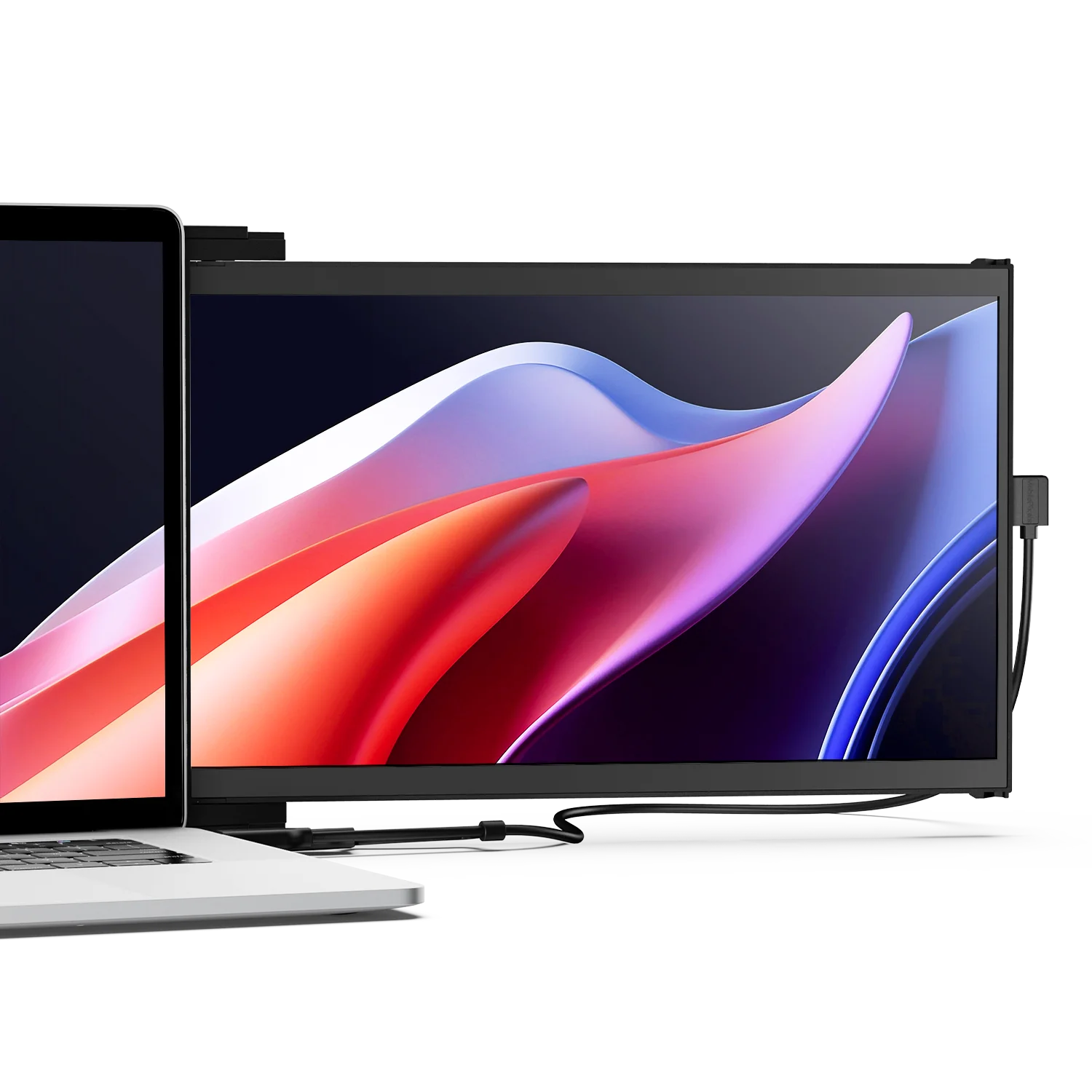
A: A side-by-side setup places the portable monitor horizontally next to your laptop, which is great for widening your field of view but requires a wide desk. A stacked setup places the secondary monitor vertically above the laptop screen. This mimics the natural up-and-down movement of the eyes and neck, saves desk space, and is increasingly preferred for ergonomic reasons.
Q: Can I use a portable monitor for my smartphone or tablet?
A: Yes. Many modern portable displays support devices like the iPad Pro or smartphones equipped with desktop-emulation software (like Samsung DeX). This allows you to run a mobile video call on a massive 15- or 16-inch screen while traveling.
Discover Tech Gadgets





Leave a comment
All comments are moderated before being published.
This site is protected by hCaptcha and the hCaptcha Privacy Policy and Terms of Service apply.