





Most gaming monitors include a setting called FPS mode or something close to it: Game Mode, FPS Preset, Shooter Mode. The name implies a clear competitive benefit. The reality is more nuanced. FPS mode is a bundled preset of display adjustments that can genuinely improve your performance in certain game types and lighting conditions, but it is not a universal upgrade, and it trades some image quality for competitive utility.
This guide explains exactly what FPS mode changes at a technical level, why each change matters for competitive play, what the real limitations are, and how to configure your monitor for the best possible FPS gaming experience whether or not your monitor has a dedicated FPS preset.
Quick Answer
FPS mode is a display preset that bundles several adjustments to benefit competitive first-person shooter play: it sets response time to maximum (reducing motion blur and ghosting), boosts brightness and black equalisation (making enemies in dark areas more visible), reduces input lag by disabling post-processing, and often reduces colour saturation to eliminate distracting backgrounds. The trade-off is lower visual quality and reduced colour accuracy. FPS mode is genuinely useful in competitive play; it is a visual liability for immersive or cinematic games where image quality matters.
What FPS Mode Is and What It Isn't
FPS mode is not a hardware change. It is a preset that adjusts a collection of software settings simultaneously settings you could individually dial in yourself if you had time and knowledge. FPS mode sets the response time to the fastest setting available on the monitor to reduce input lag, and some monitors also edit brightness and contrast settings to better discern enemies on-screen.
It is also a marketing term rather than a precise technical standard; different manufacturers implement FPS mode differently. What ASUS calls "FPS Mode," BenQ calls "FPS Preset," and MSI labels as a "display mode" with FPS-specific adjustments. The underlying goal is the same: optimise the display for the demands of fast-paced, competitive first-person shooter games. The specific settings changed vary by monitor brand and model.
Finally, FPS mode is not the same as your frame rate (also abbreviated FPS). Frames Per Second is how fast your game generates images. FPS mode on a monitor is a display preset named after the game genre. The overlap in abbreviations confuses, but they are entirely unrelated technologies.
What FPS Mode Actually Changes: Six Adjustments Explained
Adjustment 01
Maximum Response Time / Pixel Overdrive
Response time is the speed at which pixels change from one colour to another, measured in milliseconds. A quick pixel response time is needed to eliminate ghosting, the trailing afterimage behind fast-moving objects in fast-paced games. FPS mode enables the monitor's fastest overdrive setting, forcing pixels to transition as rapidly as possible.
In a typical FPS game, a player sprinting across an open area, a bullet travelling across the screen, or fast character movement can all exhibit a blur trail if the monitor's response time is slow. At 1ms GtG response time (the target for IPS gaming panels and the standard for TN panels), this trailing effect is eliminated at 144Hz and above.
Competitive relevance: High ghosting behind a moving enemy target makes tracking more difficult. Maximum overdrive eliminates this. The caution: excessive overdrive can introduce inverse ghosting (bright halos appearing ahead of moving objects), which is equally distracting. FPS mode on quality monitors finds a balance; lower-quality implementations may overshoot.
Adjustment 02
Input Lag Reduction (Post-Processing Disabled)
Input lag is the total delay between a physical input (mouse click, key press) and the corresponding image appearing on screen. Input lag is distinct from response time: input lag is the delay between your commands and the screen, while response time is the time it takes pixels to change colour. Both affect competitive performance but through different mechanisms.
Many monitors apply post-processing to improve image quality: noise reduction, dynamic contrast enhancement, sharpening filters, and motion interpolation. All of these add processing time between signal input and display output, increasing input lag. Enabling Game Mode or FPS mode disables unnecessary post-processing like motion smoothing, which can cut input lag by more than half.
Competitive relevance: Very high. An input lag under 10ms is considered excellent for competitive gaming; values above 30ms become problematic. In games like Counter-Strike 2 and Valorant, the time between clicking to fire and the shot registering on screen directly affects duels. Every millisecond of avoidable lag is worth eliminating.
Adjustment 03
Black Equalisation (Shadow Boost)
Black equalisation, called Shadow Boost on BenQ monitors and Black eQualizer on some other brands, raises the brightness of dark areas in the image without affecting mid-tones or highlights. This is one of the most practically impactful adjustments in FPS mode for competitive play.
In FPS games, enemies frequently position themselves in shadowed areas, in dark doorways, or against poorly lit walls. Without black equalisation, these areas display as genuinely dark on screen; enemies are difficult to spot because the monitor is accurately rendering a dark environment. With black equalisation engaged, those dark areas are brightened, making the silhouette of an enemy player visible even when the environment would naturally obscure them.
Competitive relevance: High in games with dark maps or indoors environments (CS2, Valorant, R6 Siege, Apex Legends). Moderate in brighter, open-world titles. The trade-off is that it makes the image look unnatural; dark scenes no longer feel dark. This is intentional for competitive play; it is the wrong setting for an atmospheric or cinematic game.
Adjustment 04
Brightness and Contrast Optimisation
FPS mode dynamically adjusts brightness and contrast settings to improve the visibility of enemies in challenging lighting conditions. By accentuating the differences between light and dark areas, it becomes easier to track targets.
Typical FPS mode brightness targets are higher than standard picture mode settings, pushing towards 300 to 400 nits rather than the 150 to 200 nits recommended for comfortable long-term productivity use. Higher brightness improves visibility of objects at screen edges and improves contrast in mid-bright environments. The practical result is that game environments look overall brighter and target silhouettes pop more clearly from backgrounds.
Adjustment 05
Reduced Colour Saturation
This is a deliberate competitive trade-off. A vivid, saturated game environment is visually engaging and aesthetically pleasing, but it also means that a brightly coloured environment can compete for visual attention with the target you are trying to track. By reducing saturation, FPS mode pushes environment colours toward grey-ish mid-tones while preserving the contrast of moving character models. The result looks worse by any standard picture quality measure but may help a competitive player stay visually focused on enemies.
Adjustment 06
Edge Enhancement and Sharpness
The sharpness boost in FPS mode is the most situationally dependent of the adjustments. In games with simple character models and clear silhouettes (Valorant, CS2), edge enhancement makes targets pop from backgrounds more clearly. In games with detailed, photorealistic environments (Call of Duty, Battlefield), excess sharpening can make the overall image look noisy and artificial. If your FPS mode sharpness feels excessive, reduce the sharpness slider below 50 in the OSD even while keeping other FPS mode settings active.
"In practice, FPS mode often combines several adjustments reduced post-processing to cut input lag, aggressive pixel overdrive to limit motion blur, black equalisation to reveal shadow detail, and sometimes sharpened edges or altered gamma curves. These ingredients combine differently across brands and even firmware versions."
KTC Play — OSD Presets: What Does Game Mode Actually Change, 2026

How Much Each FPS Mode Adjustment Helps in Competitive Play
Competitive Impact by Adjustment
Input lag reduction (disabling post-processing)
Maximum response time/overdrive (motion clarity)
Black equalisation (shadow enemy visibility)
Brightness boost (target visibility in dim areas)
Edge enhancement/sharpness (hitbox clarity)
Colour saturation reduction (background distraction)
Based on: InputDelay.com, Display Ninja
Should You Use FPS Mode? The Honest Answer
Yes, for competitive multiplayer FPS games
For games where your primary goal is winning CS2, Valorant, Apex Legends, Rainbow Six Siege, Call of Duty multiplayer, FPS mode's combination of lower input lag, maximum overdrive, and black equalisation provides concrete competitive benefits. Enemy visibility in dark areas improves, motion tracking is cleaner, and the display responds faster to your inputs. The image quality trade-offs (lower saturation, unnatural brightness) are irrelevant in this context because winning is the priority, not aesthetic quality.
No, for immersive or cinematic games
For single-player FPS games where atmosphere and visual quality are part of the experience, Doom Eternal, Far Cry 6, Cyberpunk 2077, and Halo Infinite campaign FPS mode's visual distortions actively diminish the experience. Reduced saturation makes environments drab, boosted brightness flattens depth perception, and aggressive sharpening creates artificial-looking textures. Use a standard or Game mode with good baseline settings instead, and let the game's visual design come through as intended.
It depends, for mixed competitive and casual play
If you alternate between competitive multiplayer sessions and story-driven or casual play, the best approach is to use the preset switching capability most gaming monitors provide, assigning a hotkey to toggle between FPS mode for ranked competitive play and a standard/movie mode for everything else. Most monitors from ASUS, BenQ, MSI, and Acer support this through their OSD with a shortcut button specifically for preset switching.
Optimal Monitor Settings for FPS Gaming by Game Type
Rather than applying a single universal FPS mode to everything, here are the calibrated settings for each major FPS subgenre.
Tactical Shooters (CS2, Valorant, R6 Siege)
| Brightness | 70 to 80% (higher than standard) |
| Black equalisation | High (7 to 9 out of 10) — dark map areas are critical |
| Response time | Fastest / Maximum (enable overdrive) |
| Sharpness | 45 to 55 (near neutral — these games have clean art styles) |
| Colour saturation | Slightly reduced (40 to 45) to minimise background distraction |
| Adaptive sync | Enable FreeSync or G-Sync; disable V-Sync in game |
Battle Royale (Apex Legends, Warzone, Fortnite)
| Brightness | 65 to 75% — these games have bright outdoor environments |
| Black equalisation | Medium (5 to 7) — indoor areas matter less than in tactical games |
| Response time | Fastest / Maximum |
| Sharpness | 50 (neutral) — complex environments benefit from accurate rendering |
| Colour saturation | Standard (50) — colour variation helps identify terrain and threats |
Story-Driven FPS (Doom, Far Cry, Halo Campaign)
| Brightness | 40 to 55% — match ambient room lighting for immersion |
| Black equalisation | Off or very low — dark scenes are meant to be dark |
| Response time | Standard or Fast (not Maximum — reduced overdrive looks better) |
| Sharpness | 45 to 50 (neutral) — preserve the game's visual design |
| Colour saturation | Standard or slightly boosted (55 to 60) — enjoy the visuals |
What Matters More Than FPS Mode
FPS mode is a useful preset, but it operates within the monitor's constraints. The following hardware and system-level factors have a greater impact on competitive FPS performance than any display preset:
Refresh Rate: The Single Most Impactful Upgrade
Upgrading from 60Hz to 144Hz or 240Hz is the single most effective hardware upgrade you can make for competitive gaming. At 60Hz, the screen presents a new frame every 16.7 milliseconds. At 240Hz, a new frame appears every 4.2 milliseconds four times more information about the game state per second. In a fast-moving FPS, the additional frames provide more precise tracking data, smoother target movement to follow, and less motion blur between updates. No display preset can replicate the benefit of a higher refresh rate monitor.
Adaptive Sync (FreeSync / G-Sync) Eliminating Tearing Without Lag
Standard V-Sync is a lag killer; turn it off. If you hate screen tearing, use NVIDIA G-Sync or AMD FreeSync. These adaptive sync technologies provide the smoothness of V-Sync without the lag penalty. FPS mode on a monitor that does not have adaptive sync enabled will still produce screen tearing when frame rate exceeds the monitor's refresh rate. Enable FreeSync or G-Sync in your GPU control panel alongside FPS mode for the best combined result.
NVIDIA Reflex / AMD Anti-Lag
NVIDIA Reflex (available in CS2, Valorant, Apex Legends, and Overwatch 2) and AMD Anti-Lag reduce the render queue the buffer of frames the GPU pre-renders before sending to the display. By reducing this queue, these tools lower the total system latency (from click to display) by 10 to 30 milliseconds in supported games. This is a larger reduction than any monitor FPS mode setting achieves on input lag alone, and operates at the GPU driver level rather than the display level.
FPS Mode on Portable Monitors: What Changes
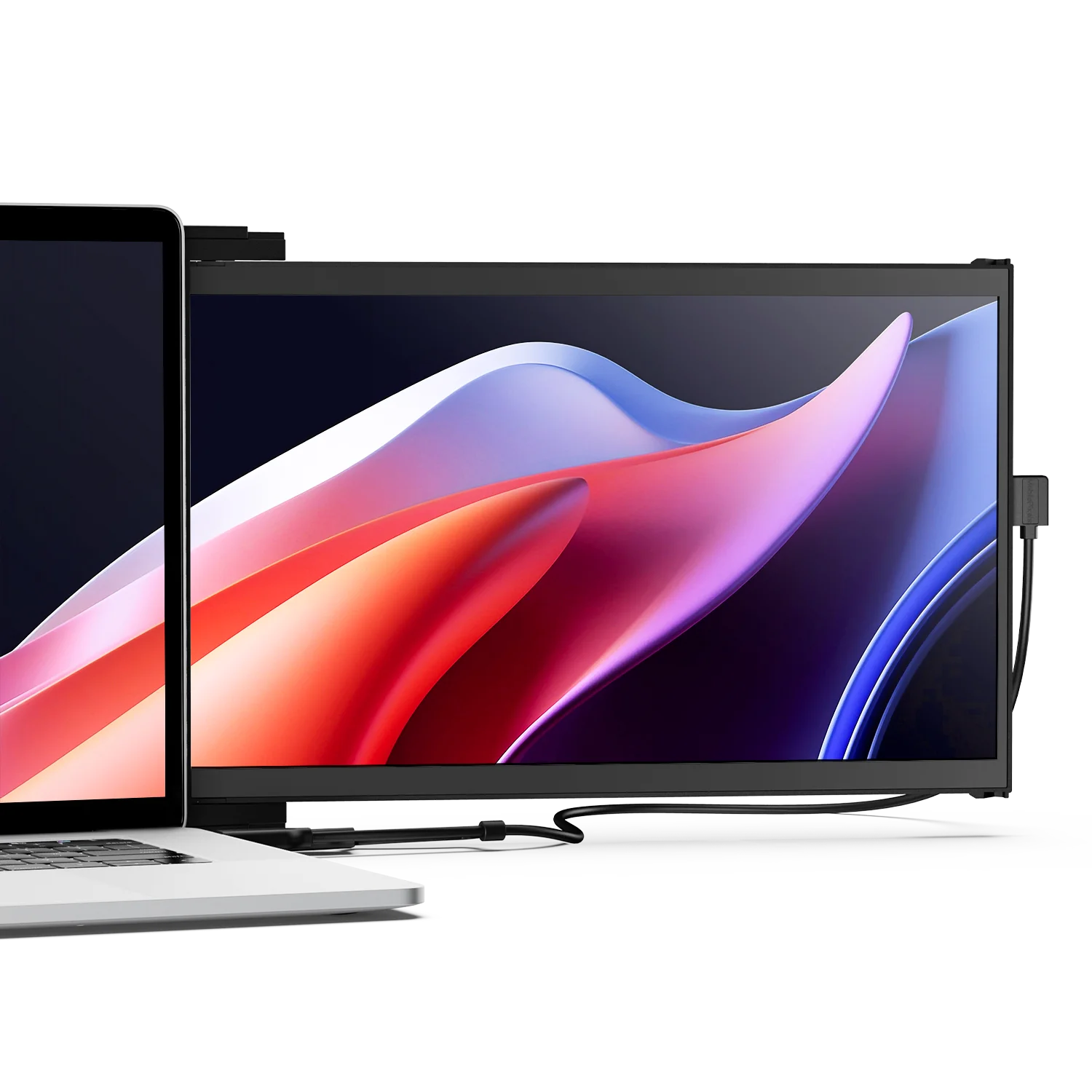
Portable monitors are increasingly popular for gaming setups used as second screens for stream monitoring, map or communication displays, or as the primary screen when gaming away from a fixed desk setup. Most portable monitors include some form of picture mode presets, though FPS mode implementations vary widely in quality across the portable monitor category.
The same principles apply on a portable monitor as on a desktop display: input lag reduction and response time maximisation have the highest competitive impact, while black equalisation is valuable specifically for dark-environment tactical games. The difference with portable monitors is that response time specifications and overdrive quality are more variable; a quality 1ms IPS portable monitor handles FPS mode adjustments well, while a lower-specification panel may exhibit inverse ghosting at maximum overdrive that is more problematic than ghosting at standard overdrive.

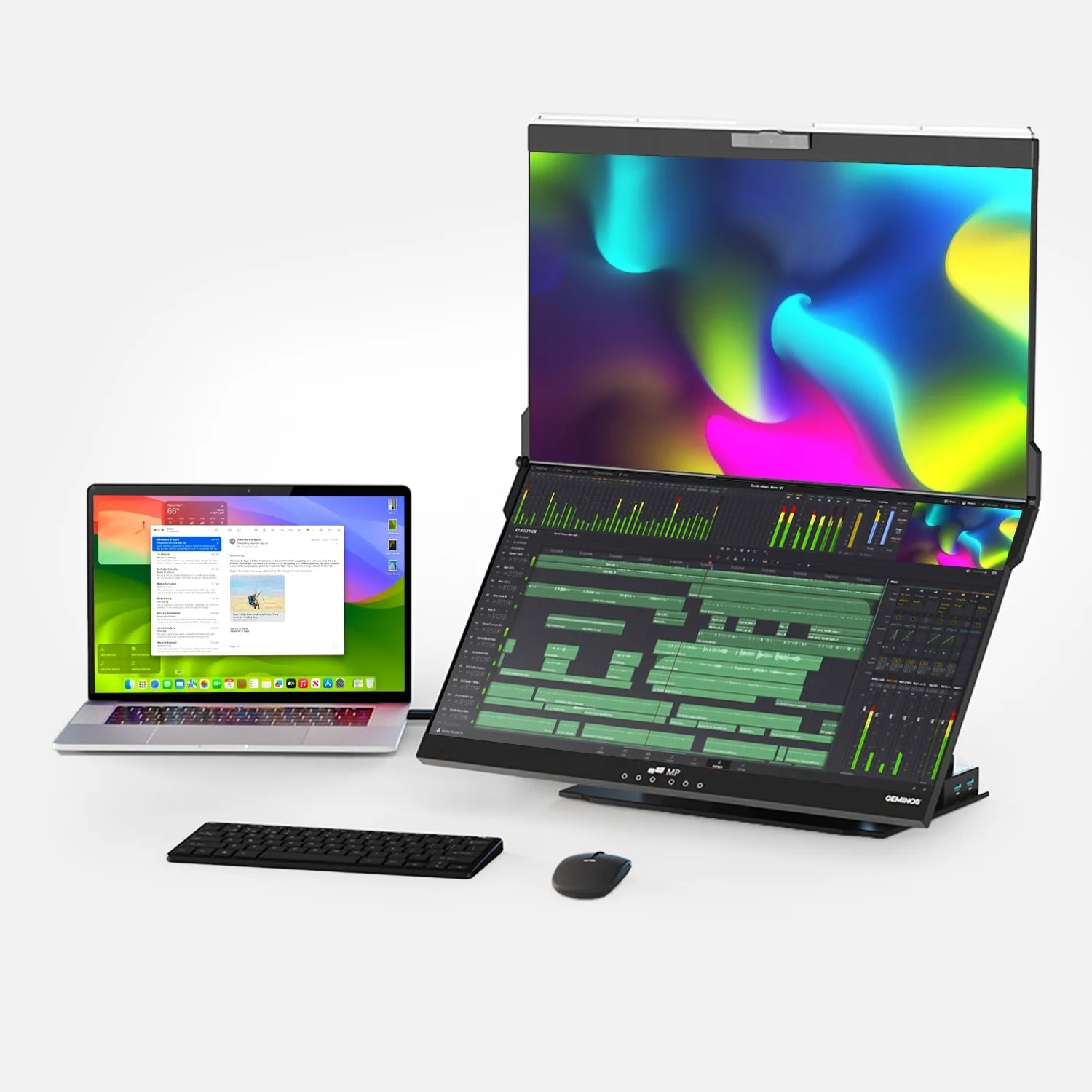
For remote workers who also game, Mobile Pixels portable monitors use IPS panels that support standard picture mode presets via their OSD suitable for the kinds of mixed productivity and casual gaming use that most portable monitor users have, rather than the dedicated competitive setup that a fixed gaming monitor with a full FPS mode implementation provides.
The Complete FPS Gaming Monitor Checklist
| Setting | Competitive Value | What to Do |
|---|---|---|
| Refresh rate | Highest impact | Set to monitor's maximum in GPU and Windows/Mac display settings |
| Adaptive sync (FreeSync / G-Sync) | Very high | Enable in GPU control panel; disable V-Sync in game |
| FPS mode / Game mode | High | Enable for competitive games; switch to Standard for single-player |
| Response time / Overdrive | High | Set to Fastest or Maximum; reduce one step if inverse ghosting appears |
| Black equalisation | High (in dark games) | Set to 7 to 9 for tactical games; reduce or disable for bright games |
| NVIDIA Reflex / AMD Anti-Lag | High (in supported games) | Enable in game settings (CS2, Valorant, Apex) when available |
| Post-processing (noise reduction etc.) | Negative | Disable all — adds input lag with no competitive benefit |
| V-Sync (in-game) | Negative | Disable — adds 1 to 2 frames of input lag; use FreeSync/G-Sync instead |
| Sharpness | Situational | 45 to 55 (neutral to slightly above) — avoid exceeding 65 |
Frequently Asked Questions
What is FPS mode on a monitor?
FPS mode (First-Person Shooter mode) is a display preset bundled on many gaming monitors that adjusts several settings simultaneously to benefit competitive FPS gameplay. The typical adjustments include: setting response time to maximum to reduce motion blur, disabling post-processing to reduce input lag, boosting brightness and enabling black equalisation to improve visibility in dark areas, and reducing colour saturation to minimise background visual distraction. The result is better competitive performance at the cost of image quality and colour accuracy.
Does FPS mode actually help you win?
For competitive multiplayer games, yes, particularly the input lag reduction and black equalisation components. Disabling post-processing removes unnecessary processing delay between your input and the display's response. Black equalisation makes enemies visible in shadowed areas where they would otherwise be difficult to spot. These adjustments provide genuine competitive advantages that compound over many gaming sessions. The benefits are most pronounced in tactical games (CS2, Valorant, R6 Siege) and less significant in battle royale titles with predominantly outdoor, well-lit environments.
Should I use FPS mode all the time?
No. FPS mode's visual trade-offs lower saturation, boosted brightness, aggressive sharpening diminish the experience in games where visual quality and atmosphere matter. For single-player story games, RPGs, open-world exploration, and media consumption, a standard or movie preset will look significantly better. Use FPS mode only when competitive advantage is your priority, and switch back to a standard preset for everything else. Most gaming monitors support quick preset switching via a dedicated OSD button.
What is black equalisation (Black eQualizer) and why does it matter for FPS?
Black equalisation is a display feature that raises the brightness of dark shadow areas in the image without affecting mid-tones or highlights. In competitive FPS games, enemies frequently position themselves in dark doorways, shadowed corners, and poorly lit areas. Without black equalisation, those areas display as genuinely dark, but in a way that makes enemies harder to see. With black equalisation engaged, shadow areas are brightened, making enemy silhouettes visible even when the game environment is dark. This is why it is one of the most consistently useful features in FPS mode for games like CS2 and Valorant.
What is the difference between input lag and response time in gaming?
They measure different things. Input lag is the total delay between a physical input (mouse click, key press) and the corresponding change appearing on screen; it includes processing in the monitor's internal electronics. Response time is how fast individual pixels change from one colour to another; it affects motion blur and ghosting. Both matter for competitive gaming. FPS mode addresses both: it disables post-processing to reduce input lag, and enables maximum overdrive to reduce pixel response time. A gaming monitor with under 10ms input lag and 1 to 3ms response time is well-suited for competitive play.
What is the best monitor setting for FPS gaming if my monitor doesn't have FPS mode?
Replicate FPS mode manually: (1) Set response time to the fastest available option. (2) Disable all post-processing features: noise reduction, dynamic contrast, motion smoothing, MPEG noise reduction. (3) Enable Game Mode in the monitor's OSD if available; this typically reduces input lag even on monitors without an FPS label. (4) Raise brightness to 65 to 75%. (5) If your monitor has a black detail or shadow boost setting, raise it to medium-high. (6) Enable FreeSync or G-Sync in your GPU control panel and disable V-Sync in game. These steps replicate the competitive benefit of FPS mode without requiring the specific preset to exist.
Does FPS mode reduce frame rate or affect GPU performance?
No. FPS mode is a display-side adjustment; it modifies how the monitor processes the image it receives, not how the GPU renders the game. Enabling FPS mode has zero effect on your in-game frame rate, GPU load, or CPU performance. The settings it adjusts (response time, brightness, contrast, post-processing) are all functions of the monitor's internal processor, not your gaming hardware. Frame rate is determined by your GPU, CPU, game settings, and resolution, none of which are affected by the monitor's picture preset.
Discover Tech Gadgets





Leave a comment
All comments are moderated before being published.
This site is protected by hCaptcha and the hCaptcha Privacy Policy and Terms of Service apply.