





Anti-aliasing is one of the most misunderstood settings in any game's graphics menu. The options FXAA, TAA, MSAA, SMAA, DLSS, FSR, and DLAA look intimidating, the in-game descriptions are rarely helpful, and the wrong choice can cost you significant frame rate for minimal visual gain, or leave your game looking jagged when better options were available at no cost.
This guide explains exactly what anti-aliasing is and why it matters, breaks down every major anti-aliasing method with its real-world performance cost and visual quality, and gives you specific, actionable settings based on your GPU tier, resolution, and game type. By the end, you will know precisely what to select in any game you open.
Quick Answer by Situation
- Using DLSS, FSR, or XeSS upscaling: Turn anti-aliasing OFF. Upscalers include their own AA pass.
- NVIDIA RTX GPU, playing at native resolution: Use DLAA if available. Otherwise, use TAA with in-game sharpening at 30 to 50%.
- Any GPU, modern game, 1080p or 1440p: TAA is the industry standard. Add sharpening if it looks blurry.
- Low-end GPU, need every frame rate: FXAA or SMAA. SMAA is always better than FXAA if both are available.
- Competitive gaming, frame rate is priority: FXAA or AA Off. The FPS gain matters more than edge smoothing.
- Playing at 4K: FXAA or Off. High pixel density already reduces jagged edges significantly.
What Is Anti-Aliasing and Why Does It Exist?
Every display is a grid of square pixels. When a game renders a diagonal line, the edge of a building, a character's arm, a rifle barrel, the renderer approximates that smooth line using those square pixels. Because a diagonal cannot perfectly align with a grid of squares, the result is a stair-step pattern visible along the edge: this is called aliasing, or informally, "jaggies."
Anti-aliasing (AA) is any technique that reduces or eliminates this stair-step artefact by blending edge pixels with their neighbours to create a smoother visual transition. According to Digital Trends' technical graphics guide: "Anti-aliasing is evolving quickly with AI-driven techniques like DLSS and DLAA. Traditional methods such as MSAA and SSAA are becoming less common as newer approaches deliver better results with lower performance costs."
The trade-off that defines every AA technique is the same: better edge smoothing costs more GPU processing time, which reduces frame rate. The art of choosing the right anti-aliasing mode is finding the technique that delivers acceptable edge quality at an acceptable performance cost for your specific hardware, resolution, and use case.
How Much Does Anti-Aliasing Matter at Each Resolution?
1080p — Aliasing is clearly visible without AA; AA makes a significant difference
1440p (2K) — Noticeable improvement with AA; recommended but optional
4K — Aliasing barely visible due to high pixel density; AA optional, save the FPS
Source: GamerHardware Anti-Aliasing Guide,
Every Anti-Aliasing Method Explained
Method 01
FXAA — Fast Approximate Anti-Aliasing
Performance cost: Under 1% FPS | Quality: Low to moderate | Blur: Yes
FXAA is a post-processing technique that runs after the frame has been rendered and applies a filter to detected edges. It is the cheapest anti-aliasing method available, adding less than 1% to GPU load. The trade-off is image softening: FXAA costs under 1% FPS but produces a blurry image quality. The algorithm cannot distinguish between actual edges that need smoothing and fine detail (text, thin lines, texture edges) that should remain sharp; it blurs both.
Use FXAA when: You are on a low-end GPU and need every frame rate point available. It is better than no AA at 1080p. Always prefer SMAA over FXAA if both are offered. SMAA delivers better sharpness at roughly the same performance cost.
Method 02
SMAA: Subpixel Morphological Anti-Aliasing
Performance cost: Under 2% FPS | Quality: Good | Blur: Minimal
SMAA is a shader-based technique that combines elements of MSAA and post-processing. It is significantly sharper than FXAA because it uses a pattern-detection algorithm to identify edge types and apply more targeted blending rather than a blanket image-wide softening filter. Gaming hardware experts consistently recommend: if your game offers both FXAA and SMAA, pick SMAA every time, the image stays noticeably sharper at roughly the same FPS hit.
Use SMAA when DLSS, FSR, or TAA are not available and you need a clean, low-cost AA option. It is particularly good in older games and titles without temporal AA support.
Method 03 — Industry Standard
TAA: Temporal Anti-Aliasing
Performance cost: 2 to 5% FPS | Quality: High | Blur: Present — fixable with sharpening
TAA is the default anti-aliasing method in virtually every modern game. TAA is the default in virtually every modern game built on Unreal Engine 4/5, Unity HDRP, or id Tech 7. It works by sampling different subpixel positions across consecutive frames and blending them using a velocity buffer, a per-pixel map of where each object moved between frames. This gives excellent edge coverage at a 2 to 5% FPS cost and handles transparent geometry, vegetation shimmer, and thin objects that break FXAA entirely.
TAA's main limitation is blur. The temporal blending that smooths edges also softens fine detail hair, grass, fences, and distant objects, particularly visible during motion. This is a known and manageable trade-off: fix TAA blur by enabling in-game sharpening at 30 to 50%, or by applying NVIDIA Image Sharpening or AMD Radeon Image Sharpening from the GPU driver panel at 0.50 sharpness. Do not exceed 50% sharpening, as it creates visible halo artefacts.
TAA can also produce ghosting, a trailing smear behind fast-moving objects. This occurs when the velocity buffer fails to reproject pixels that were occluded in the previous frame correctly. Most modern games have improved their TAA implementations significantly to reduce ghosting, but some titles still exhibit it at fast movement speeds.
Use TAA when: Playing any modern game without DLSS or FSR support, or when DLSS/FSR is unavailable. It is the correct default for most gamers at 1080p and 1440p. Always pair with sharpening at 30 to 50%.
Method 04 — Legacy
MSAA: Multi-Sample Anti-Aliasing
Performance cost: 10 to 40% FPS | Quality: Sharp edges only | Blur: None — but limited scope
MSAA was the standard AA method in the DirectX 9 and 10 era (approximately 2005 to 2015). It takes multiple samples per pixel along geometry edges to determine the correct colour blend. MSAA 4x means 4 samples per pixel on edges. The results are sharp edge smoothing without image blur. The problems are severe by modern standards.
MSAA is essentially obsolete for modern games: it costs 10 to 30% FPS for 4x MSAA, only smooths geometry edges, not shader aliasing (flickering textures, specular highlights, transparent objects), and does not work with deferred rendering pipelines used by most modern games. TAA provides better overall smoothing at a fraction of the FPS cost in any modern title.
Do not use MSAA in modern games. It is only appropriate for older DX9/DX10 titles without TAA support. Even then, SMAA often delivers comparable edge quality at far lower cost.
Method 05 — Extreme Quality Only
SSAA: Super-Sample Anti-Aliasing
Performance cost: 50 to 75% FPS | Quality: Maximum | Blur: None
SSAA renders the scene at a higher resolution than your display and then downsamples the result. 4x SSAA renders at 4 times the number of pixels and compresses the result to your monitor resolution, effectively every pixel is calculated from 4 source pixels. The result is the highest possible image quality: perfectly smooth edges, accurate textures, and no softening. The cost is equally extreme: SSAA halves or more your frame rate.
Only use SSAA for screenshots or benchmark screenshots when you have a very powerful GPU, and frame rate is not a concern. Never use for real-time gameplay unless you have extreme GPU headroom.
Method 06 — Best Quality for NVIDIA RTX
DLAA: Deep Learning Anti-Aliasing
Performance cost: 5 to 15% FPS | Quality: Excellent | Blur: None
DLAA uses the same AI model as NVIDIA DLSS, but renders at native resolution rather than upscaling from a lower resolution. DLAA locks the DLSS input resolution to native (1.0) and does not allow it to fall below that, giving the AI model more data to work with for anti-aliasing than standard DLSS has available at its upscaling resolutions. The result is sharp, stable, temporally-consistent edges without the blur of TAA and without the resolution penalty of traditional upscaling.
DLAA requires an NVIDIA RTX GPU (RTX 20-series or newer). It is available in games that support DLSS. When DLAA is available and you are playing at native resolution with an RTX GPU that has frame rate headroom (consistently above 60fps), DLAA is the highest-quality AA choice.
Use DLAA when: You have an NVIDIA RTX GPU, the game supports DLSS/DLAA, and you want the best image quality without upscaling. Your frame rate should be comfortable at native resolution first — if not, use DLSS Quality mode instead.
Method 07 — Best Overall Choice When Available
DLSS / FSR / XeSS: AI Upscaling with Built-In AA
Performance cost: Negative (FPS gain) | Quality: Excellent to best | Note: Disable separate AA when active
Modern AI upscalers are not just resolution scalers; they include a full temporal anti-aliasing pass as part of their algorithm. When DLSS, FSR, or XeSS is enabled, the game renders at a reduced resolution, the upscaler uses AI or temporal algorithms to reconstruct a higher-quality output at your target resolution, and the AA pass is applied internally. The result is both a frame rate gain and often better image quality than TAA alone.
- DLSS 4 (NVIDIA RTX 20-series or newer): The highest-quality upscaler. Uses Tensor Core AI for reconstruction. DLSS 4 Multi Frame Generation is reserved for RTX 50-series GPUs.
- FSR 3 (any GPU): Open-source, works on NVIDIA, AMD, and Intel hardware. Broad support across titles released in 2023 onward. Image quality is below DLSS but significantly better than TAA alone.
- FSR 4 (AMD RX 9000-series only): Machine-learning FSR exclusive to AMD's 2025 GPUs. Significantly sharper than FSR 3 in supported titles.
- XeSS (Intel Arc, with DP4a fallback): AI mode gives best quality on Intel Arc GPUs; shader-based fallback works on any GPU and still outperforms FXAA.
Critical rule: Set in-game anti-aliasing to OFF when any upscaler is active. Upscalers include a temporal AA pass internally. Running FXAA or TAA on top creates double-blurring of the already-reconstructed output. Most games enforce this automatically; some do not.
"Nowadays, you should simply use DLSS 4 or FSR 4 depending on your GPU. If neither is supported, experiment with XeSS and previous FSR versions. For instance, using Quality preset upscaling can improve image quality compared to TAA, and you get a higher frame rate."
Display Ninja — Best Anti-Aliasing Mode Guide, 2025
All Anti-Aliasing Methods: Side-by-Side Comparison
| Method | FPS Cost | Quality | Blur? | Modern Games? | GPU Req. |
|---|---|---|---|---|---|
| FXAA | <1% | Low | Yes | Yes | Any |
| SMAA | <2% | Good | Minimal | Yes | Any |
| TAA | 2 to 5% | High | Some (fixable) | Yes | Any |
| MSAA 4x | 10 to 30% | Good edges only | No | Rarely | Any |
| SSAA | 50 to 75% | Maximum | No | Yes | Any (expensive) |
| DLAA | 5 to 15% | Excellent | No | Yes | NVIDIA RTX only |
| DLSS (Quality) | FPS gain | Best available | No | Yes | NVIDIA RTX only |
| FSR 3 (Quality) | FPS gain | Very good | Minimal | Yes | Any GPU |
What to Set Based on Your GPU and Situation
Scenario A: DLSS / FSR / XeSS Is Available in the Game
- Enable the upscaler DLSS, FSR 3, or XeSS depending on your GPU.
- Set the quality preset: Quality mode (renders at roughly 66% of native resolution) is the best balance. Performance mode for low-end systems needing maximum FPS.
- Set in-game anti-aliasing to Off or the lowest option. The upscaler handles it.
- If the game has a sharpness slider alongside DLSS/FSR, set it to 30 to 50% to improve clarity of the upscaled output.
Scenario B: NVIDIA RTX GPU, Playing at Native Resolution
- If the game supports DLAA: enable DLAA. It is the best AA available without upscaling sharp, stable, and no blur.
- If DLAA is not available but DLSS is, set DLSS to Quality mode. You gain frame rate and better image quality than TAA.
- If neither DLSS nor DLAA is in the game: use TAA with in-game sharpening at 30 to 50%, or apply NVIDIA Image Sharpening at 0.50 from the NVIDIA Control Panel.
Scenario C: Any GPU, Modern Game, No DLSS/FSR
- Select TAA. It is the industry standard in modern engines and handles vegetation, transparencies, and complex shading that FXAA and MSAA cannot.
- Enable in-game sharpening at 30 to 50% to counteract TAA's softening. Do not exceed 50% it creates halo artefacts.
- If TAA produces noticeable ghosting in your specific game, switch to SMAA if available, or FXAA as a last resort.
Scenario D: Low-End GPU, Need Maximum Frame Rate
- Use FSR 3 in Quality or Performance mode if the game supports it, even on non-AMD hardware. FSR 3 runs on any GPU and provides both a frame rate boost and built-in AA.
- If no upscaler is available, choose SMAA if offered. If only FXAA is available, use it, it costs under 1% FPS and is better than playing with no AA at 1080p.
- AA Off is a valid option if you need every frame rate point and play at 1440p or above, where aliasing is less visible.
Scenario E: Competitive Gaming, Frame Rate Above All
- Set anti-aliasing to FXAA or Off. In competitive gaming, 8 to 15% FPS from TAA or 20 to 40% from MSAA represents frames that can determine outcomes.
- If DLSS is available and you are on an RTX GPU: enable DLSS Performance mode. You gain FPS while the built-in AA smooths edges. This is the best of both worlds for competitive play on supported hardware.
- Playing above 1080p? AA becomes less critical. At 1440p, jaggies are less visible. At 4K, many players disable AA entirely and suffer no visible quality penalty.
- First, check in-game settings for a "Sharpness," "TAA Sharpening," or "Image Sharpening" slider. Set to 30 to 50%.
- If no in-game option: open NVIDIA Control Panel > Manage 3D Settings > Image Sharpening: On, Sharpness: 0.50, Film Grain: 0.00. Or AMD Software > Gaming > Graphics > Radeon Image Sharpening: On.
- If still too blurry after sharpening: switch to SMAA if available, or enable DLSS/FSR Quality mode to replace TAA entirely.
Anti-Aliasing and Your Monitor: What the Display Brings to the Picture
Your anti-aliasing choice does not happen in isolation the display you are outputting to affects how much AA you actually need. The relationship is straightforward: the higher your monitor's pixel density (PPI), the less visible aliasing is at your normal viewing distance, and the less aggressively you need to apply AA.
On a 1080p monitor at 24 inches (92 PPI), individual pixels are visible at normal viewing distances, and jagged edges are clearly noticeable anti-aliasing is important, and the quality of the AA method matters. On a 1440p monitor at 27 inches (109 PPI), aliasing is less obtrusive and TAA at moderate settings is usually sufficient. On a 4K display (163 PPI at 27 inches), aliasing is barely perceptible and many players disable AA entirely.

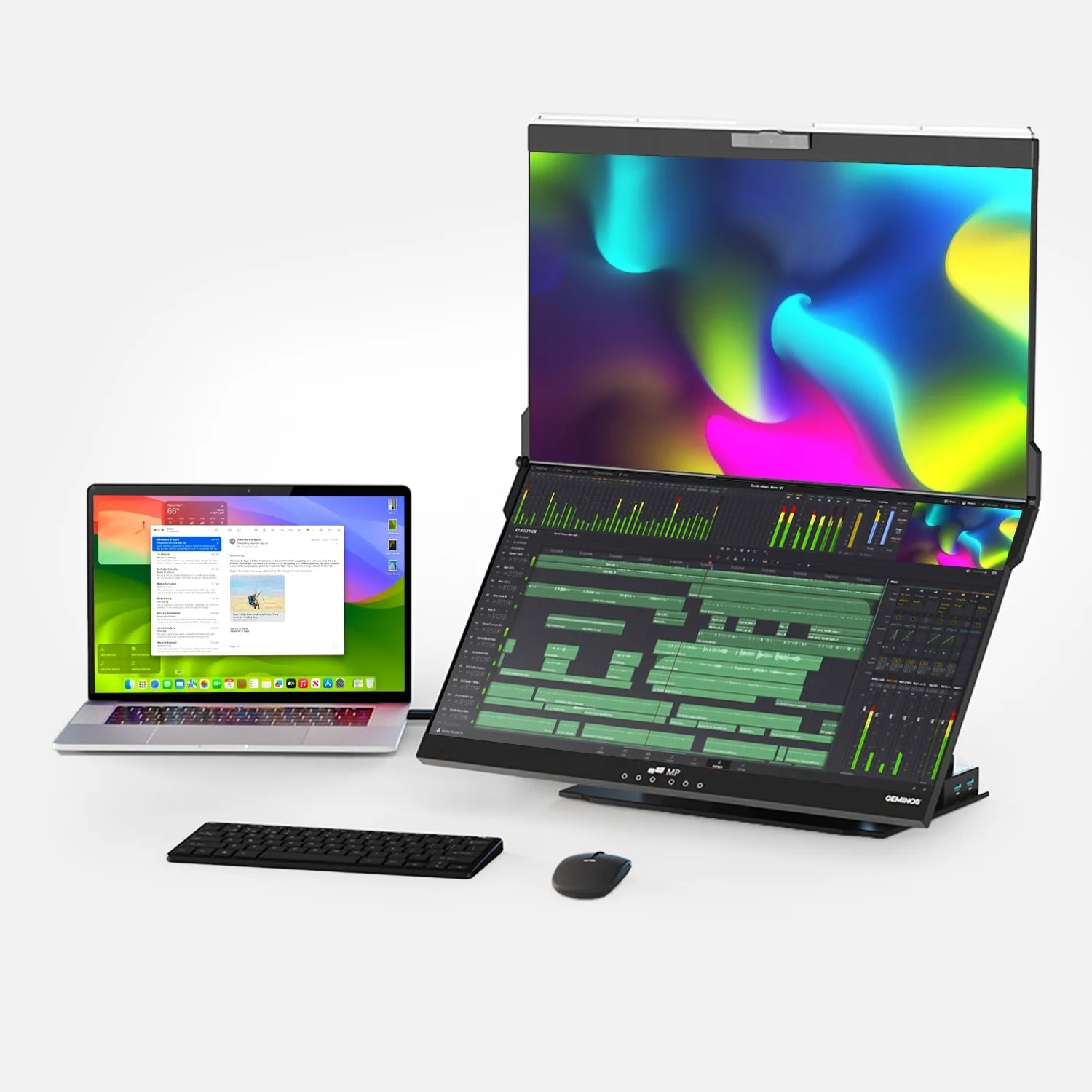
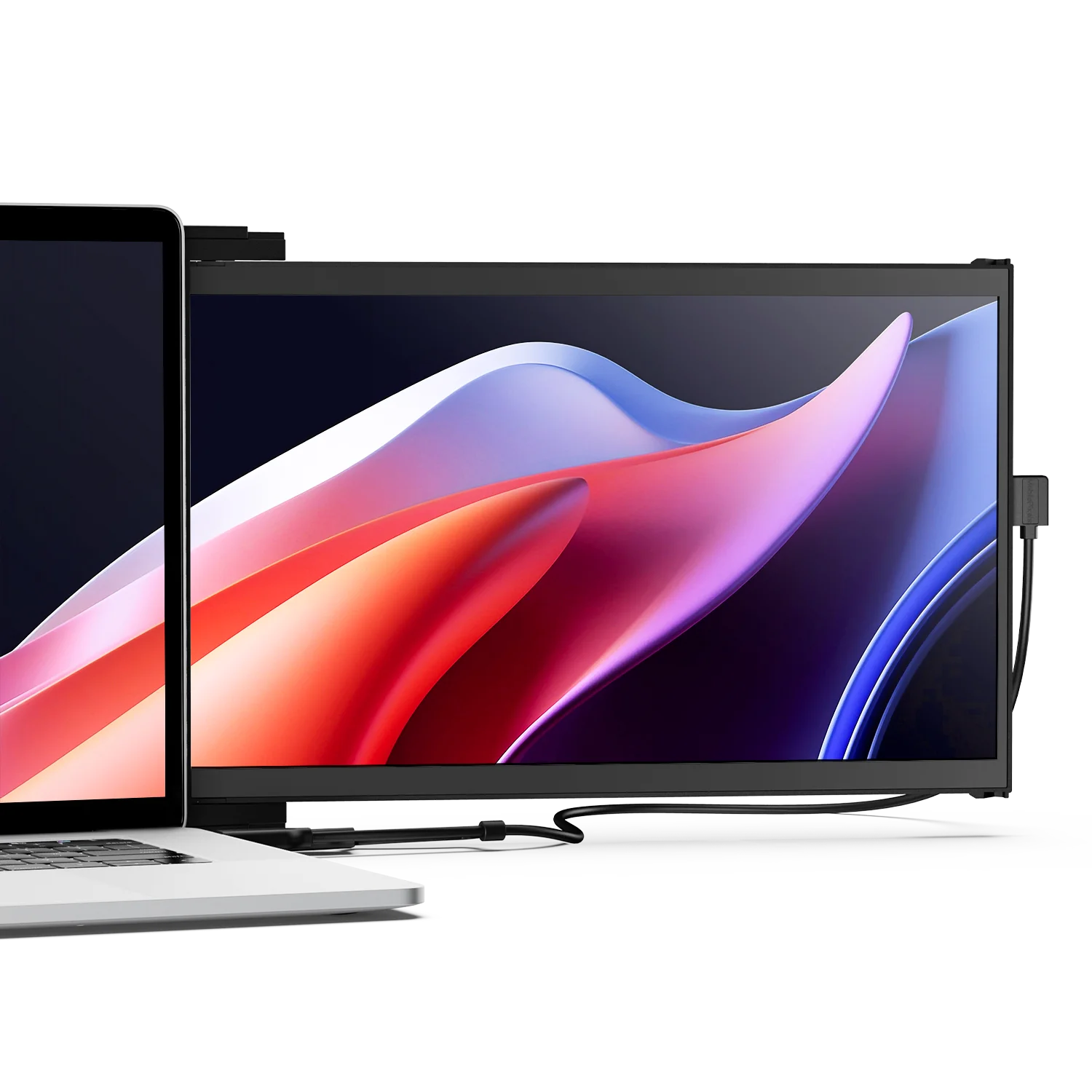
For users who work at a desk with both a primary gaming monitor and a second productivity screen, the display characteristics of the second monitor also matter. An IPS panel from a brand like Mobile Pixels does not involve anti-aliasing settings for office work, but the IPS panel's inherent colour accuracy and wide viewing angle mean that any on-screen content, including game footage on a second monitor, is rendered accurately without the panel introducing its own artefacts.
Quick Decision Reference
| Your Situation | Best AA Setting |
|---|---|
| DLSS / FSR / XeSS available in game | Enable upscaler + set AA to Off |
| NVIDIA RTX GPU, playing at native res, DLAA in game | DLAA |
| Any modern game, any GPU, no upscaler | TAA + sharpening 30 to 50% |
| Low-end GPU, need max FPS | FSR 3 if available, else SMAA or FXAA |
| Competitive gaming at 1080p | FXAA or Off; DLSS if RTX GPU available |
| Playing at 4K | FXAA or Off high PPI makes AA optional |
| Older DX9/DX10 game without TAA | SMAA or MSAA 4x (valid in this era) |
| Screenshot or benchmark quality | SSAA (FPS not a concern) |
Frequently Asked Questions
What is the best anti-aliasing mode?
If DLSS, FSR, or XeSS upscaling is available in your game, enable it and disable separate AA upscalers is the best option when supported. If playing at native resolution on an NVIDIA RTX GPU with DLAA available, use DLAA. For all other situations on a modern game, TAA with sharpening at 30 to 50% is the correct default. FXAA is acceptable only on low-end hardware where every frame counts.
Does anti-aliasing affect FPS significantly?
Yes, depending on the method. FXAA costs under 1%. TAA costs 2 to 5%. MSAA 4x costs 10 to 30%. SSAA costs 50 to 75%. AI upscalers (DLSS, FSR) actually increase FPS while providing built-in AA. They are the only AA method that improves both image quality and frame rate simultaneously. At 1080p, switching from MSAA 4x to Off can recover 20 to 40% FPS. At 4K, AA is less impactful on both image quality and performance.
Why does TAA make my game look blurry?
TAA blends current and previous frames to smooth edges. This temporal blending also softens fine detail hair, grass, fences, and text, especially during motion. The blur is an inherent trade-off of the temporal approach. The standard fix is to enable in-game sharpening at 30 to 50%, or apply GPU driver sharpening (NVIDIA Image Sharpening or AMD Radeon Image Sharpening) at 0.50 strength. If the game's TAA implementation is particularly aggressive and sharpening does not fully resolve it, switching to SMAA or enabling DLSS/FSR Quality mode will produce a sharper result.
Should I use TAA or FXAA?
TAA in almost all situations for modern games. TAA handles vegetation shimmer, transparent objects, and complex shading that FXAA cannot process, at a 2 to 5% FPS cost. FXAA should only be chosen over TAA if you are on extremely limited hardware where even 2 to 5% FPS matters, or if the specific game's TAA implementation is unusually bad (ghosting, severe blur). Always pair TAA with sharpening at 30 to 50% to mitigate its softening effect.
Is MSAA still worth using in 2025?
No, for modern games. MSAA does not work correctly with deferred rendering, used by virtually all games from 2015 onward. It only smooths geometry edges and does not handle shader aliasing, texture aliasing, or transparent surfaces, which are common in modern games. Its 10 to 30% FPS cost is far higher than TAA's 2 to 5% for inferior overall coverage. MSAA remains appropriate only for older DirectX 9 or 10 games that do not support TAA, where its sharp-edge rendering without blur is an advantage over FXAA.
Do I need anti-aliasing at 4K?
Generally no. At 4K on a standard desktop monitor, pixel density is high enough (typically 163 PPI on a 27-inch panel) that individual pixels are not visible at normal viewing distances and aliasing is barely perceptible. Most 4K players use FXAA (under 1% FPS cost) as a light insurance against any remaining edge artefacts, or disable AA entirely and redirect the GPU resources to other quality settings. The exception is texture or shader aliasing flickering on surfaces or specular highlights, which high resolution does not fully eliminate and may still benefit from TAA.
What is DLSS and how is it different from anti-aliasing?
DLSS (Deep Learning Super Sampling) is NVIDIA's AI-powered upscaling technology. It renders the game at a lower resolution (for example, 1080p for a 1440p display in Quality mode) and uses a neural network trained on thousands of high-resolution frames to reconstruct the full-resolution output. The reconstruction process includes an anti-aliasing pass, so DLSS both upscales the image and smooths edges simultaneously, delivering better image quality than TAA while increasing frame rate rather than reducing it. DLSS requires an NVIDIA RTX 20-series or newer GPU.
What happens if I leave both an upscaler and TAA enabled at the same time?
Double-blurring. When DLSS, FSR, or XeSS is active, it applies its own internal AA pass to the upscaled output. If you also have TAA enabled as a separate setting, the game applies TAA to the rendered frame before passing it to the upscaler, which then applies its own smoothing on top. The result is a doubly-blurred image that looks noticeably softer than either technique alone. Always set in-game AA to Off when enabling any upscaler. Most modern games enforce this automatically, but some older or less polished implementations allow both to run simultaneously.
Discover Tech Gadgets





Leave a comment
All comments are moderated before being published.
This site is protected by hCaptcha and the hCaptcha Privacy Policy and Terms of Service apply.