





The office is no longer a fixed address. For tens of millions of professionals, the real workspace is wherever the laptop opens, a coffee shop in the morning, a coworking space in the afternoon, a hotel room on a Tuesday night. The problem is that a single laptop screen was never designed for this level of multitasking, and the productivity gap that creates is measurable.
A portable monitor is the most direct solution, a second screen that fits in a bag, connects in seconds, and turns any surface into a dual-display workstation. But the market is crowded with options that look similar on spec sheets and perform very differently in real use. This guide gives you the full picture: what the specifications actually mean, which ones matter for your specific workflow, what trade-offs to expect in different form factors, and how to match a monitor to your working life rather than a marketing description.
What This Guide Covers
The remote and hybrid work context that makes portable monitors essential right now. The six specifications that separate a good portable monitor from a frustrating one. Panel types demystified. Connectivity explained without jargon. Form factors compared. A use-case matching table. Red flags to avoid. A product recommendation for travel-first users. And a complete FAQ section at the end.
Why Portable Monitors Matter Right Now
Flexible work is not a trend that is peaking and receding; it is a structural shift that has stabilized at a new, higher baseline. The data is consistent across multiple independent sources.
|
22.8% Of U.S. employees worked remotely at least part-time as of March 2025 — approximately 34.6 million people Source: Backlinko / BLS via Awisee |
98% Of professionals want to work remotely at least part of the time for the rest of their careers Source: Yomly / Buffer Research 2025 |
|
153% Growth in the number of digital nomads since 2019; they now represent approximately 12% of the U.S. workforce |
42% Average productivity increase reported by users of multi-monitor setups — the core productivity case for any second screen Source: Jon Peddie Research |
"In 2025, the office is increasingly wherever remote employees are based: a busy cafe, an airline seat, or a beachside villa. Central to this new way of remote working is the portable monitor. What was once a niche accessory has become an essential tool for the modern professional."
HP Tech Takes, Portable Monitor Guide 2025
Hybrid job postings grew from 15% of all new job listings in mid-2023 to nearly 24% by mid-2025, while fully in-office postings continue to decline. The workforce is structurally moving toward arrangements where employees work from multiple locations on a regular basis — and the tools they carry need to reflect that reality.
The Six Specifications That Actually Matter
Portable monitor spec sheets are full of numbers. Here are the six that determine whether a monitor performs well in real-world flexible working conditions and what to look for in each.
Spec 01
Panel Type: IPS, TN, VA, or OLED
Panel type is the single most important specification for day-to-day visual comfort. It affects color accuracy, viewing angles, contrast, and how the monitor looks from non-ideal positions, all of which matter constantly in portable use.
- IPS (In-Plane Switching): The best all-purpose choice. IPS panels deliver accurate colors and wide viewing angles — typically 178 degrees horizontally and vertically. According to Plugable's panel type guide, IPS is the right choice for general productivity, meetings, and color-sensitive work. It is the standard for quality portable monitors and the panel type recommended for most buyers.
- TN (Twisted Nematic): Fast pixel response times (useful for competitive gaming) but significantly inferior color accuracy and narrow viewing angles. TN panels lose brightness visibly when the screen is tilted even slightly, which is problematic for the varied angles portable monitors encounter. More power-efficient than IPS, but the quality trade-off is significant for productivity use.
- VA (Vertical Alignment): Higher contrast ratios than IPS, which makes dark scenes and dark-theme interfaces look better. Viewing angles are narrower than IPS. A reasonable choice for solo users who primarily consume media or work with dark-themed applications.
- OLED: Exceptional contrast, color vibrancy, and near-instant pixel response. The premium option for creative professionals who need the most accurate color representation. Higher price, lower peak brightness than LED-backlit panels, and requires care with burn-in from static UI elements (such as a persistent taskbar). Increasingly available in portable monitors but remains a niche, higher-cost tier.
For most buyers: IPS is the right default. It performs well for all productivity tasks, shared screen scenarios (showing content to colleagues or clients), and general media use.
Spec 02
Brightness: Nits and Why They Matter for Travel
Brightness is measured in nits (candelas per square meter). It is the specification most buyers underestimate, and most budget monitors underperform on. In a controlled home office environment, 250 nits may be acceptable. In the real environments where portable monitors are used near windows in cafes, on trains, in hotel rooms with overhead lighting, brightness becomes critical.
- Under 250 nits: Adequate only in dim environments. Will wash out near windows and in typical office or cafe lighting. Avoid for travel use.
- 300 nits: The minimum for comfortable indoor use in varied lighting. Sufficient for most hotel rooms, coworking spaces, and indoor cafe use.
- 400 nits or above: Comfortable near windows and in well-lit environments. Recommended for anyone who regularly works near natural light sources.
- 500+ nits: For outdoor or high-ambient-light use. Less common at this brightness level in the portable monitor category without significant additional cost.
Note: The backlight accounts for up to 70% of a portable monitor's total power consumption. Higher brightness directly increases battery draw. For all-day battery-friendly use, look for monitors with auto-brightness or dimming capability down to at least 100 nits for low-light environments.
Spec 03
Resolution: FHD, QHD, and 4K for Portable Screens
Resolution on a portable screen needs to be evaluated in relation to screen size. A specification that sounds impressive on paper can be inadequate or unnecessary depending on the physical dimensions of the display.
- FHD (1920x1080, 1080p): At 15.6 inches, FHD delivers approximately 141 pixels per inch, sharp, comfortable, and well-suited to documents, spreadsheets, email, and code. The standard resolution for quality portable monitors and the right choice for most productivity use.
- QHD (2560x1440, 1440p or 2K): Higher pixel density for more detailed rendering. Useful for design work, detailed photography review, or anyone who wants more screen real estate in a smaller physical format. Requires more GPU power and draws more battery.
- 4K (3840x2160): At 15.6 inches, the additional resolution over QHD produces diminishing visual returns at typical working distances. 4K portable monitors exist but are significantly more expensive, demand more GPU power, and drain batteries faster. Best justified for photo or video editing where pixel-level detail matters.
For most buyers: FHD at 15.6 inches is the practical sweet spot. QHD is worth considering for creative professionals. 4K on a portable is rarely worth the battery and cost premium for knowledge workers.
Spec 04
Connectivity: USB-C, HDMI, and Power Delivery
How the monitor connects to your device affects setup speed, cable management, compatibility, and battery impact. This specification deserves more scrutiny than it typically receives.
- USB-C with DisplayPort Alt Mode: The gold standard for portable monitors. A single cable carries both video and power, connecting directly to your laptop's USB-C port. No separate power adapter required. Confirm that your laptop's USB-C port explicitly supports DisplayPort Alt Mode or Thunderbolt 3/4; not all USB-C ports carry video. The monitor listing should state "DisplayPort Alt Mode" or "USB-C full-function" explicitly.
- Power Delivery (PD) passthrough: A feature that allows the monitor to charge your laptop while connected, via a single USB-C cable chain. Useful for reducing the number of cables and adapters you carry. Check the wattage — a monitor with 65W PD passthrough can charge most laptops; lower wattage may only trickle-charge.
- HDMI (standard or mini): Provides broader device compatibility useful for connecting gaming consoles, older laptops, and devices without USB-C video output. Most travel-focused portable monitors include a mini-HDMI port alongside USB-C. Note that mini-HDMI requires a specific cable or adapter that is easily forgotten or lost.
- Wireless: Emerging in premium portable monitors. Eliminates cables entirely but typically adds cost, introduces latency, and requires the host device to support wireless display protocols (Miracast, AirPlay, or proprietary). Not yet a practical primary connectivity method for productivity use in 2025.
For travel users: Prioritise monitors with dual USB-C ports (one for video/power input, one for PD passthrough to your laptop). Fewer cables in a travel bag is a meaningful daily quality-of-life improvement.
Spec 05
Weight and Thickness
For any accessory carried daily, weight is a functional specification, not an aesthetic one. A monitor that weighs more than expected adds friction to every bag pack and every day of travel.
- Under 700g (1.5 lbs): Genuinely lightweight. You will not feel it in a bag alongside a laptop.
- 700g to 900g (1.5 to 2 lbs): The practical daily carry range for 15.6-inch monitors. Acceptable for most users.
- 900g to 1.2 kg (2 to 2.6 lbs): Noticeable over a full travel day. Better suited to hotel-to-desk use than constant daily commuting.
- Above 1.2 kg: Effectively a desk-first portable. Brings you back to needing a bag dedicated to the monitor.
Thickness also matters for bag fit. Industry guidance consistently recommends monitors under 0.5 inches (12mm) thick for comfortable coexistence with laptop bags. Thicker models require dedicated compartment space.
Spec 06
Refresh Rate: 60Hz vs 144Hz for Travel Use
Refresh rate is the number of times per second the display redraws its image. For most portable monitor use cases, this specification is less consequential than panel quality or brightness.
- 60Hz: The standard for productivity-focused portable monitors. Fully adequate for documents, email, video calls, spreadsheets, and most media. No practical limitation for knowledge work.
- 144Hz: The standard for gaming-focused portable monitors. Meaningfully benefits fast-paced games and competitive play. Provides marginally smoother cursor movement and scrolling for general use, but the practical difference for office work is minimal. Draws more battery than 60Hz equivalents.
Decision rule: If your primary use is gaming or mixed gaming-plus-work, consider 144Hz. If your primary use is productivity, documents, or video calls, invest the price difference in a better panel type or higher brightness instead.
Specification Priority by Use Case
| Specification | Remote Worker | Student | Creative Pro | Gamer |
|---|---|---|---|---|
| IPS Panel | ✓ Essential | ✓ Essential | ✓ Essential | ○ Optional |
| 300+ nits brightness | ✓ Essential | ✓ Important | ✓ Essential | ✓ Important |
| FHD resolution | ✓ Essential | ✓ Essential | ○ Min. QHD | ✓ Essential |
| Single-cable USB-C | ✓ Essential | ✓ Essential | ✓ Important | ○ Optional |
| Under 900g weight | ✓ Essential | ✓ Important | ○ Important | ○ Optional |
| 144Hz refresh rate | × Not needed | × Not needed | ○ Optional | ✓ Essential |
Form Factors: Which Type of Portable Monitor Fits Your Working Style

Before finalising any specification choice, establish which physical form factor matches how you actually work. The best panel type in the wrong format is less useful than a moderate panel in the right one.
Standalone with kickstand or cover-stand
The most common form factor. The monitor sits on a desk supported by a foldout stand or a protective cover that doubles as a kickstand. Setup takes two to five minutes and requires a flat surface. Suitable for hotel desks, coworking spaces, and home offices.
Best for: Users who work primarily at desks, carry a bag that can accommodate a monitor-sized sleeve, and relocate weekly rather than daily.
Limitation: Requires a flat, stable surface. Ineffective in cramped spaces — plane tray tables, cafe counters, laps, or passenger seats.
Laptop-attached (magnetic or slide-out mount)
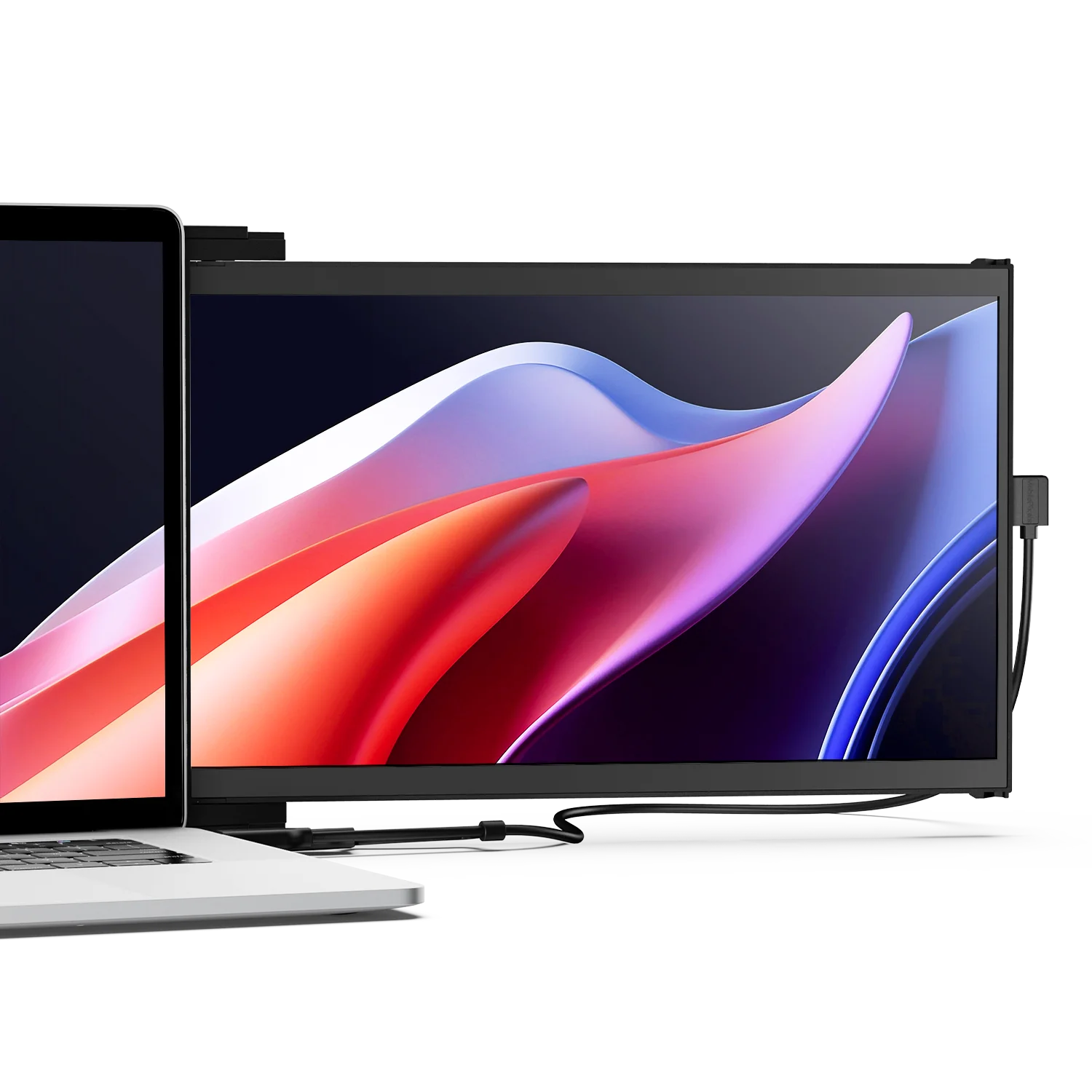
Mounts directly to the back of the laptop lid using a magnetic or clip-based attachment mechanism. The screen slides or folds out to the side of the laptop, creating a second display that requires no additional desk space. Setup time is typically under ten seconds. The monitor moves with the laptop as a single unit.
Best for: Frequent travelers, commuters, remote workers who move between multiple locations in a single day, and anyone working in spaces with no desk space — plane seats, cafes with small tables, conference room corners.
Limitation: Screen size is constrained by laptop size. The magnetic mount adds a small amount of depth to the closed laptop. Check compatibility with your specific laptop model before purchasing.
Stacked dual-screen systems
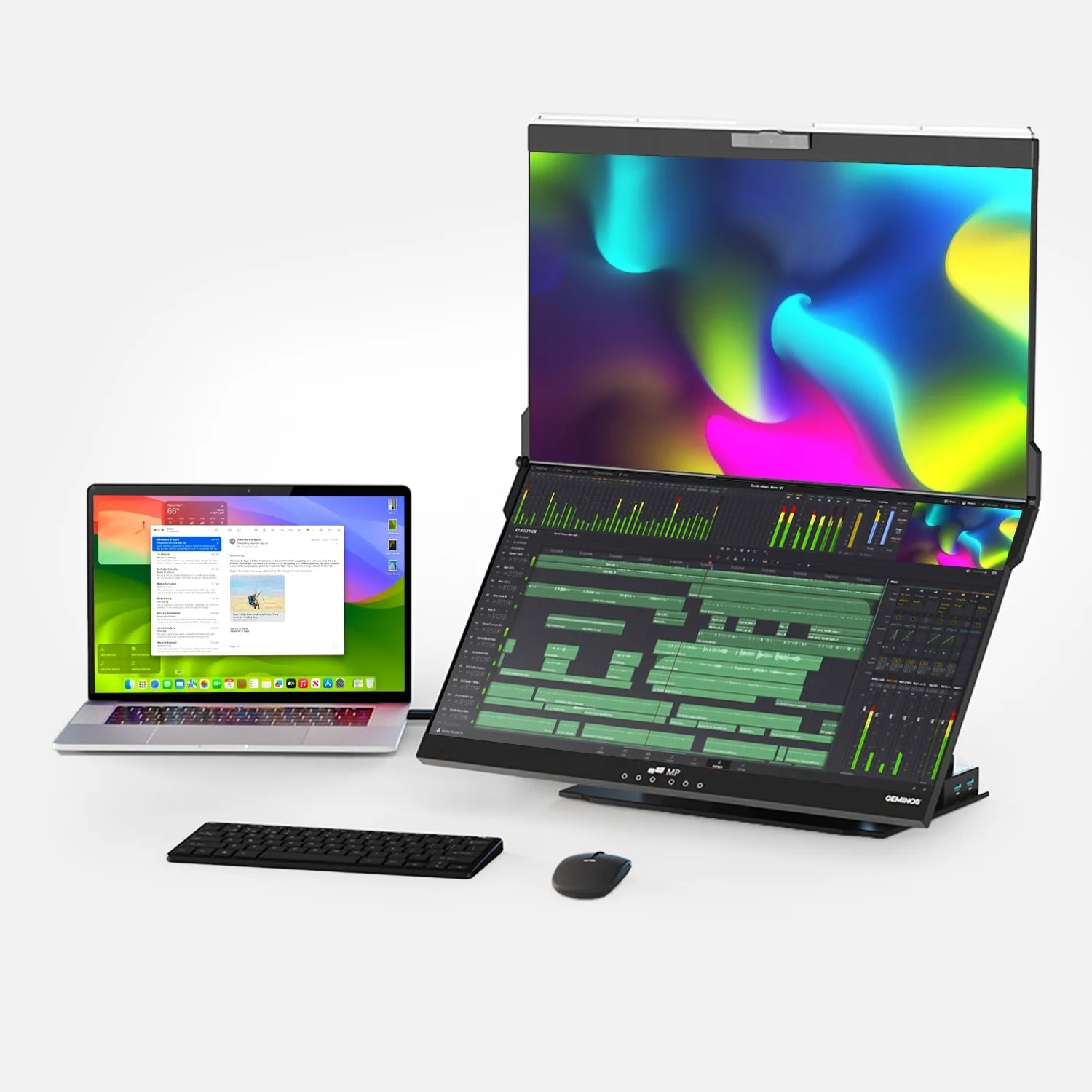
A single unit containing two vertically stacked screens that connect to a laptop with one cable and create a three-screen workspace. Higher total weight than a single portable monitor, but more screen real estate without requiring a desk for both panels.
Best for: Power users, financial analysts, developers, traders who need maximum screen real estate and travel regularly.
Limitation: Higher cost, heavier than single-panel alternatives, and requires a sturdy desk surface for the combined weight.

Practical Note for Travel-First Users
If your working life involves regular relocation to airports, client offices, coworking spaces, and hotel rooms in the same week, a laptop-attached portable monitor removes the desk-space dependency that standalone monitors require. Mobile Pixels specialises in this format: their monitors attach magnetically to the back of the laptop lid, slide out in seconds, and connect via a single USB-C cable with no additional power adapter. For users who find themselves frequently asking, "Is there enough desk space here for a second monitor?" the laptop-attached format answers that question permanently. Explore their range at mobilepixels.us.
Red Flags: What to Avoid When Buying a Portable Monitor
The portable monitor market includes a significant number of low-quality products that look similar on paper to quality alternatives. These are the warning signs to watch for:
- Brightness below 250 nits with no other notable features. A dim panel at a low price is not a budget-friendly option; it is a product that will frustrate you in any real-world travel environment. Minimum 300 nits for travel use.
- No explicit mention of DisplayPort Alt Mode for USB-C. A monitor listing USB-C connectivity without specifically stating "DisplayPort Alt Mode" may only support USB-C for power, not video. This is a common source of buyer confusion and returns. If the listing is not explicit, assume it does not support full USB-C video.
- TN panel with no acknowledgement of the trade-offs. TN panels marketed as "HD IPS" or "crystal clear" without disclosing panel type are a red flag. Verify the panel type in independent reviews before purchasing. A genuine IPS panel listing will always state it clearly.
- No warranty or customer support information visible on the listing. Budget portable monitor brands with no accessible warranty or support channel are a significant risk for a product category with mechanical components (stands, hinges, magnetic mounts). Verify that support exists and is accessible in your country before purchasing.
- Stand that only supports one angle. A kickstand with a single fixed position fails immediately the moment you encounter a surface that is not the right height. Look for adjustable tilt of at least 30 to 45 degrees, or a monitor arm stand, rather than a simple fixed kickstand.
- Spec sheets with no independent reviews available. A product with exclusively manufacturer-provided imagery and no independent review content is difficult to evaluate. Search for video reviews or hands-on testing from credible display review sources before purchasing unfamiliar brands.
What to Expect at Each Budget Level
| Budget | What You Get | What You Sacrifice | Best For |
|---|---|---|---|
| $100 to $150 | 1080p, basic IPS, 250 nits, single USB-C | Low brightness, basic stand, limited warranty support | Students, home-to-desk use, occasional travel |
| $150 to $250 | 1080p quality IPS, 300 nits, dual USB-C, PD passthrough | Higher resolution, premium build | Remote workers, regular travelers, hybrid professionals |
| $250 to $400 | 1440p IPS, 400+ nits, 144Hz option, premium stand | 4K resolution, OLED panel | Power users, developers, frequent travelers who want the best in class for the price |
| $400 to $700 | 4K IPS or OLED, 500+ nits, premium construction | Heavier, highest power draw | Photo editors, video professionals, color-critical creative work |
Frequently Asked Questions
What is the best portable monitor for remote work in 2025?
For most remote workers, the best portable monitor is a 15.6-inch FHD IPS panel with 300 nits or above, dual USB-C ports with Power Delivery passthrough, and a weight under 900g. Specific top-rated models in independent reviews include options from ASUS ZenScreen, ViewSonic, and Lenovo in the $150 to $250 range, and Mobile Pixels in the laptop-attached format. The right choice depends on whether you need a standalone display or a laptop-attached one for use in cramped spaces.
Do I need a special laptop to use a portable monitor?
No — but your laptop's USB-C port must support DisplayPort Alt Mode for a single-cable USB-C connection to work. This is standard on Thunderbolt 3 and 4 ports found on modern MacBooks, Dell XPS, Lenovo ThinkPad, and most ultrabooks from 2019 onward. If your laptop only has a standard USB 3.1 port without video capability, you will need an HDMI connection or a USB-C to HDMI adapter instead. Check your laptop's specification sheet for "DisplayPort Alt Mode" or "Thunderbolt" before purchasing.
Will a portable monitor drain my laptop battery faster?
Yes, if it draws power from your laptop via USB-C. A 15.6-inch FHD IPS monitor typically draws 15 to 20 watts from the laptop's USB-C port. A monitor with Power Delivery passthrough partially offsets this by simultaneously passing power from a wall adapter through to the laptop. For all-day use without a wall outlet, either use a monitor with PD passthrough connected to a travel adapter, or factor in reduced battery runtime as a practical constraint of portable monitor use.
Is FHD (1080p) good enough for a portable monitor, or do I need higher resolution?
For most productivity use cases, yes. FHD at 15.6 inches delivers approximately 141 pixels per inch, sharp and comfortable for documents, spreadsheets, code, email, and video calls at normal viewing distances. Higher resolution (1440p or 4K) is worth considering if your work involves detailed visual content — photo editing, fine-detail design, video review, where the additional pixel density provides a meaningful quality benefit. For knowledge work, the resolution benefit of 4K over FHD is minimal at portable monitor viewing distances, while the cost and battery penalty are significant.
What is the difference between IPS and TN panels on a portable monitor?
IPS panels offer wider viewing angles (typically 178 degrees) and more accurate color reproduction. They perform better when the screen is tilted or viewed from slightly off-axis, common in portable use scenarios. TN panels have faster pixel response times (useful for competitive gaming) but display colors with less accuracy and brightness drops significantly when the screen is not viewed head-on. For productivity and mixed use, IPS is the better choice. For budget-constrained gaming-focused buyers, TN can be acceptable if the viewing angle limitation is understood.
Can a portable monitor work with a MacBook?
Yes. Any MacBook with Thunderbolt 3 or 4 ports (all MacBook Pro and MacBook Air models from 2019 onward) can connect to a portable monitor via USB-C. The M1 and M2 MacBook Air natively support one external display; running two simultaneously requires a DisplayLink adapter. The M3 MacBook Air supports two external displays with the lid closed, and the M4 MacBook Air supports two external displays freely. For most MacBook users with a single portable monitor, connection via the Thunderbolt USB-C port is straightforward and plug-and-play.
What does "Power Delivery passthrough" mean on a portable monitor?
Power Delivery (PD) passthrough means the monitor can accept power from a wall adapter via one USB-C port and pass that power through to your laptop via the same cable that carries the video signal. In practice: you connect one cable from the wall to the monitor, and one cable from the monitor to your laptop — the laptop receives both video and charging through a single connection. This eliminates the need to carry a separate laptop charger and simplifies cable management significantly for travel users. Check the wattage: 65W PD passthrough charges most laptops; lower wattage may only provide partial charging.
What size portable monitor should I buy?
15.6 inches is the most practical size for daily portable use and represents the majority of quality portable monitor options. It provides adequate working space for two-window productivity, fits into most laptop bags alongside a 15-inch laptop, and keeps the weight in the 700 to 900g range. Smaller options (13.3 inches) are available for users who want maximum compactness at the cost of screen real estate. Larger options (17.3 inches) exist for users who prioritize screen space over portability. For the greatest number of remote workers and travelers, 15.6 inches is the right default.
How do I set up a portable monitor with my laptop?
For a USB-C connection: connect one end of the USB-C cable to the monitor's input port and the other to your laptop's USB-C or Thunderbolt port. Both Windows and macOS will detect the monitor automatically and extend the desktop without any software installation. On Windows, press Win + P and select "Extend" to confirm the mode. On Mac, go to System Settings and confirm Mirror Displays is unchecked. For an HDMI connection: connect the cable between the mini-HDMI port on the monitor and an HDMI output on your laptop, then follow the same display settings steps. Most quality portable monitors are plug-and-play with no driver installation required.
Discover Tech Gadgets





Leave a comment
All comments are moderated before being published.
This site is protected by hCaptcha and the hCaptcha Privacy Policy and Terms of Service apply.