





The short answer: No, you do not need a special cable just because you are adding a second monitor. But the cable you use does matter. The wrong type, version, or connector can cap your resolution, limit your refresh rate, force mirror mode, or cause one screen to go completely dark. This guide walks through every cable type used for dual-monitor setups, explains the real differences between them, and helps you pick exactly what your setup requires.
Quick Answer
You need one cable per monitor, each connecting to a separate video output port on your computer. Any standard HDMI, DisplayPort, or USB-C cable will work for most setups. The only time cable type becomes critical is when you need to push high resolutions (4K and above), high refresh rates (144Hz and above), or want to daisy-chain two monitors from a single port. For those cases, the cable version matters — and this guide explains exactly which one to get.
The Basic Rule: One Port Per Monitor
The most important thing to understand is this: a dual-monitor setup requires two separate video output signals — one for each screen. The most straightforward way to achieve this is to connect each monitor to its own port on your computer or GPU. You do not need a special dual-monitor cable; you need two cables, one per display.
Most desktop computers and dedicated graphics cards provide multiple video output ports (typically two or more HDMI or DisplayPort outputs). Most modern laptops have at least one HDMI or USB-C port that carries video. If you have two available ports, you connect two cables, and the job is done. The cable type you use for each connection depends on what ports your computer and monitors share.
The Five Cable Types for Dual Monitor Setups
Here is a clear breakdown of every cable type you are likely to encounter when setting up two monitors.
Cable Type 01
HDMI (High-Definition Multimedia Interface)
HDMI is the most universally recognised display cable in the world — found on monitors, TVs, laptops, desktops, and gaming consoles alike. It carries both video and audio over a single cable, making it a convenient all-in-one connection.
Which version do you need?
- HDMI 2.0: Supports 4K at 60 Hz. This is the most common version on monitors sold between 2016 and 2023 and is sufficient for the vast majority of productivity setups.
- HDMI 2.1: Supports 4K at 120 Hz and 8K at 60 Hz, with a maximum bandwidth of 48 Gbps. Required if you are running a high-refresh gaming monitor at 4K resolution.
Limitation for dual monitors: HDMI does not support Multi-Stream Transport (MST), which means you cannot daisy-chain two monitors from a single HDMI port. Each monitor needs its own dedicated HDMI port. If your computer has two HDMI ports, two HDMI cables work perfectly. If it has only one, you will need a different solution for the second screen.
Cable Type 02
DisplayPort
Developed by VESA (the Video Electronics Standards Association), DisplayPort is the preferred connection standard for PC monitors, professional workstations, and multi-monitor setups. Unlike HDMI, which was designed primarily for consumer electronics, DisplayPort was engineered from the ground up for PC display connectivity.
Which version do you need?
- DisplayPort 1.2: Supports 4K at 60 Hz and introduced Multi-Stream Transport (MST) — the daisy-chaining capability that lets one DP port drive two monitors. This is the minimum version needed for daisy chaining.
- DisplayPort 1.4: Supports 4K at 120 Hz and 8K at 60 Hz (using Display Stream Compression), with a maximum bandwidth of 32.4 Gbps. VESA's DisplayPort 1.4 standard is the workhorse version you will find on most current-generation GPUs and monitors.
- DisplayPort 2.1: The newest standard with up to 80 Gbps bandwidth, capable of running 8K at high refresh rates without compression. Still rolling out across hardware as of 2025.
Key advantage for dual monitors: DisplayPort supports Multi-Stream Transport (MST), allowing you to run two monitors from a single DisplayPort output by daisy-chaining them — connecting the first monitor's DisplayPort Out to the second monitor's DisplayPort In. This requires both monitors to support MST and is not supported on macOS natively.
Cable Type 03
USB-C with DisplayPort Alt Mode
USB-C is a physical connector shape, not a video standard in itself. Only USB-C cables and ports that support DisplayPort Alt Mode can carry a video signal to a monitor. A basic USB-C charging cable will not work for display output.
When a USB-C cable does support DisplayPort Alt Mode, it can deliver full DisplayPort video quality — including 4K resolution, high refresh rates, and audio — over the same compact connector. Many modern laptops (MacBooks, Dell XPS, Lenovo ThinkPad, Surface Pro) output video via USB-C using this method.
What to check: Confirm your USB-C port explicitly supports DisplayPort Alt Mode or Thunderbolt 3/4. A port marked only as USB 3.1 or USB Power Delivery may not carry video at all. Check your laptop's specification sheet or user guide for confirmation.
Cable Type 04
Thunderbolt (3 and 4)
Thunderbolt uses the same USB-C connector shape but operates at significantly higher bandwidth. Thunderbolt 3 and 4 both offer 40 Gbps of total bandwidth — enough to drive two 4K displays simultaneously from a single port when connected to a compatible dock.
Thunderbolt is backwards-compatible with DisplayPort, meaning a standard DisplayPort cable connected to a Thunderbolt source will deliver full DisplayPort quality. Thunderbolt is particularly valuable for MacBook users, since macOS supports Thunderbolt daisy chaining for extended displays (unlike standard USB-C MST).
Thunderbolt 5 (announced in 2023 and beginning to appear on 2025 hardware) offers up to 120 Gbps, enabling dual 4K displays at higher refresh rates or even a single 8K display from one port.
Cable Type 05 — Legacy
DVI and VGA
DVI (Digital Visual Interface) and VGA (Video Graphics Array) are older standards that are largely absent from modern hardware. VGA is analog and cannot reliably support resolutions above 1080p. DVI supports up to 2560 x 1600 at 60 Hz but carries no audio and does not support daisy chaining.
If your second monitor only has DVI or VGA inputs and your computer has a modern DisplayPort or HDMI output, you will need an active adapter (for HDMI to DVI) or an active converter (for DisplayPort to VGA at resolutions above 1080p). Passive adapters exist but may not work reliably at higher resolutions.
"For PC monitors and multi-monitor desks, DisplayPort is usually easier due to MST and monitor features. Confirm the number of outputs and the exact port versions, then match your cables and any dock or KVM to that target."
Exxact Corporation, AV Solutions Blog
Side-by-Side Comparison: Cable Types for Dual Monitors
Maximum Bandwidth by Cable Version
Thunderbolt 5
DisplayPort 2.1
HDMI 2.1
Thunderbolt 3/4
DisplayPort 1.4
HDMI 2.0
Sources: Exxact Corp, VESA DisplayPort.org, Wikipedia / DisplayPort
| Cable | Max Bandwidth | 4K 60Hz | Daisy Chain | Audio |
|---|---|---|---|---|
| HDMI 2.0 | 18 Gbps | Yes | No | Yes |
| HDMI 2.1 | 48 Gbps | Yes | No | Yes |
| DisplayPort 1.2 | 21.6 Gbps | Yes | Yes (MST) | Yes |
| DisplayPort 1.4 | 32.4 Gbps | Yes | Yes (MST) | Yes |
| USB-C (DP Alt Mode) | Varies | Yes | Windows only | Yes |
| Thunderbolt 3/4 | 40 Gbps | Yes | Yes (via dock) | Yes |
| DVI | ~7.9 Gbps | No | No | No |
| VGA | Analog | No | No | No |
Which Cable Do You Actually Need?
Use the scenarios below to find your exact situation and the right cable for it.
Scenario A: Desktop PC or Laptop with Two Separate Output Ports
This is the simplest case. Your computer has (for example) one HDMI port and one DisplayPort output. Connect one monitor to each. The cable type is simply whatever both ends of each connection support.
- For 1080p or 1440p at 60 Hz: any standard HDMI 2.0 or DisplayPort 1.2 cable works.
- For 4K at 60 Hz: HDMI 2.0, DisplayPort 1.2, or newer — all handle this without issue.
- For 4K at 120 Hz or higher, you need DisplayPort 1.4 or HDMI 2.1 on both the cable and the monitor.
Scenario B: Laptop with One Video Port and One USB-C
Connect one monitor to the HDMI or DisplayPort output directly. For the second monitor, use the USB-C port only if your laptop's specification confirms it supports DisplayPort Alt Mode. A USB-C to HDMI or USB-C to DisplayPort cable then connects to the second monitor. If the USB-C port does not support video output, you will need a Thunderbolt dock or a DisplayLink USB adapter.
Scenario C: Daisy Chaining Two Monitors from One DisplayPort
Requirements: your GPU must support DisplayPort 1.2 or higher, both monitors must have DisplayPort In and Out ports and support MST, and you need DisplayPort cables between each device. According to EIZO's engineering documentation, not every DisplayPort cable supports MST — specifically purchase a cable rated for DisplayPort 1.2 or higher with MST support. This method does not work on macOS without Thunderbolt.
Scenario D: MacBook with Thunderbolt Ports Only
Use a Thunderbolt 3 or 4 dock with multiple video outputs. Connect the dock to your MacBook with a Thunderbolt cable, then run individual HDMI or DisplayPort cables from the dock to each monitor. Each monitor gets an independent signal, and both will operate in extended mode. A standard USB-C dock (non-Thunderbolt) will typically result in one mirrored display.
When You Want Two Monitors Without the Cable Complexity
For many users, the cable question leads to a harder realisation: their laptop has only one video output port, their USB-C does not support video, and a Thunderbolt dock costs more than they want to spend. In those cases, a dual-screen monitor designed to handle all the display logic internally becomes a practical alternative.
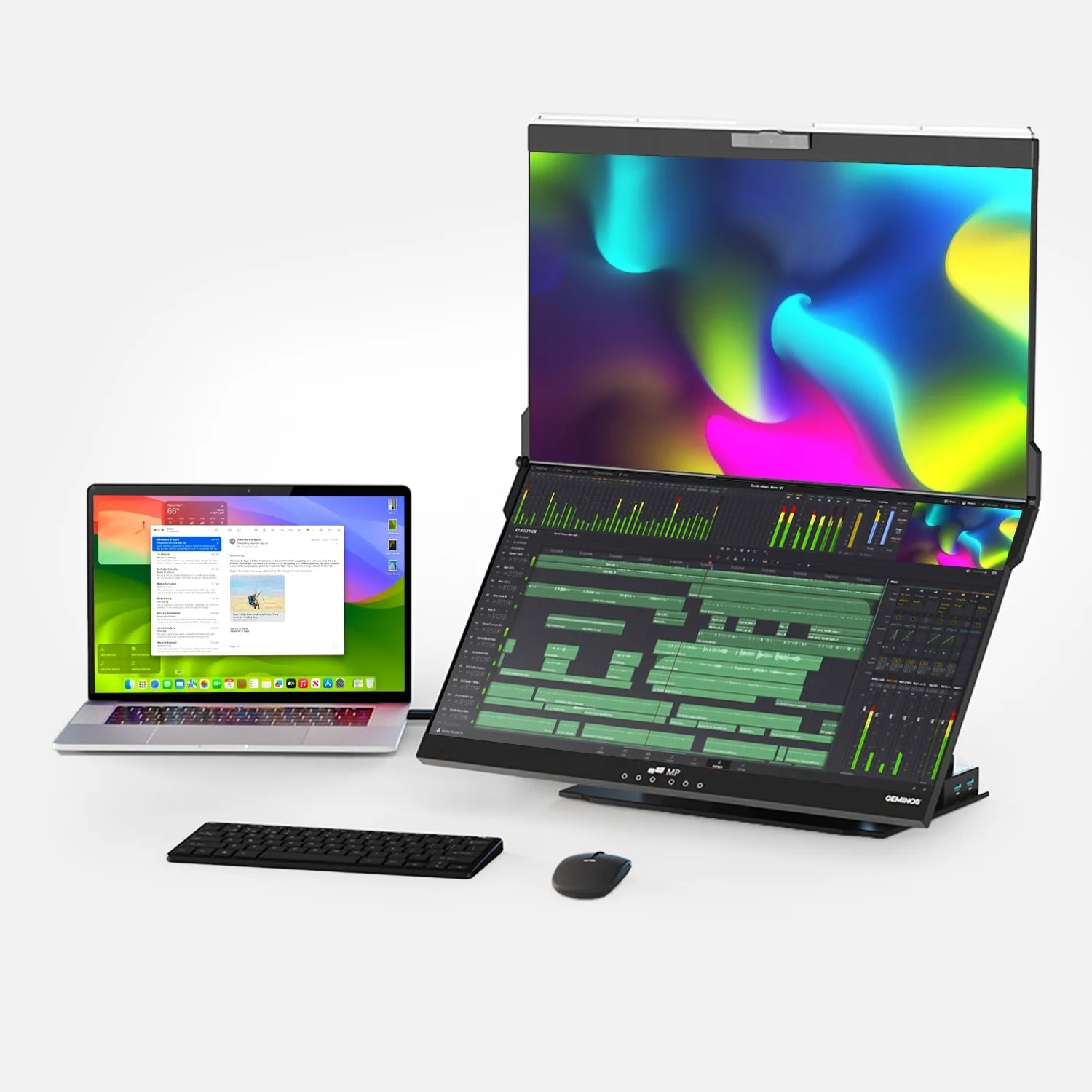
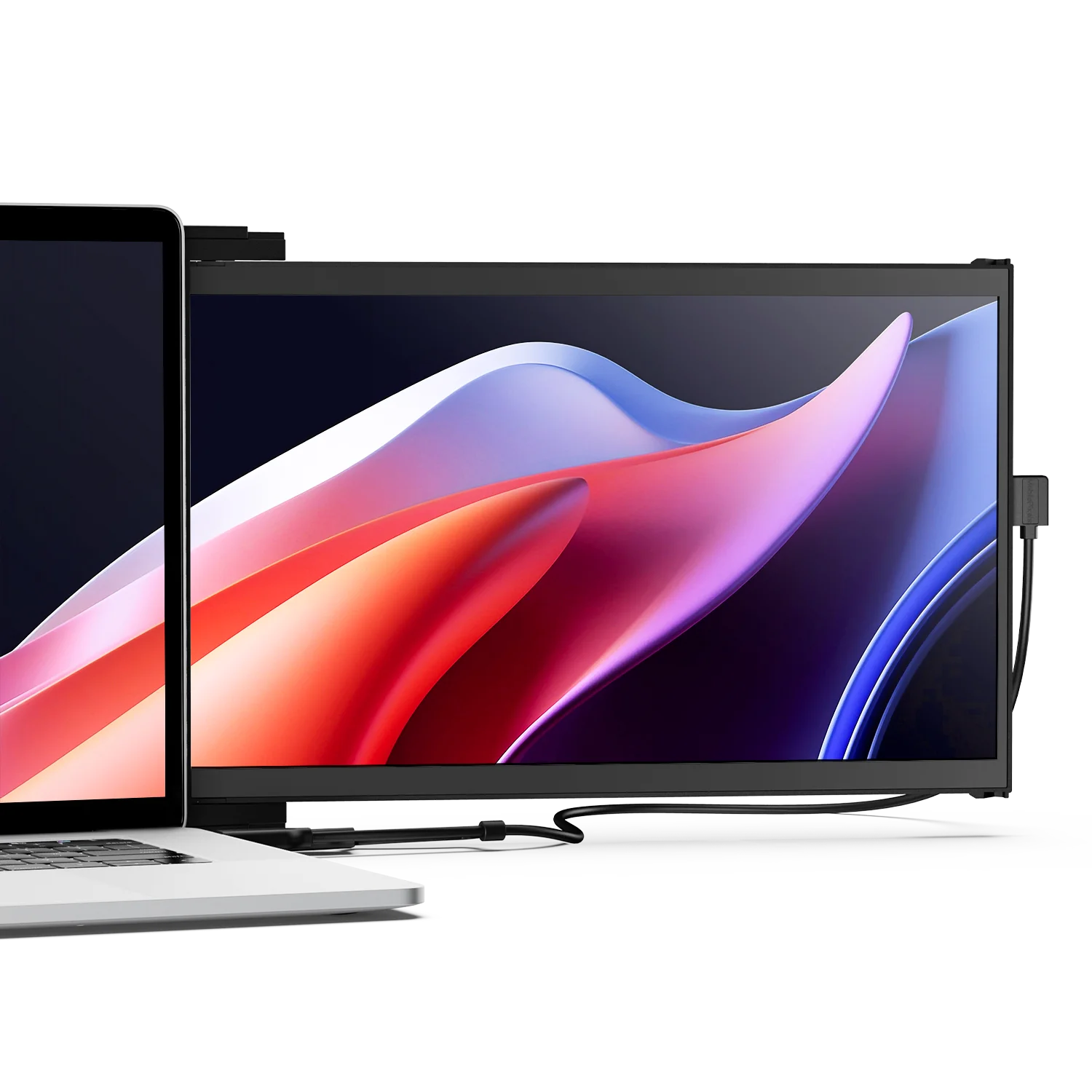
The Mobile Pixels Geminos is a stacked dual-monitor system that connects to your computer via a single USB-C cable. Both screens are built into one unit — no secondary cable, no second port required, and no adapter chain to troubleshoot. It is a practical option for anyone who wants genuine two-screen productivity without needing to audit their laptop's port specifications first.

Worth Considering
Mobile Pixels Geminos
A stacked dual-screen monitor that connects via a single USB-C cable and delivers two independent 1080p displays. Useful for users who want dual-screen productivity on a laptop without needing multiple ports, multiple cables, or a docking station. Both displays are recognised by the OS as separate extended screens.
See the Geminos →What to Check Before Buying a Cable
Cable marketing is often misleading. Here is what actually matters when reading a product listing:
- Confirm the version number. A cable labelled "HDMI" with no version number may be an older HDMI 1.4 cable capped at 10.2 Gbps — insufficient for 4K at 60 Hz. Look for "HDMI 2.0" or "HDMI 2.1" explicitly on the packaging or product listing.
- Check for VESA certification (DisplayPort). VESA certifies DisplayPort cables for specific bandwidth tiers. For standard use, any VESA-certified DisplayPort cable supports HBR2 and handles 4K at 60 Hz. For MST daisy-chaining, confirm that it is rated DisplayPort 1.2 or higher.
- For USB-C cables, check for video capability. Look for "DisplayPort Alt Mode," "Thunderbolt certified," or "USB4" on the listing. A cable described only as USB-C or USB 3.1 may not carry video at all.
- Match cable length to signal type. HDMI degrades over distance more than DisplayPort. For runs longer than 3 metres, prefer DisplayPort or use an active HDMI cable. For runs longer than 10 metres, consider fibre optic HDMI or active cables with signal boosters.
- Do not pay for more than you need. For standard 1080p or 1440p office monitors at 60 Hz, any certified HDMI 2.0 or DisplayPort 1.2 cable is more than sufficient. You do not need HDMI 2.1 or DisplayPort 2.1 cables unless you are running 4K at 120 Hz or above.
Quick Reference: Right Cable for Every Scenario
| Your Goal | Recommended Cable | Notes |
|---|---|---|
| Two 1080p monitors at 60 Hz | HDMI 2.0 or DP 1.2 | One cable per monitor to its own port |
| Two 1440p monitors at 60 Hz | HDMI 2.0 or DP 1.2 | Both handle QHD comfortably |
| Two 4K monitors at 60 Hz | HDMI 2.0 or DP 1.4 | One cable per monitor to its own port |
| 4K gaming at 120 Hz or higher | DisplayPort 1.4 or HDMI 2.1 | GPU and monitor must also support the standard |
| Daisy chaining two monitors | DisplayPort 1.2+ with MST | Both monitors must support MST; not supported on macOS |
| MacBook with one Thunderbolt port | Thunderbolt dock + HDMI/DP cables | Dock must be Thunderbolt 3/4, not basic USB-C |
| Laptop with USB-C only (DP Alt Mode) | USB-C to HDMI or USB-C to DP | Confirm USB-C port supports video output first |
| Mixed port types (e.g. DP out, HDMI monitor) | Active adapter (DP to HDMI) | Check for DP++ on GPU; passive adapters work for DP-to-HDMI only |
Frequently Asked Questions
Do I need a special cable to run two monitors?
No. For most dual-monitor setups, a standard HDMI or DisplayPort cable for each monitor is all you need. The cable version only becomes important when you are targeting high resolutions (4K and above) or high refresh rates (above 60 Hz). For those cases, use HDMI 2.0 or later for 4K at 60 Hz, or DisplayPort 1.4 for 4K at 120 Hz.
Can I use two different cable types for the two monitors?
Yes. It is completely normal and fully supported to connect one monitor via HDMI and the other via DisplayPort, or one via DisplayPort and the other via USB-C. Windows and macOS treat each connection independently. The cable type for each monitor is determined solely by what ports that specific monitor and the corresponding GPU output share.
Can I use an HDMI splitter instead of two cables?
No, if you want two independent screens. An HDMI splitter duplicates one signal to two outputs, meaning both monitors show the same image (mirror mode). HDMI also does not support Multi-Stream Transport, so there is no HDMI-based solution for daisy chaining or splitting one HDMI signal into two independent displays. For independent screens, each monitor needs its own cable connected to its own port.
What is MST and do I need it?
Multi-Stream Transport (MST) is a DisplayPort technology that allows a single DisplayPort output to carry multiple independent video signals. It enables daisy chaining — connecting a second monitor to the first monitor's DisplayPort Out port, rather than running a cable all the way back to your computer. You only need MST if you have a single DisplayPort output and want to drive two monitors from it. If your computer has two separate ports available, you do not need MST at all.
Does DisplayPort daisy chaining work on Mac?
Standard DisplayPort MST daisy chaining is not supported on macOS. Apple's operating system does not implement MST over standard DisplayPort or USB-C connections. On a Mac, you can achieve two independent external displays using a Thunderbolt 3 or 4 dock (not a basic USB-C dock), or a DisplayLink USB adapter with the DisplayLink Manager driver installed. MacBook Air M1 and M2 models are limited to one external display natively and require DisplayLink for a second.
My USB-C cable does not send a signal to my monitor. What is wrong?
Most likely, either the USB-C cable does not support DisplayPort Alt Mode, or the USB-C port on your laptop is not video-capable. A USB-C charging or data cable will not carry a display signal. Check your laptop's specification sheet for the words "DisplayPort Alt Mode," "Thunderbolt 3," or "Thunderbolt 4" next to the USB-C port description. If none of these apply, you will need a DisplayLink adapter or a Thunderbolt dock to add a second display output.
Is DisplayPort better than HDMI for dual monitors?
For PC-based dual-monitor setups, DisplayPort has meaningful advantages: it supports MST daisy chaining, is more common on desktop GPUs in multi-port configurations, and natively supports FreeSync and G-Sync. For home entertainment or console setups, HDMI 2.1 offers broader device compatibility and superior audio features including eARC and Dolby Atmos pass-through. For a typical productivity workstation, both standards are equally capable at 1080p and 1440p at 60 Hz.
Do longer cables affect image quality?
Yes, over certain distances. HDMI copper cables reliably transmit up to about 7.5 metres (25 feet) before signal degradation can occur, though this varies by cable quality and resolution. DisplayPort maintains signal integrity up to about 3 metres at HBR3 speeds. For longer runs, use active (powered) cables, which include signal boosting electronics, or fibre optic HDMI cables that can maintain 4K quality at 30 metres or more without amplification.
What if my monitors have different ports from my computer?
Use the correct adapter or combination cable. DisplayPort to HDMI works with a passive adapter if your GPU supports DP++ (dual-mode DisplayPort). HDMI to DisplayPort always requires an active adapter because the signal direction is not reversible with passive hardware. USB-C to HDMI works with any cable or adapter rated for DisplayPort Alt Mode. If in doubt, purchase a bi-directional adapter rated for your target resolution and verify that your GPU port explicitly supports the source standard.
Discover Tech Gadgets





Leave a comment
All comments are moderated before being published.
This site is protected by hCaptcha and the hCaptcha Privacy Policy and Terms of Service apply.