





You have connected a second monitor, but instead of getting extra screen space, both displays are showing an identical image. This is one of the most common issues people encounter when setting up a dual-monitor workspace, and the good news is that it is almost always fixable within minutes. This guide explains every reason it can happen and gives you precise, step-by-step instructions to resolve it on both Windows and Mac.
Quick Answer
When both monitors show the same thing, they are almost certainly running in Duplicate (Mirror) mode instead of Extend mode. On Windows, press Win + P and select "Extend." On Mac, go to System Settings > Displays > Arrangement and uncheck "Mirror Displays." If the problem persists, the cause is likely a hardware issue, an outdated graphics driver, or an HDMI splitter — all covered in detail below.
Mirror Mode vs. Extended Mode: Understanding the Difference
Modern operating systems support several ways to use multiple displays. The two most relevant here are:
| Mode | What It Does | Best For |
|---|---|---|
| Duplicate / Mirror | Both screens show identical content at all times | Presentations, demos, sharing a screen with an audience |
| Extend | Each screen is an independent part of one large desktop | Productivity, multitasking, running multiple applications |
| Second Screen Only | Only the external monitor is active; laptop/primary screen is off | Clamshell (closed-lid) laptop use |
If you are seeing the same image on both screens, your system is in Duplicate or Mirror mode. This may have been set intentionally, set automatically by the OS when the second display was first connected, or triggered by a driver update or hardware change.
The Six Most Common Causes
Knowing the exact cause saves time. Here are the six reasons your monitors are mirroring each other, in order of how frequently they occur.
Cause 01
Display Mode Set to Duplicate
The most frequent cause. Windows and macOS sometimes default to mirroring when a new display is first connected, particularly after a driver update or a fresh hardware installation. The user simply has not changed the setting from Duplicate to Extend yet.
Cause 02
Using an HDMI Splitter Instead of Dual Outputs
This is the most misunderstood hardware mistake in multi-monitor setups. An HDMI splitter duplicates the video signal by design — it physically cannot produce two independent signals from one source. It is the right tool for showing the same content on multiple screens (classrooms, waiting rooms, signage), but it will always mirror when used for a dual-monitor productivity setup. The fix requires switching to a dual-output solution, not a settings change.
Cause 03
Outdated or Corrupted Graphics Drivers
Graphics drivers act as the communication layer between your operating system and your GPU. Outdated or incompatible drivers can cause the OS to fail to correctly identify two independent displays, falling back to mirror mode as a safe default. This often occurs after a Windows or macOS update that leaves the GPU driver out of sync.
Cause 04
GPU or Laptop Hardware Limitations
Some older or lower-end GPUs and certain laptop chipsets do not support true extended desktop mode. Apple's M1 and M2 MacBook Air models, for example, only support one external display natively — connecting two will result in mirroring unless a DisplayLink adapter with its associated driver is used. Similarly, a USB-C dock that lacks Thunderbolt 3 or DisplayPort MST support will mirror rather than extend.
Cause 05
Loose, Faulty, or Wrong-Type Cable
A damaged or loose cable can cause the system to interpret two monitors as a single device, defaulting to mirror output. A passive adapter (for example, a passive DisplayPort-to-HDMI cable on a setup requiring an active adapter) can also force mirror mode by delivering an inconsistent signal.
Cause 06
Graphics Card Control Panel Override
NVIDIA Control Panel and AMD Software can override operating system display settings. If the GPU software has been configured to clone or mirror outputs — either manually or automatically during a driver installation — it can force mirror mode regardless of what is set in Windows Display Settings.
"Most consumer HDMI splitters are simple duplicators that mirror one HDMI source to multiple displays. They intentionally present identical EDID and timing so the source treats all outputs as a single monitor."
Quora Technical Contributor, Display Engineering
How to Fix It: Windows 10 and Windows 11
Fix 1 — Change Display Mode (30 seconds)

This resolves the problem in the majority of cases.
- Press Windows + P on your keyboard. A panel will appear on the right side of your screen.
- Select Extend. Your second monitor should immediately show a different portion of your desktop.
- Alternatively, right-click an empty area of your desktop, choose Display Settings, scroll to "Multiple Displays," and select Extend these displays from the dropdown menu.
- Click Keep Changes when prompted.
Fix 2 — Update or Reinstall Graphics Drivers
If Fix 1 does not work or the problem returns after restarting, outdated or corrupted drivers are likely the cause.
- Right-click the Start button and select Device Manager.
- Expand Display Adapters. Right-click your graphics card and select Update Driver.
- Choose Search Automatically for Updated Driver Software and follow the prompts.
- For more reliable results, visit the manufacturer's website directly: NVIDIA Drivers, AMD Support, or Intel Graphics Drivers.
- Restart your computer after the driver installs and confirm the display mode is still set to Extend.
Fix 3 — Check the GPU Control Panel
- NVIDIA: Right-click the desktop, open NVIDIA Control Panel, navigate to Set Up Multiple Displays, and confirm that both monitors are selected and set to extend, not clone.
- AMD: Open AMD Software: Adrenalin Edition, go to Display, and verify that Eyefinity or Clone mode is not enabled. Select Extend from the display configuration options.
Fix 4 — Inspect Cables and Connections
- Unplug and firmly reseat both monitor cables at the computer and at the monitor end.
- Test with a different cable if available. A cable that appears functional can still carry an inconsistent signal that confuses the GPU.
- If you are using a passive adapter (for example, HDMI-to-DisplayPort), replace it with an active adapter or a direct cable if possible.
How to Fix It: macOS
Fix 1 — Turn Off Mirror Displays

- Go to Apple Menu > System Settings > Displays (macOS Ventura or later). On older versions, go to System Preferences > Displays.
- Click the Arrangement tab (or the "Arrangement" button if it is visible).
- Uncheck "Mirror Displays." Your second screen should immediately extend your desktop.
- If the Arrangement option is not visible, hold the Option key and click "Detect Displays" to force macOS to re-evaluate connected monitors.
Fix 2 — Address MacBook Air M1 / M2 Limitations
If you own a MacBook Air with an M1 or M2 chip and the "Mirror Displays" checkbox cannot be unchecked, the issue is hardware-level. Apple's M1 and M2 MacBook Air chips only support one external display natively. To run two independent external displays, you need one of the following:
- A DisplayLink adapter connected via USB, with the free DisplayLink Manager driver installed from Synaptics/DisplayLink's official site
- A Thunderbolt 3 or 4 dock (not a basic USB-C dock) that carries independent video streams per port
- Upgrading to a MacBook Air M3 or M4, which support two external displays natively (M4 with lid open; M3 with lid closed)
Fix 3 — Force macOS to Re-detect Displays
- Disconnect the second monitor's cable entirely.
- Wait 10 seconds, then reconnect it.
- Immediately go to System Settings > Displays and verify Mirror Displays is unchecked. Some users on Apple Community forums report that reconnecting the monitor after startup resolves a persistent mirror state that cannot be changed when the monitor was already connected at boot.
If You Are Using an HDMI Splitter: Why It Always Mirrors
This deserves its own section because it is the cause of a great deal of confusion. An HDMI splitter is a device that takes one HDMI signal and copies it to two or more outputs. It is a deliberate duplication tool, not a multi-display extender.
HDMI does not support Multi-Stream Transport (MST), which is the protocol needed to carry independent video streams over a single cable. DisplayPort does support MST, which is why DisplayPort hubs can extend rather than mirror. An HDMI splitter will always show the same image on both connected displays, no matter how it is configured.
| Hardware | Can Extend? | Can Mirror? | Notes |
|---|---|---|---|
| HDMI Splitter | No | Yes | Designed only for signal duplication |
| Dual GPU Outputs | Yes | Yes | Most reliable method; each monitor gets its own port |
| Thunderbolt 3/4 Dock | Yes | Yes | Works on Windows and most Macs |
| DisplayPort MST Hub | Yes | Yes | Windows only; does not work on macOS natively |
| DisplayLink USB Adapter | Yes | Yes | Works on Windows and macOS; driver required |
When the Real Problem Is a Single-Port Laptop
A common situation: you fix the display mode, and the screens extend correctly — but the next time you open your laptop at a coffee shop, a hotel desk, or a coworking space, you are back to one screen. Traditional external monitors require a power outlet, a stand, a cable, and desk space that simply is not always available.
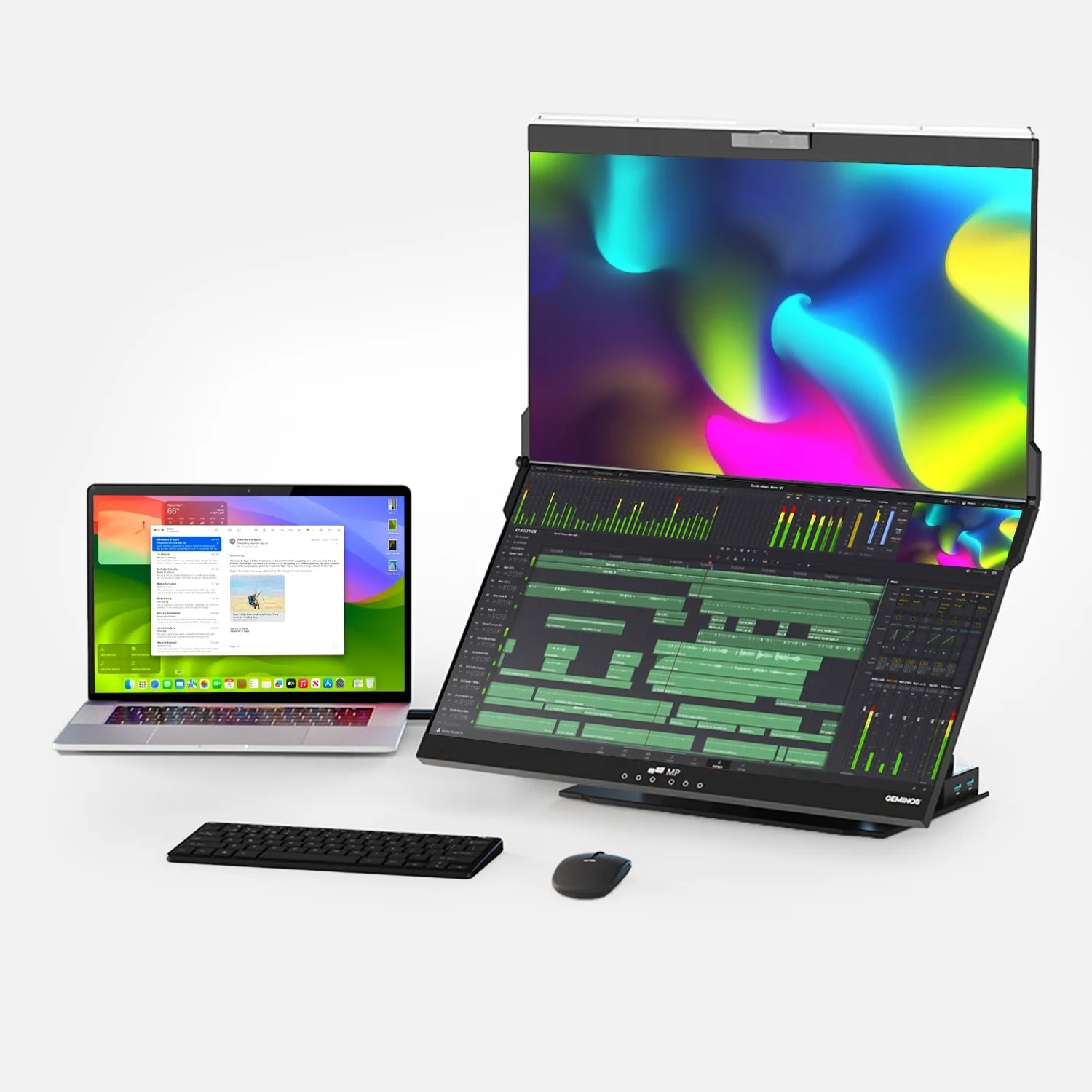
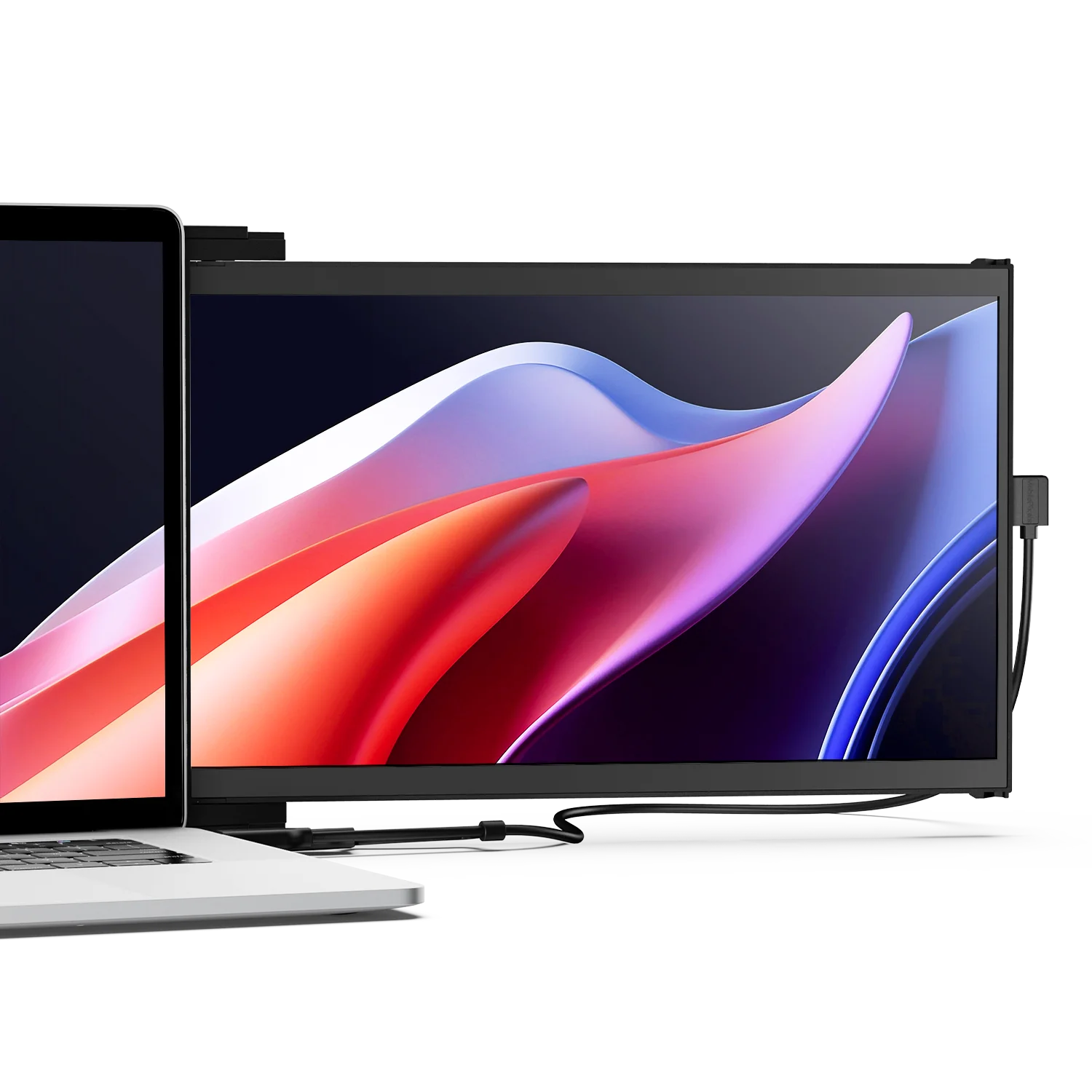
If your goal is a portable dual-screen setup that travels with you and connects without hunting for ports or splitters, a slide-on portable monitor is worth considering. The Mobile Pixels Duex DS attaches directly to the back of your laptop lid and extends your desktop via a single USB-C or USB-A cable. Because it draws power from the same connection, there is no separate adapter, no splitter, and no mirroring by default — it is recognized by the OS as a fully independent display the moment it is connected.

Worth Considering
Mobile Pixels Duex DS
Designed for professionals who need a reliable extended display wherever they work, the Duex DS slides out from behind the laptop and immediately appears as a distinct second monitor in Display Settings. No splitter, no mirroring issues, no extra power cable. It is a practical option for anyone who has repeatedly dealt with the extend-vs-mirror problem across different locations and devices.
See the Duex DS →Quick Diagnostic: Which Fix Do You Need?
Use this chart to find the right fix for your specific situation without working through every step.
| Your Situation | Most Likely Fix |
|---|---|
| First time connecting a second monitor | Change display mode to Extend (Win + P or Display Settings) |
| Worked before, now mirroring after an OS or driver update | Re-select Extend in Display Settings; update GPU drivers |
| Using an HDMI splitter to connect two monitors | Replace splitter with dual-output dock, MST hub, or DisplayLink adapter |
| MacBook Air M1 or M2 with two external monitors | Install DisplayLink driver and use a compatible USB adapter |
| Extend mode reverts to Duplicate every restart | Update GPU drivers; check GPU control panel for clone/mirror setting |
| One screen intermittently shows black or mirrors unexpectedly | Reseat cables; replace cable; check for loose connection at GPU port |
| Mac: Mirror Displays checkbox is greyed out or unavailable | Hold Option key and click Detect Displays; or reconnect monitor after booting |
Frequently Asked Questions
Why do my monitors keep reverting to Duplicate mode after I restart?
This is almost always a driver issue. After a GPU driver update or a Windows / macOS update, the display mode can reset to the system default, which is often Duplicate. Update your GPU drivers from the manufacturer's website, confirm Extend is selected, and check whether your GPU control panel (NVIDIA Control Panel or AMD Software) has a clone setting that overrides the OS preference.
Can I fix mirror mode without using the keyboard or mouse on the affected display?
Yes. Press Win + P and select Extend from the keyboard alone — no mouse needed. On Mac, you can navigate to System Settings entirely with keyboard shortcuts. If neither screen is usable, plug in only one monitor, boot up, change the display mode to Extend, then plug in the second monitor.
Is there a way to make an HDMI splitter extend instead of mirror?
No. A standard HDMI splitter is physically incapable of producing two independent video signals. HDMI as a protocol does not support MST (Multi-Stream Transport). If you need extended desktop from a single port, you need a DisplayPort MST hub (on Windows), a Thunderbolt dock, or a DisplayLink USB video adapter. There is no splitter firmware update or settings change that can give an HDMI splitter this capability.
My MacBook Air M2 only shows Mirror Displays — can I fix this without buying new hardware?
Yes. Install the free DisplayLink Manager application from Synaptics and connect your second monitor through a USB-A or USB-C DisplayLink adapter rather than through your Thunderbolt port. DisplayLink routes the video signal through the USB connection and software driver, bypassing the M2 chip's one-external-display hardware limit. Both monitors will then operate independently.
Why does my laptop mirror to the second screen instead of extending when I connect it for the first time?
Both Windows and macOS default to Duplicate mode when a new external display is detected for the first time. This is intentional — the OS cannot know in advance whether the user wants to extend their desktop or project a presentation. The first-time default is mirroring because it is the safer choice for presentation scenarios. You only need to change it once; the OS will remember your preference for that monitor in future sessions.
Both monitors are set to Extend, but one is still blank or black. What is happening?
A blank screen in Extend mode is a different issue from mirroring. It usually means the second monitor is detected but not receiving a valid signal. Try: (1) reseating the cable at both ends, (2) using a different cable, (3) pressing Detect in Display Settings to force re-detection, (4) setting the monitor to the correct input source using its on-screen menu buttons, and (5) checking whether the monitor's power light indicates it is receiving a signal at all.
Does extending displays affect performance compared to mirroring?
Slightly. In extended mode, your GPU renders content for two independent display outputs, which requires marginally more processing than simply duplicating one signal. For standard productivity work, the difference is imperceptible on any modern machine. For GPU-intensive tasks like gaming or video rendering, you may notice a small performance reduction when a second application is running on the extended display. Closing unnecessary windows on the second screen resolves this.
Can I mirror displays intentionally for a presentation and then switch back to extend mode?
Yes, and this is one of the most useful things to know. Press Win + P (Windows) to instantly switch between modes during a presentation. On Mac, check "Mirror Displays" in System Settings before your presentation and uncheck it afterwards. Neither action requires a restart, and both take effect within a few seconds.
I fixed the mirror issue, but I only have one physical video port. How do I run two independent displays long-term?
Your best options depend on your hardware. On Windows: a USB-C DisplayPort MST hub adds two independent DisplayPort outputs from one USB-C port (provided the port supports DisplayPort Alt Mode). A Thunderbolt dock works on both Windows and Mac. A DisplayLink USB adapter works universally and does not require a video-capable USB-C port. For a portable, cable-simple alternative, an external display that attaches directly to your laptop — like the Mobile Pixels Duex DS — connects via a single USB cable and is treated as an independent extended display without any additional hardware.
Discover Tech Gadgets





Leave a comment
All comments are moderated before being published.
This site is protected by hCaptcha and the hCaptcha Privacy Policy and Terms of Service apply.