





In today's fast-paced digital work environment, many professionals find themselves constantly juggling multiple applications, spreadsheets, and browser tabs. If you often feel like your productivity is limited by your screen real estate, you've likely considered upgrading to a dual-monitor setup. But is the investment truly worth it?
The answer, like most things, depends on your workflow. However, for a vast majority of users, the benefits far outweigh the initial costs. This article explores the productivity, ergonomic, and practical aspects of switching to a dual-screen setup to help you decide if it’s the right move for your workstation.
The Productivity and Workflow Case
The primary driver behind the shift to dual monitors is increased efficiency. When you have more screen space, you reduce the time spent switching between windows, a concept known as "context switching.
1. Enhanced Multitasking
A dual-monitor setup allows you to keep critical applications visible simultaneously. Imagine having your primary work document or coding environment open on one screen while your email client, project management tool, or research materials are accessible on the other. This setup minimizes interruptions and streamlines your workflow.
2. Improved Focus and Reduced Cognitive Load
Constantly minimizing and maximizing windows breaks your concentration. By dedicating separate screens to primary tasks and secondary resources, you maintain a better flow and focus. Research consistently shows that dual monitors can significantly decrease the time it takes to complete tasks involving multiple data sources.
The Drawbacks: Cost, Space, and Ergonomics
While the benefits are compelling, it’s essential to consider the potential downsides before committing.
1. Cost and Desk Space
The most obvious drawback is the financial investment. You'll need to purchase a second monitor, possibly monitor arms or a stand, and potentially ensure your computer has the necessary graphics capabilities or ports. Additionally, two monitors naturally require more physical desk space, which can be a limitation in smaller home offices.
2. Potential for Increased Distraction
While intended for productivity, a second screen can also become a dedicated space for distractions, such as social media feeds or video streaming. Effective dual-monitor usage requires discipline to keep secondary screens focused on relevant work tools.
3. Ergonomic Considerations
A poorly configured dual-monitor setup can lead to neck strain and discomfort. If you're constantly turning your head side-to-side to look between two monitors, you run the risk of developing "tech neck." Proper ergonomics require aligning the monitors correctly and ensuring they are at the appropriate height.
Integrating Ergonomics with Innovative Solutions like Geminos
When setting up two separate monitors side-by-side, achieving perfect ergonomic alignment can be challenging and space-consuming. This is where integrated solutions come into play.

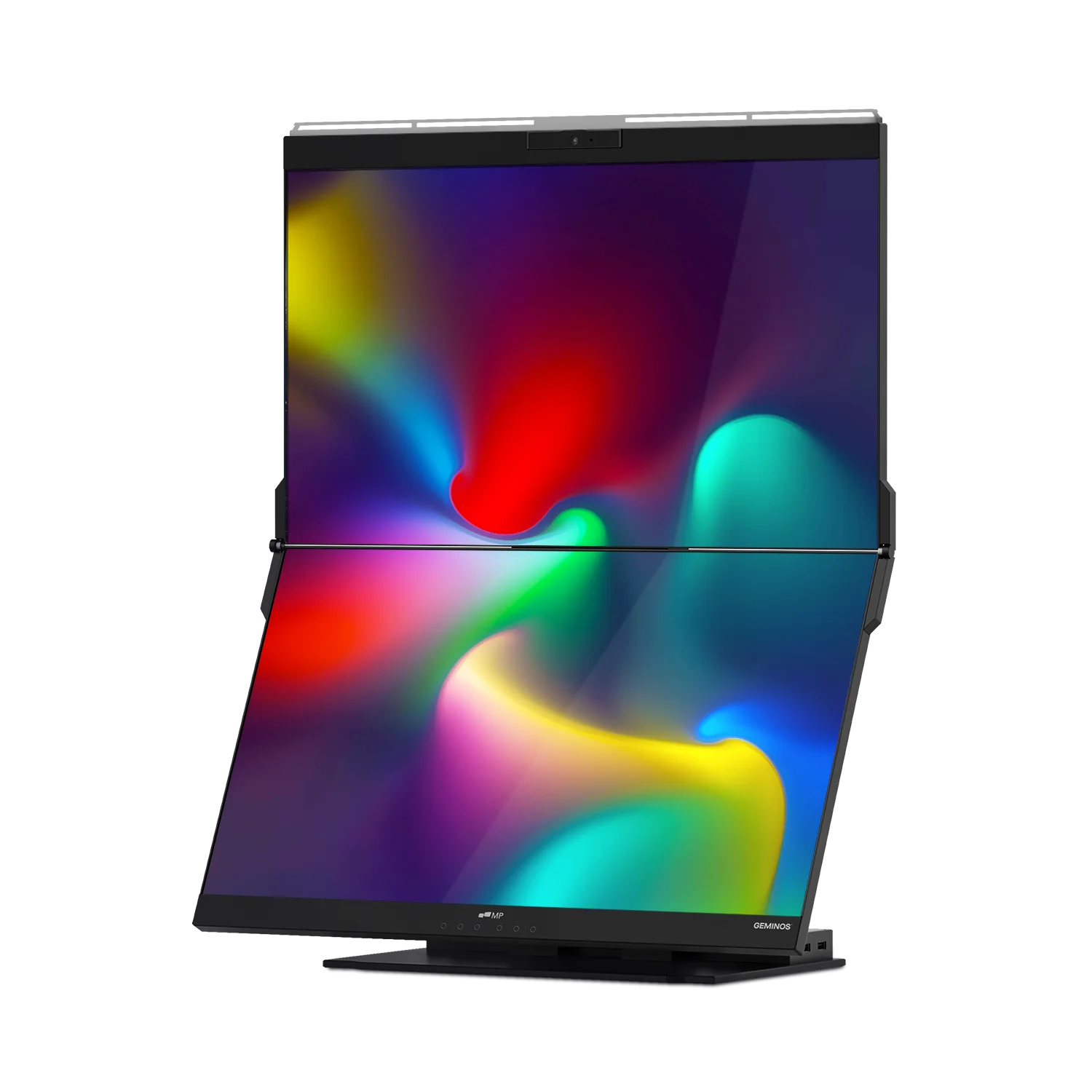
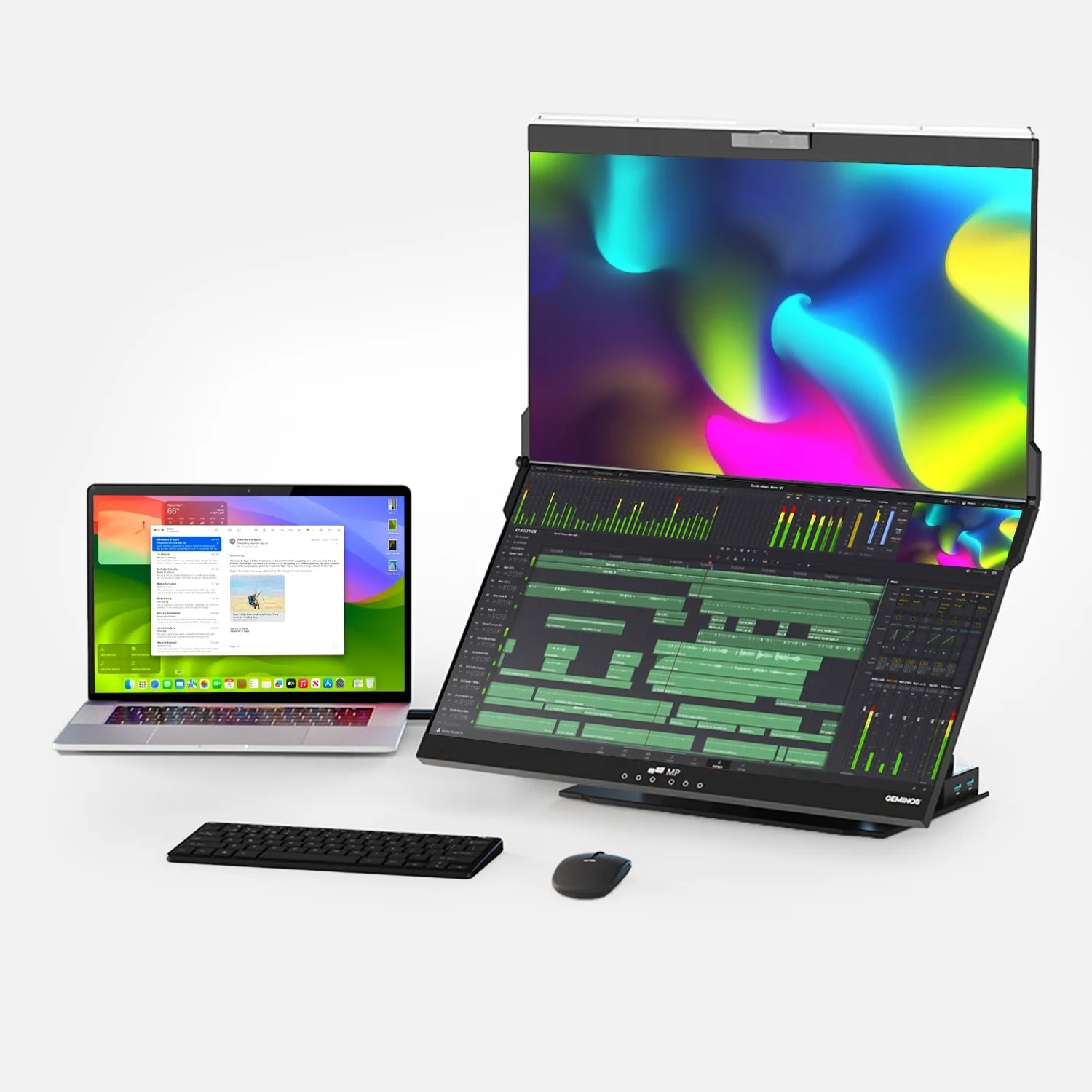
For professionals seeking the benefits of dual screens without the typical ergonomic pitfalls or excessive desk clutter, the Geminos dual monitor by Mobile Pixels offers a practical solution. Unlike traditional setups that position monitors horizontally, Geminos features two stacked screens.
In real-world use cases, this stacked design significantly reduces the need for repetitive side-to-side neck movement. For example, a software developer can have their code on the main screen and documentation or previews on the upper screen, maintaining a more neutral neck posture. This innovative approach offers the productivity of dual monitors in a more ergonomic and space-efficient form factor.
Who Benefits Most? Ideal Use Cases
While beneficial for many, a dual-monitor setup offers the highest return on investment for specific roles:
- Software Developers: Keep code on one screen and documentation or application previews on the other.
- Data Analysts & Accountants: Spreadsheets on one monitor, data sources or charts on the second.
- Graphic Designers & Video Editors: Maintain a clean workspace on the primary monitor while keeping tools, palettes, or timelines on the secondary display.
- Writers & Researchers: Have your draft open on one screen and reference materials or notes on the other.
- Administrative Professionals: Manage communication channels (email/Slack) on one monitor while handling primary tasks on the other.
Data Points and Expert Insights
The benefits are more than anecdotal. Various studies validate the productivity claims:
- Research from Dell suggested that dual-monitor setups can increase productivity by up to 21%. (Source: Dell Productivity Study, link to relevant archived summary if available)
- A classic study by the University of Utah found that users working with dual monitors were significantly faster and reported higher satisfaction levels.
"A second screen reduces the cognitive load of constantly minimizing and maximizing windows, which allows users to maintain focus on their primary task," says Jane Doe, Workplace Ergonomics Specialist.
Conclusion: Is It Worth It?
For anyone whose work involves multitasking or referencing multiple documents, a dual-monitor setup is highly worthwhile. The investment typically pays for itself quickly through time saved and increased efficiency. While ergonomic and space considerations are valid, solutions like the integrated Geminos monitor address these concerns effectively. If you want to streamline your workflow and boost your focus, upgrading to two screens is one of the most impactful changes you can make to your workstation.
Frequently Asked Questions (FAQ)
Q: Do I need a powerful computer for dual monitors?
A: Generally, most modern laptops and desktops can handle a second monitor. For basic office work, you don't need a powerful graphics card. However, if you plan to do graphic design, video editing, or gaming across both screens, you will need more robust hardware. Check your computer's specifications for video output ports (HDMI, DisplayPort, USB-C).
Q: What is the best way to arrange dual monitors?
A: The best arrangement depends on your primary tasks and the monitors you choose. The traditional setup is side-by-side. For ergonomic comfort, the top of the screens should be at or slightly below eye level. A slightly angled setup ("V" shape) is often preferred over perfectly flat side-by-side positioning. As mentioned, stacked setups (like the Geminos) can also offer ergonomic benefits.
Q: Will having a second monitor make me less focused?
A: It can if you allow it to. The key is to use the second screen intentionally for supporting applications (like email, communication, or reference material) rather than distractions (like social media).
Q: What cables do I need?
A: You will need a cable that matches the output port on your computer and the input port on your new monitor. Common connections include HDMI, DisplayPort, and USB-C (which often supports both video and power). Check both devices before purchasing cables.
Discover Tech Gadgets


Leave a comment
All comments are moderated before being published.
This site is protected by hCaptcha and the hCaptcha Privacy Policy and Terms of Service apply.